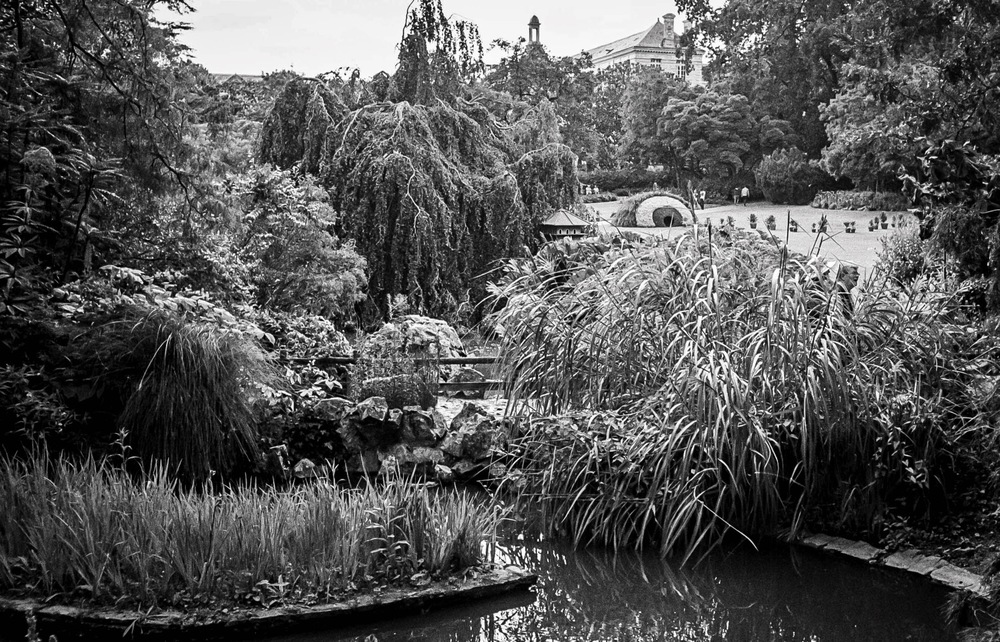
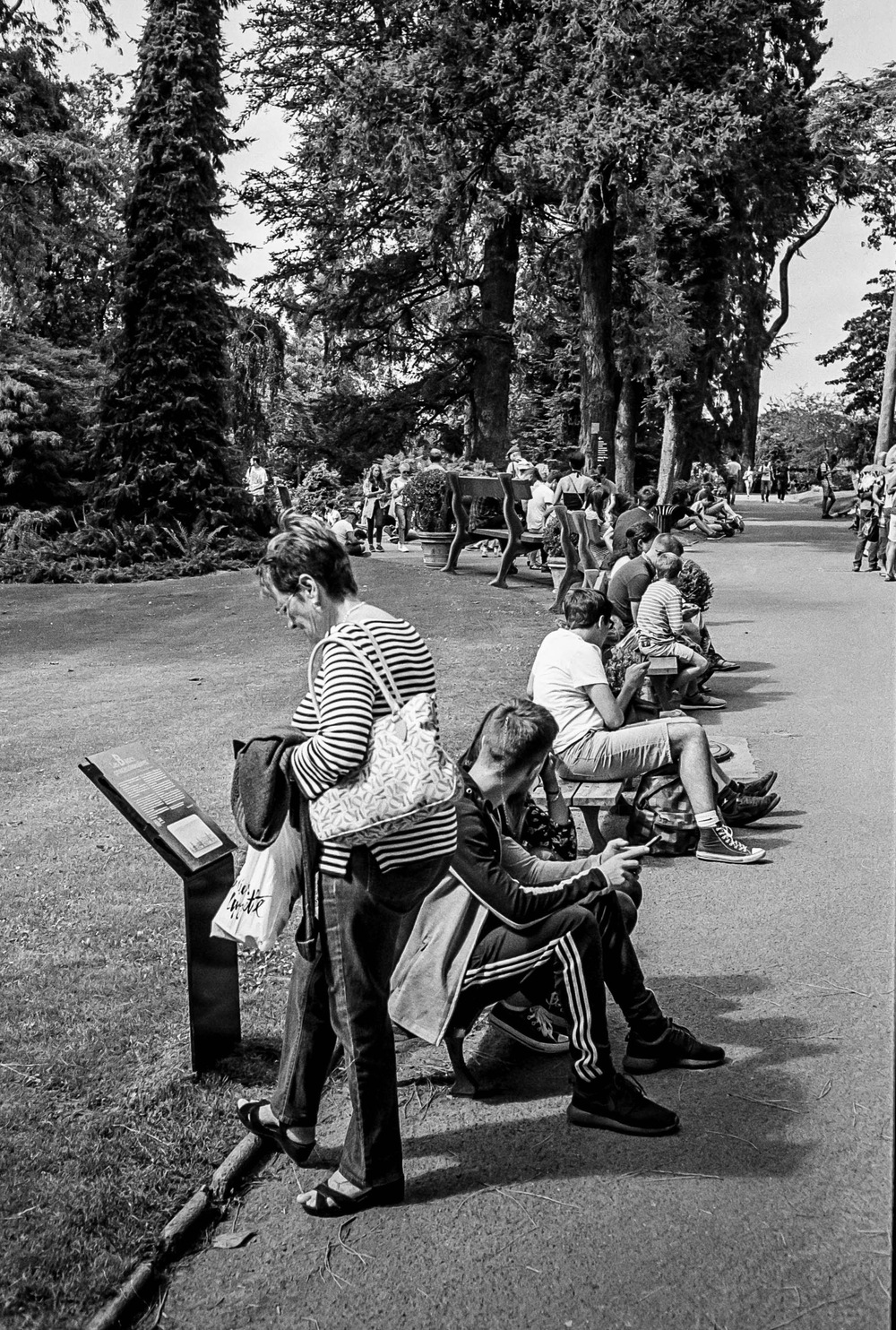
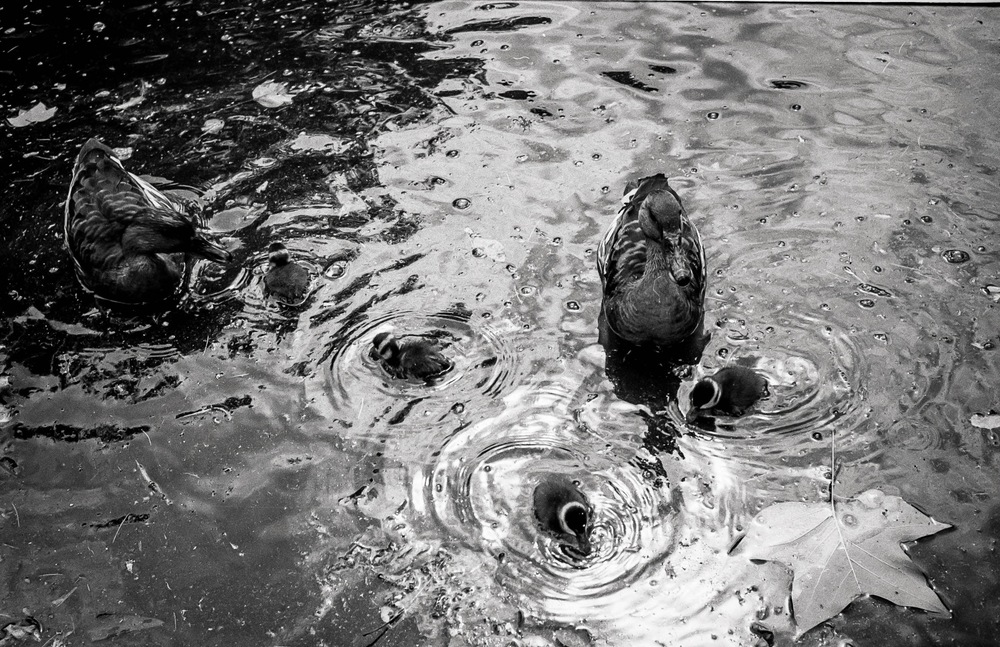
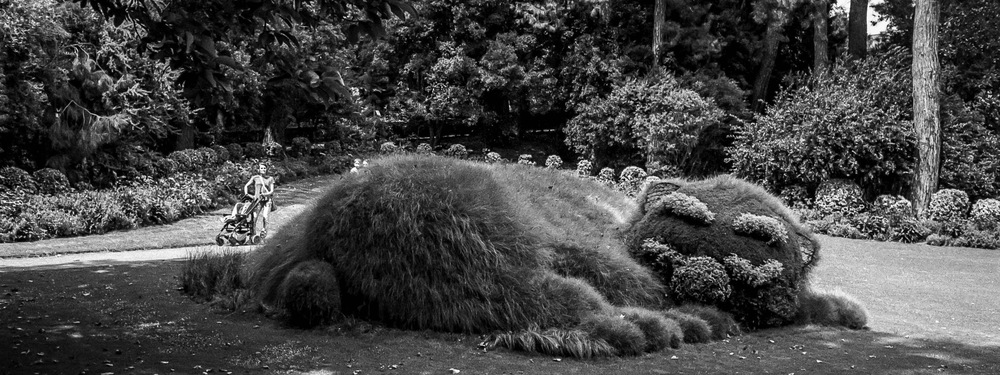
The Opening of the Film Archives—Jardin des Plantes August 2016


There was a time when my daughter wasn’t a teenager.  There was a time when she quite liked her Dad, and she would accompany me everywhere.  It was good being that child’s hero.  It was a more innocent time.  It was a time when she actively tried to spend time with me.  It was a time when she didn’t see me the way I see myself…

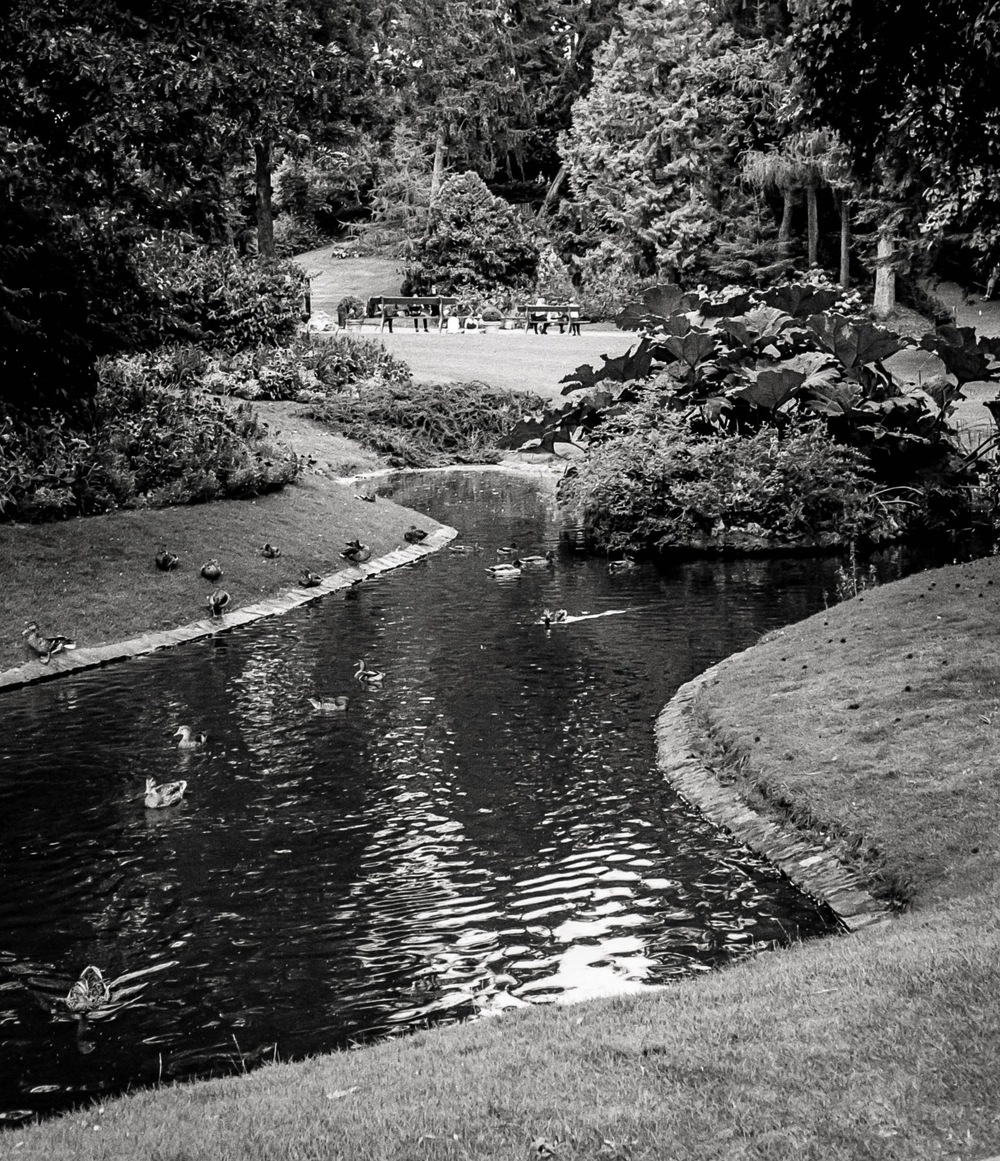
One of her favourite places in Nantes was the Jardin des Plantes, a huge botanical garden in the middle of Nantes just across the road from the station.  I could talk about the fact of it being a haven of peace in the bustling city.  I could talk about it being an oasis of green in a sea of concrete.  I could talk using clichés ‘til the cows come home…

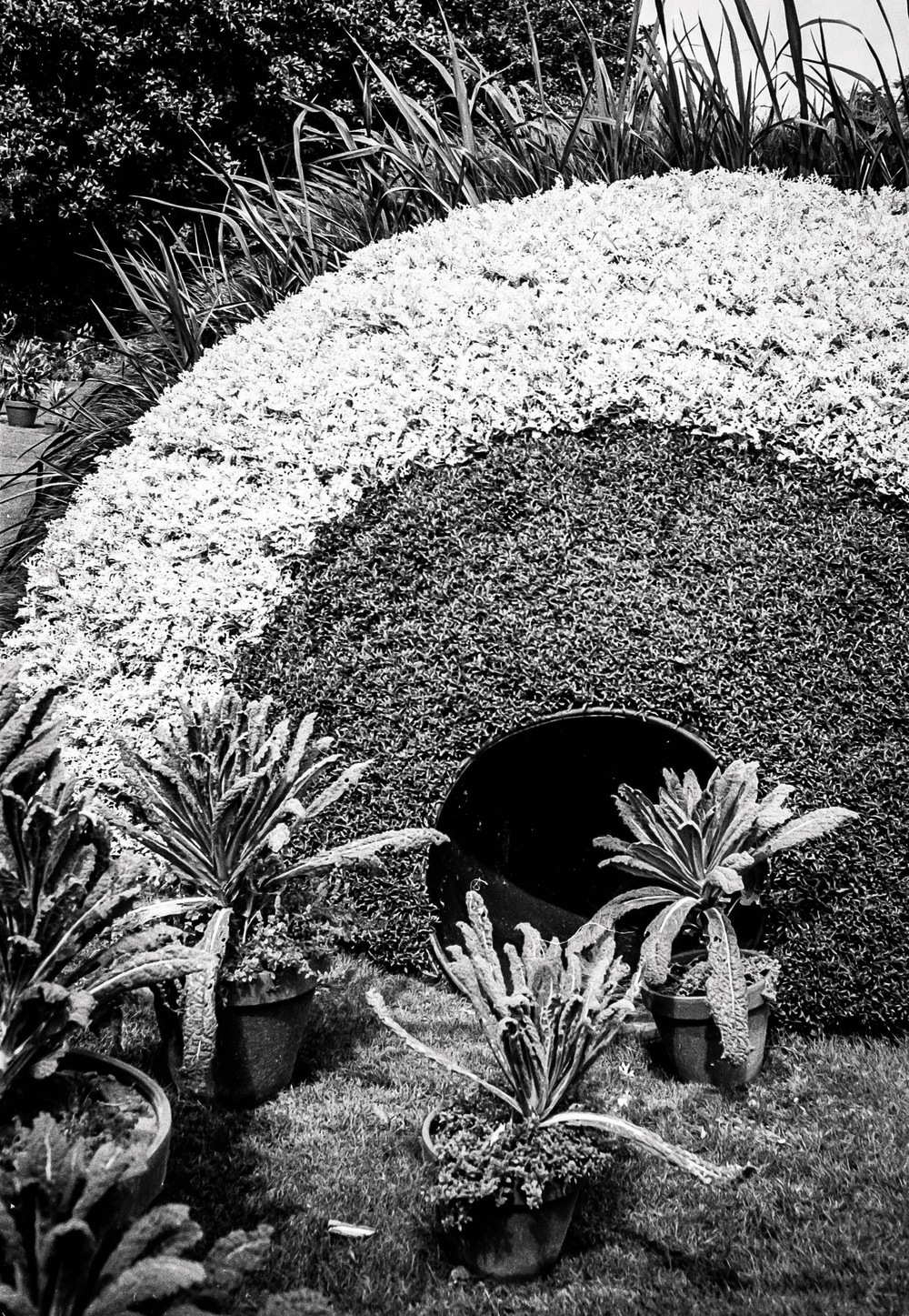
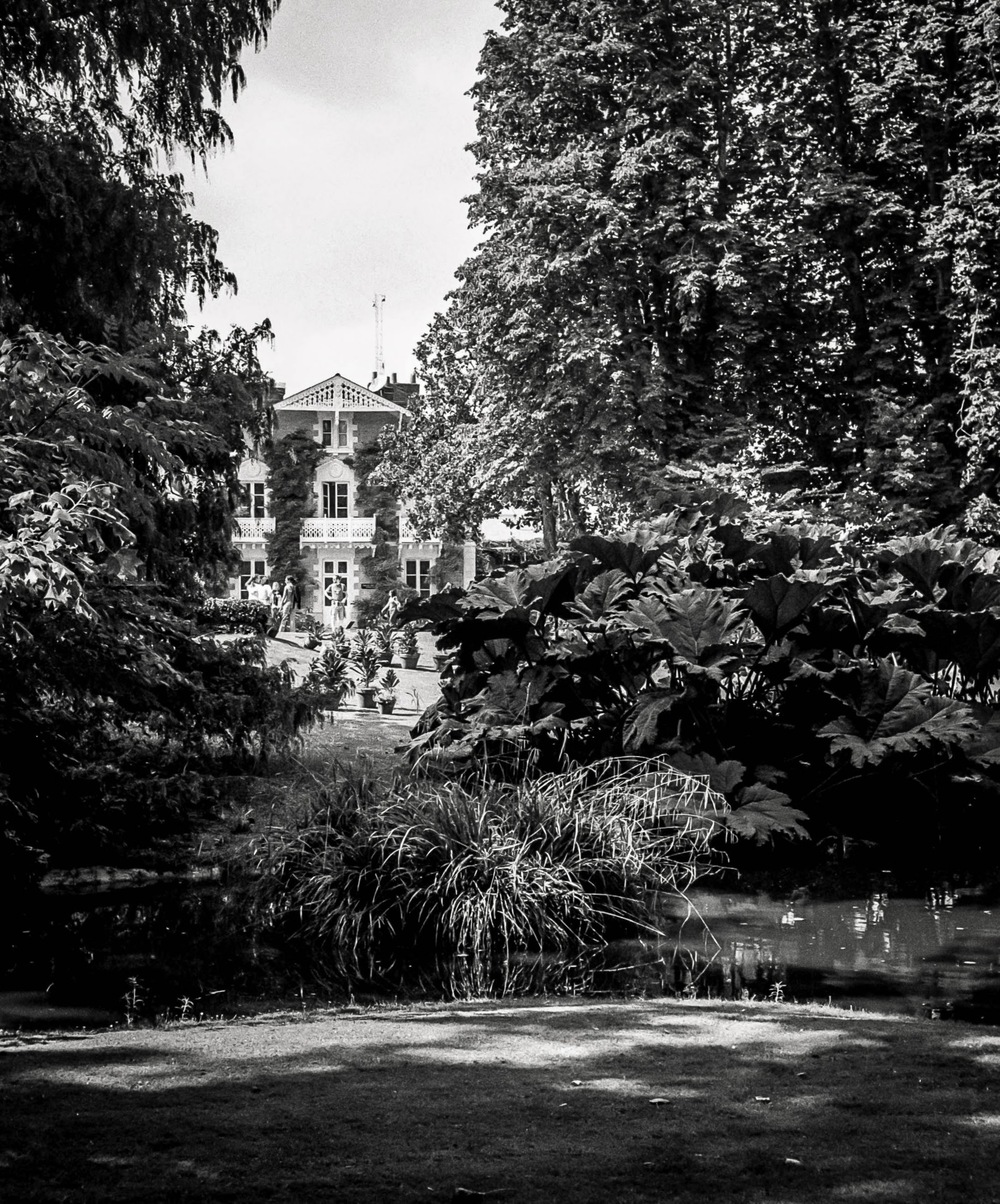
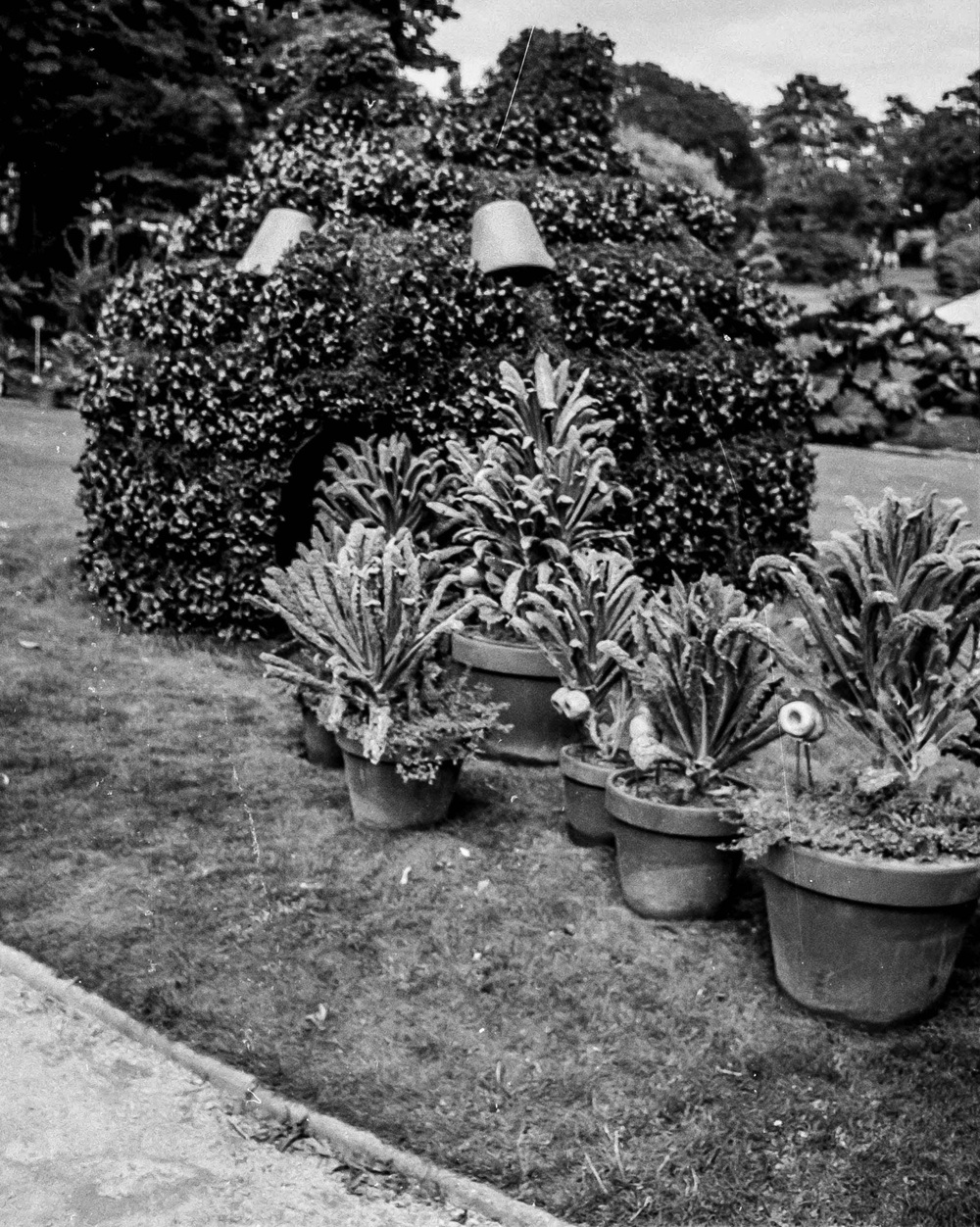
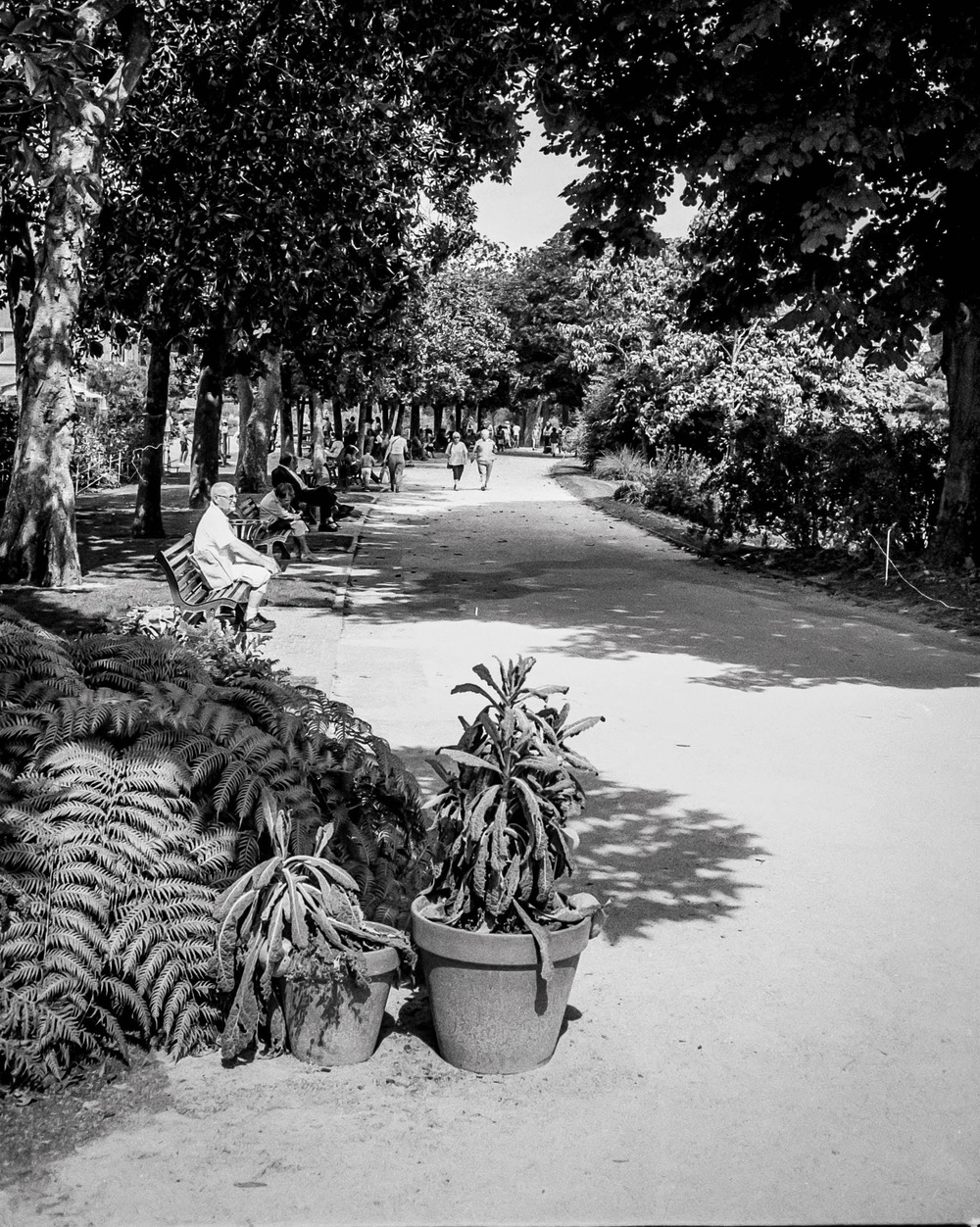
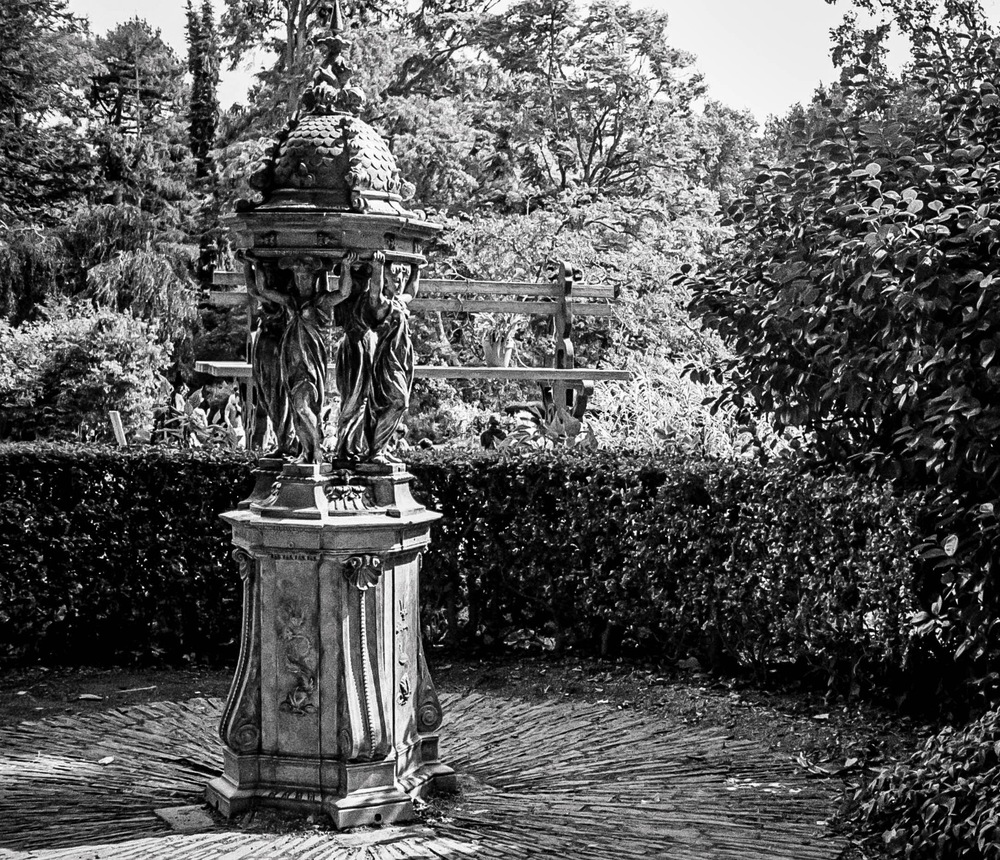
These photographs are not clichés, but real attempts of capturing a specific moment in time allowing me to travel back through time.  And looking at these images, I’m definitely back in time.

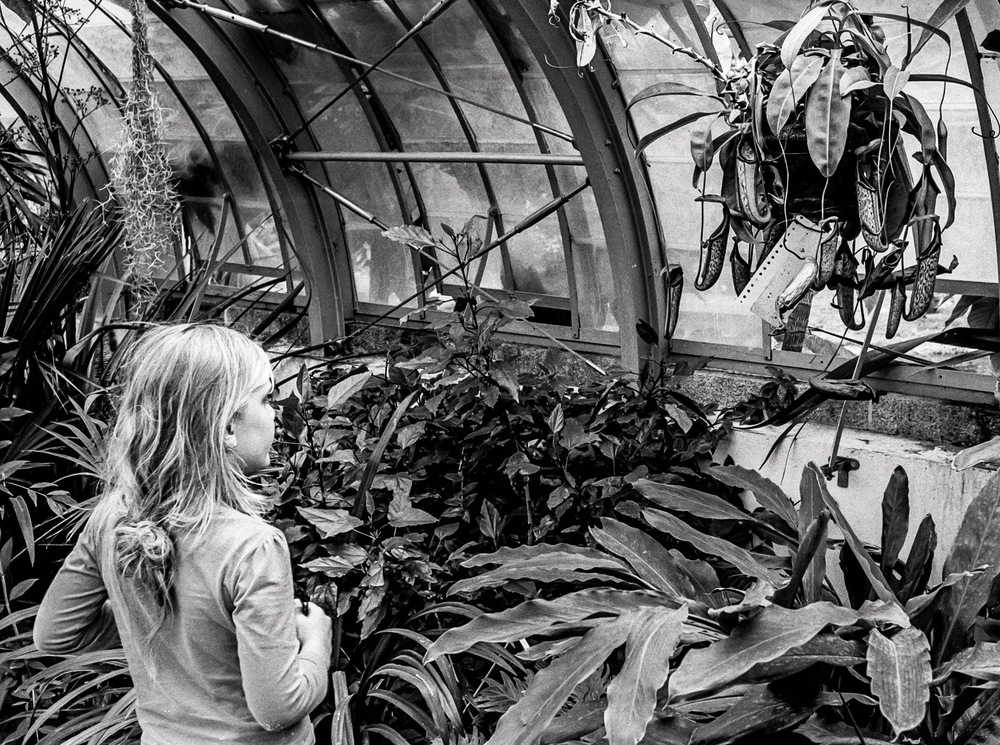
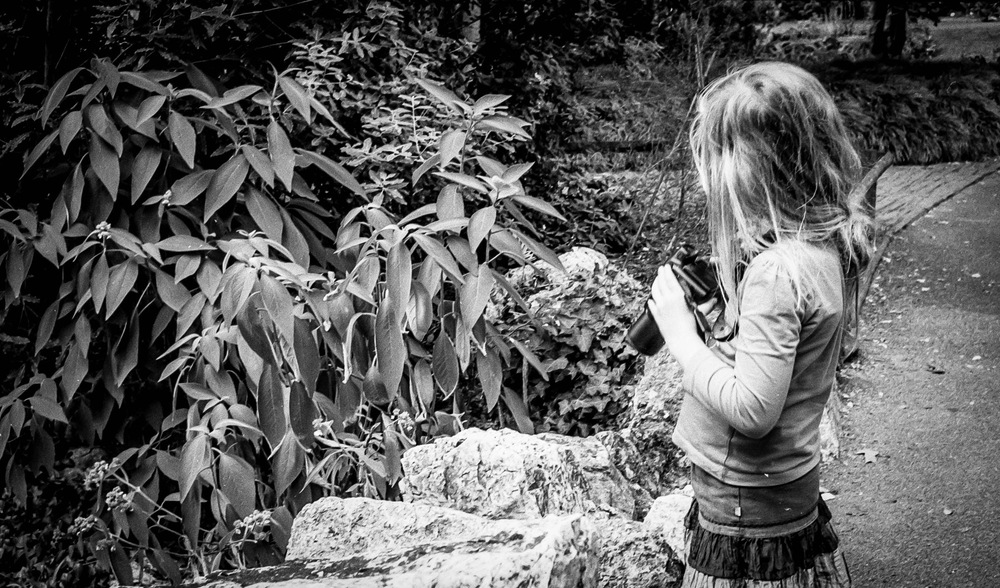
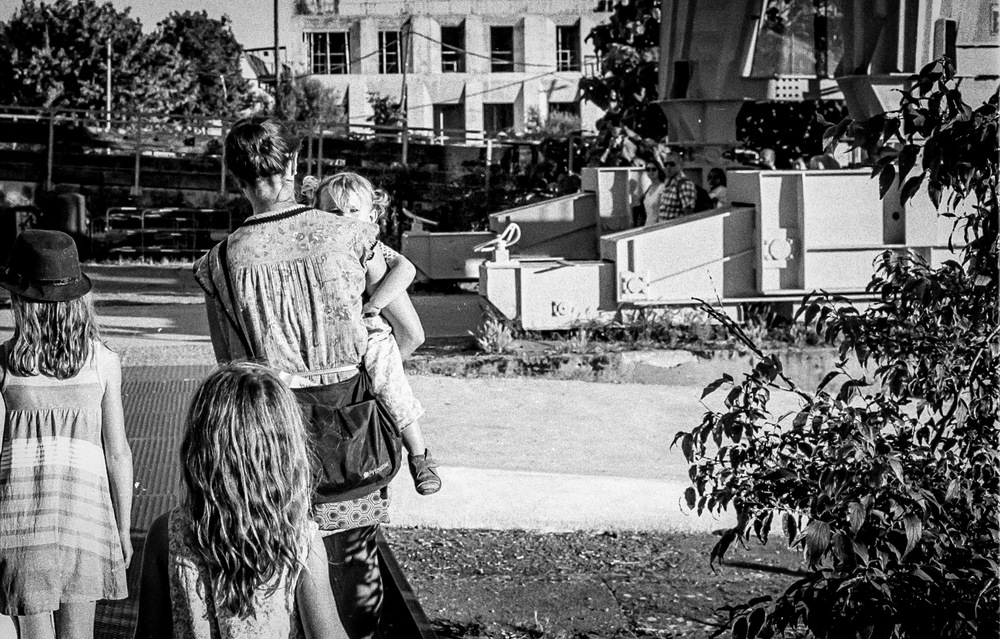
Let me introduce you to my daughter from 2016.  She was a 7 year old that already knew what she wanted but was slightly more subtle about it.  She would suggest that we go into town.  That I could take my camera.  That we could go to such and such a place.  That we could do such and such a thing.  And all this as if it were completely natural.  And I was a very willing victim.   

This time she suggested going to the Jardin des Plantes.  She would take her camera (my old Sony bridge) and I would take my Olympus Trip 35.  I used the Olympus Trip quite a lot at that time and its ease of use, the zone focussing, and general lack of buttons to press, made it quite the fool proof piece of kit.    

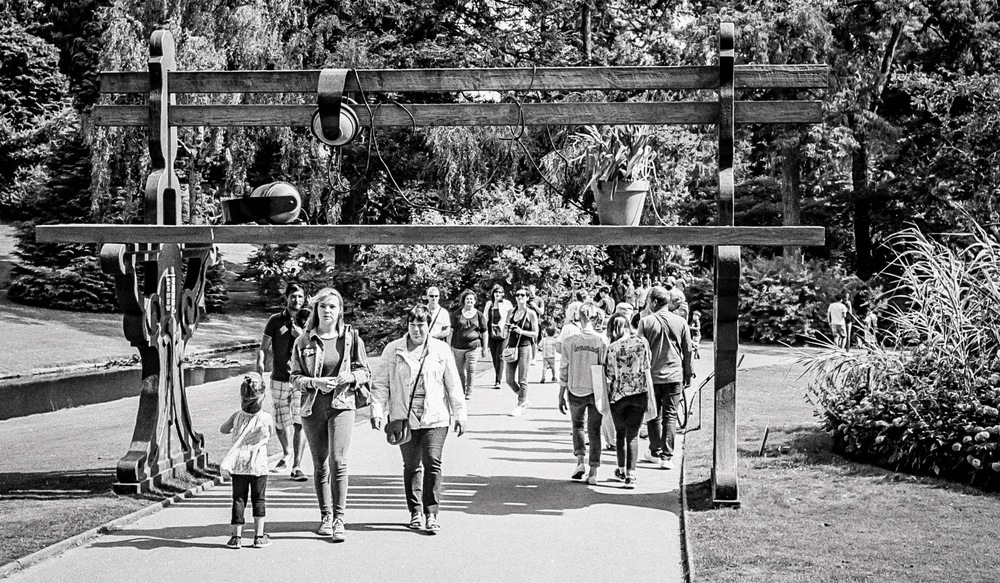
As usual, I let her lead the way.  This was here outing after all, and kept a respectful distance, so I could photograph her and record her for posterity.  The Jardin des Plantes has not only plants, the clue is in the title, but also is the backdrop to the Voyage à Nantes, and certainly was that year.  

I think the images speak for themselves and I’ll let you peruse them at your leisure.  They were taken on Ilford HP5 Plus film shot at box speed.

The Opening of the Film Archives – On the way to work


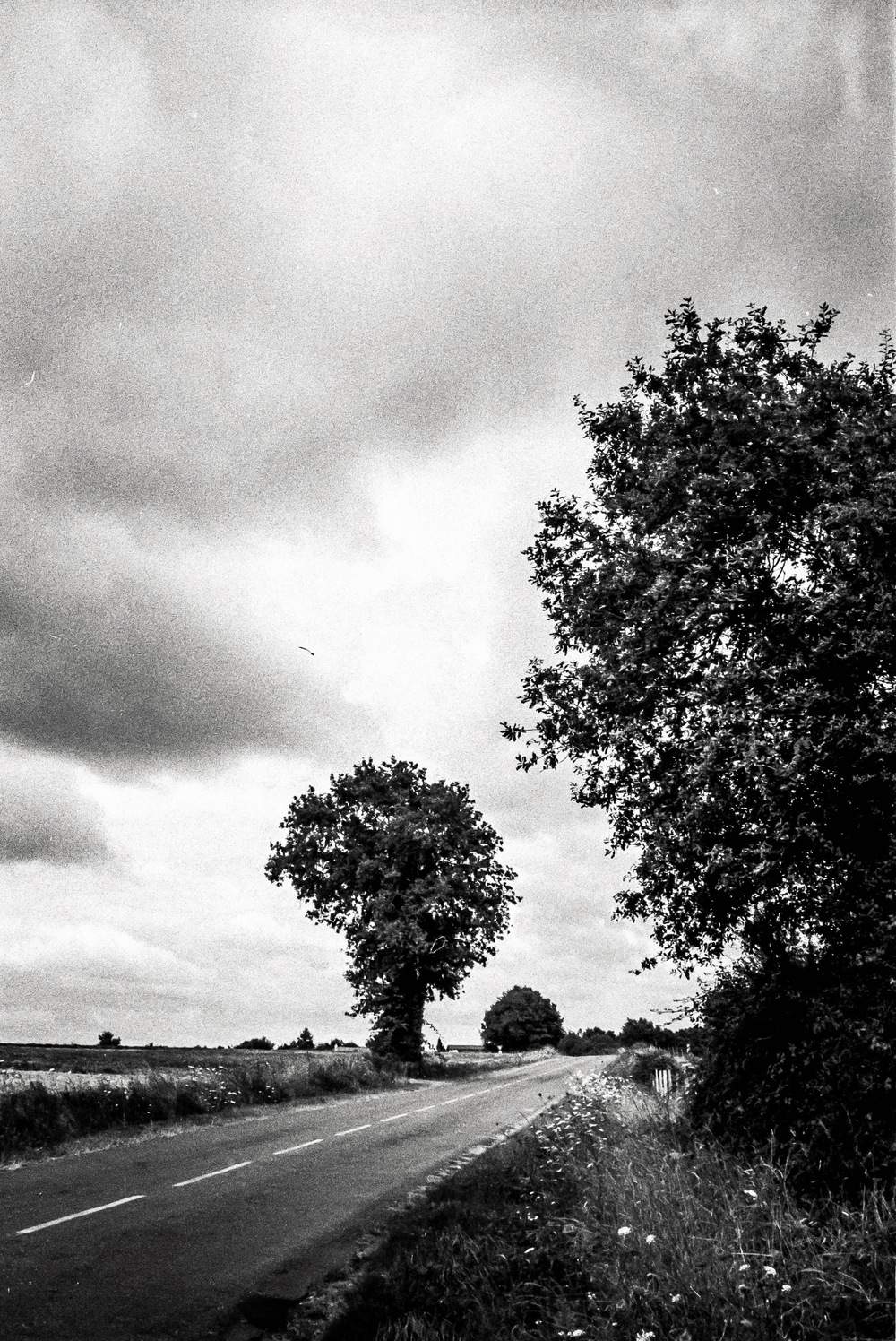
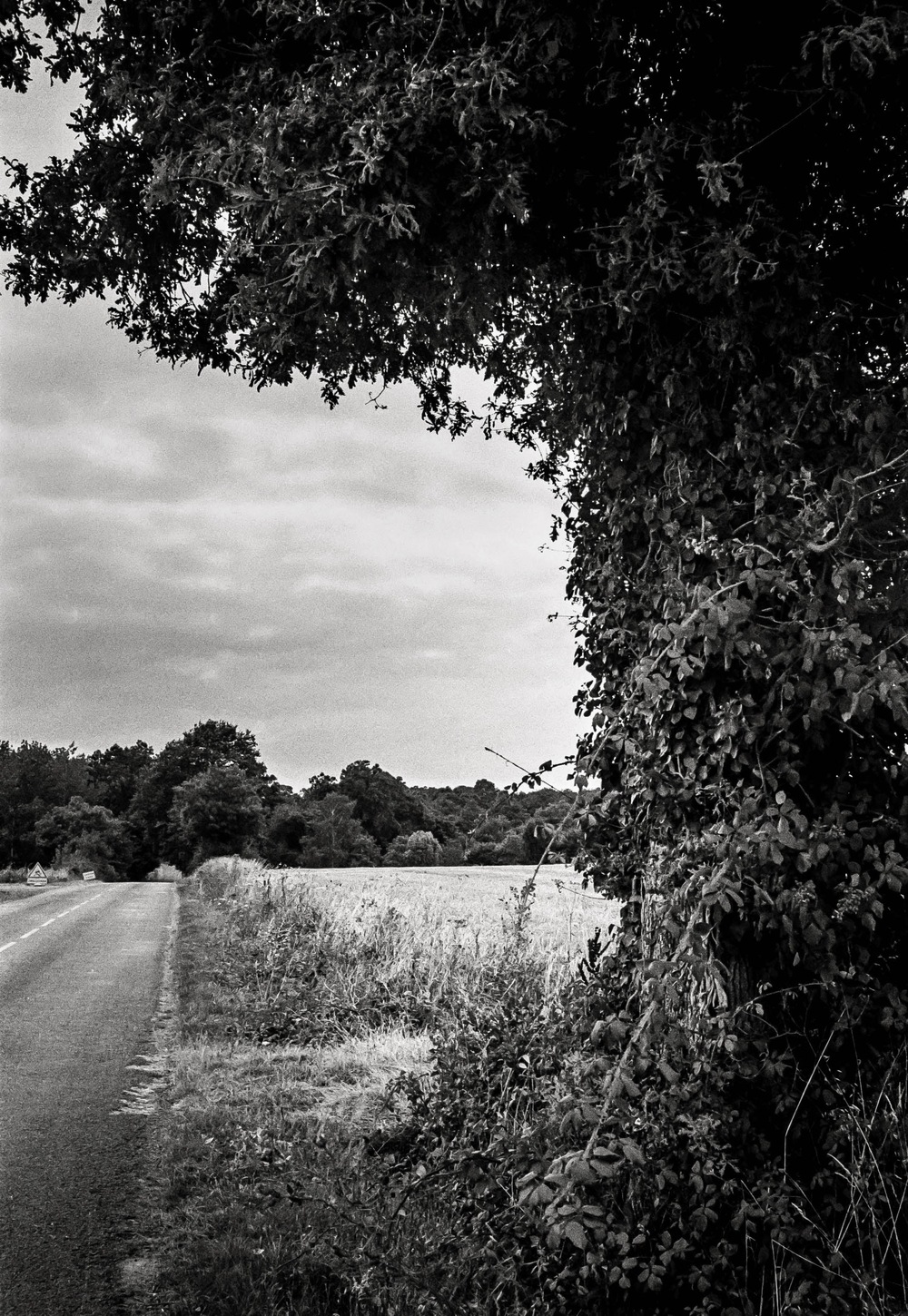
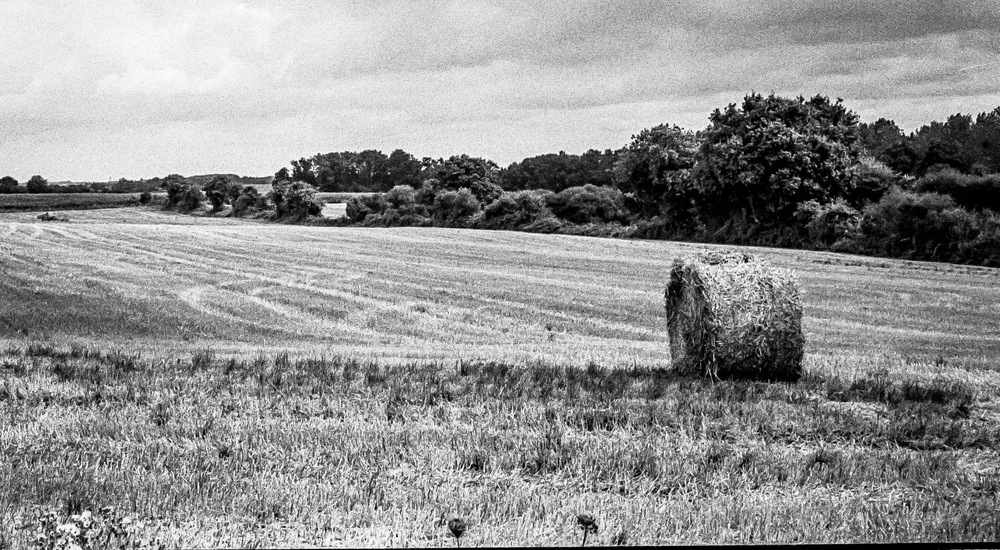
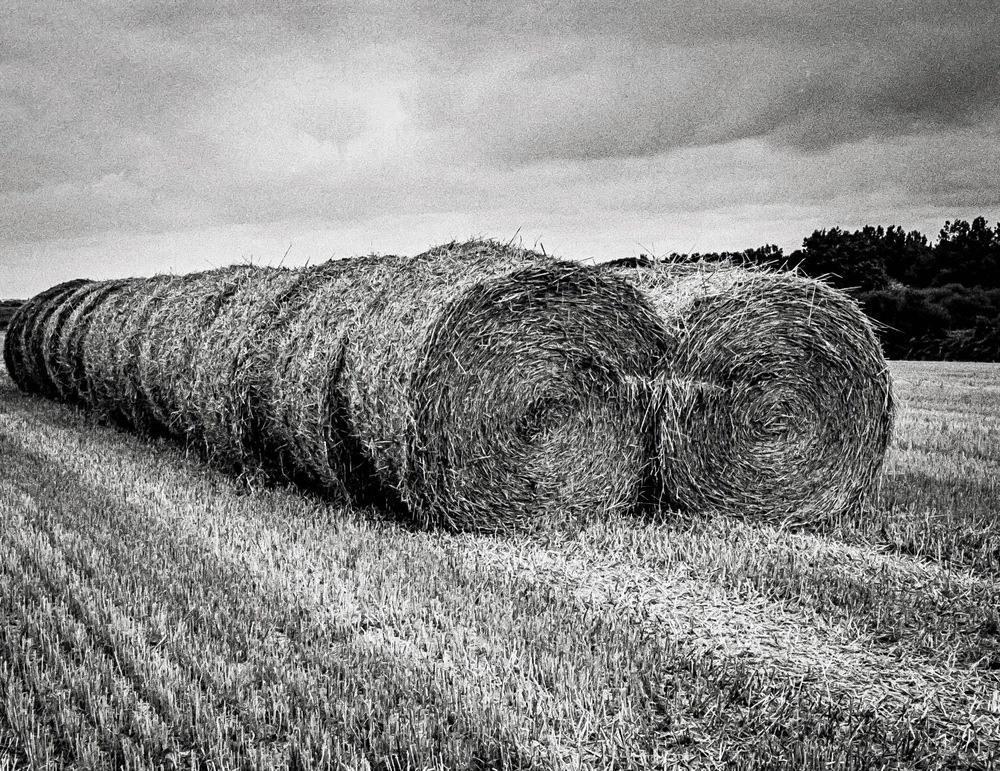
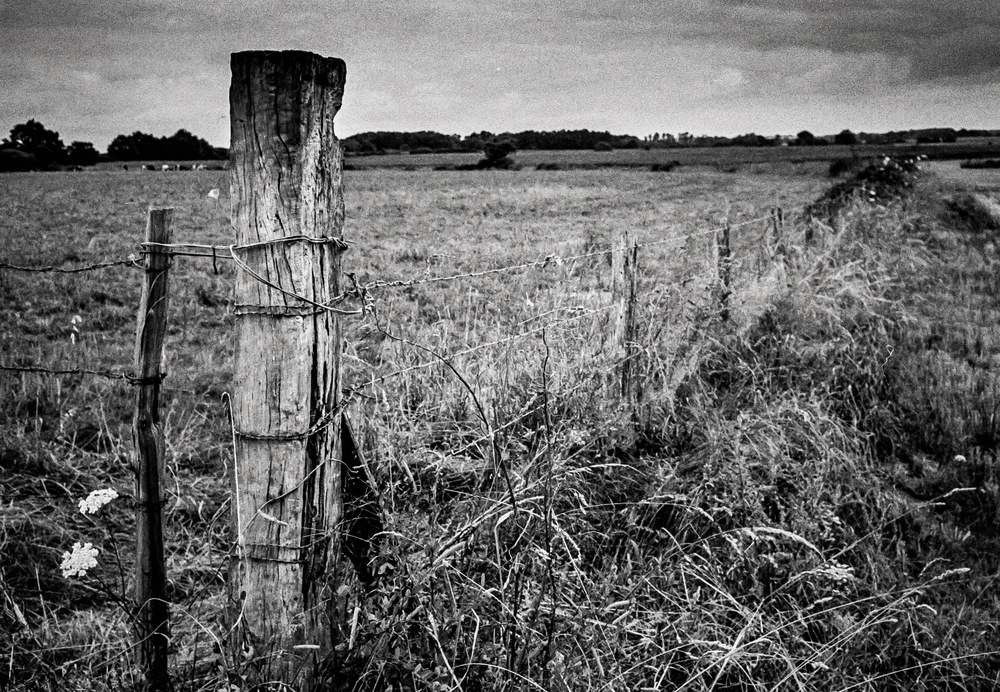
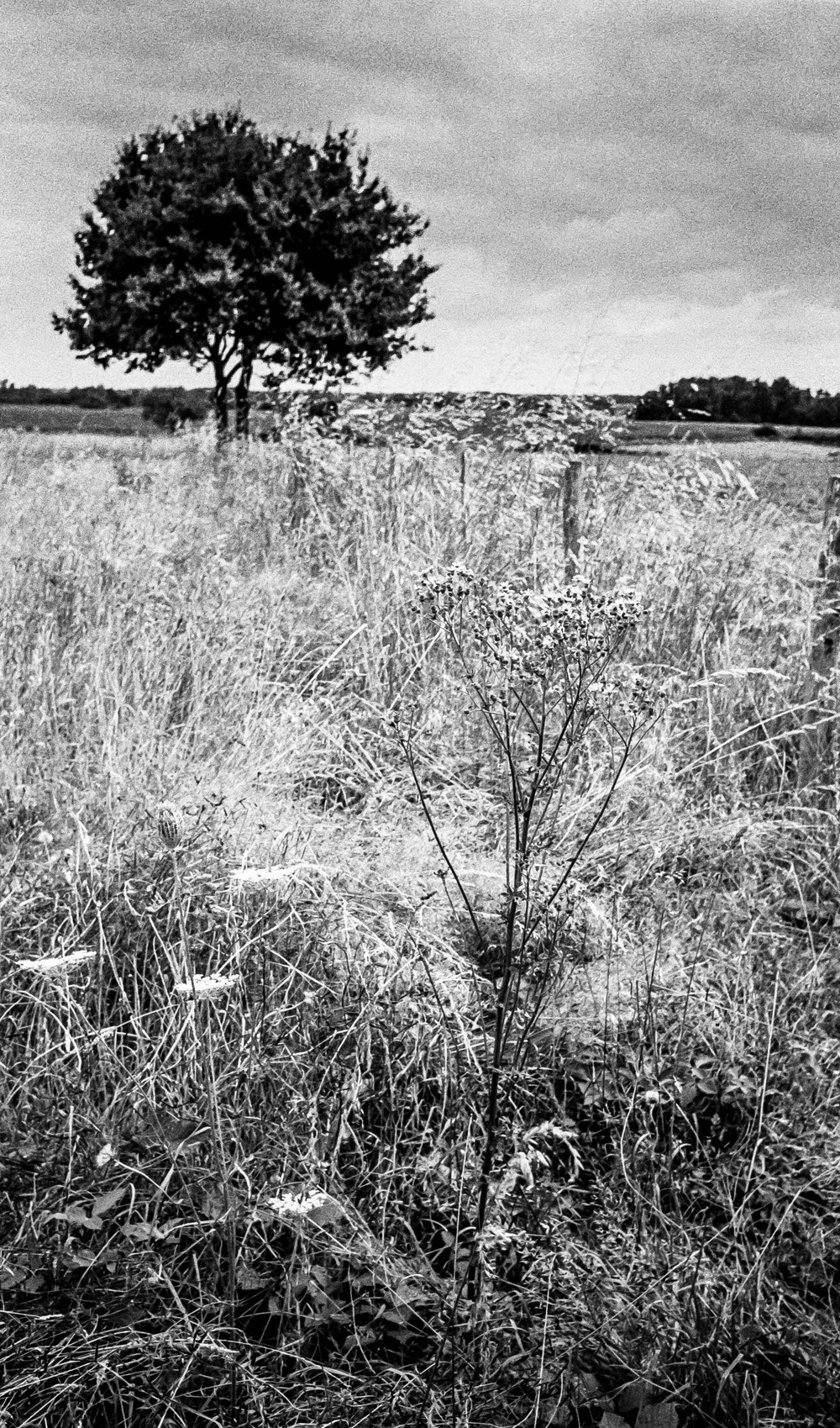
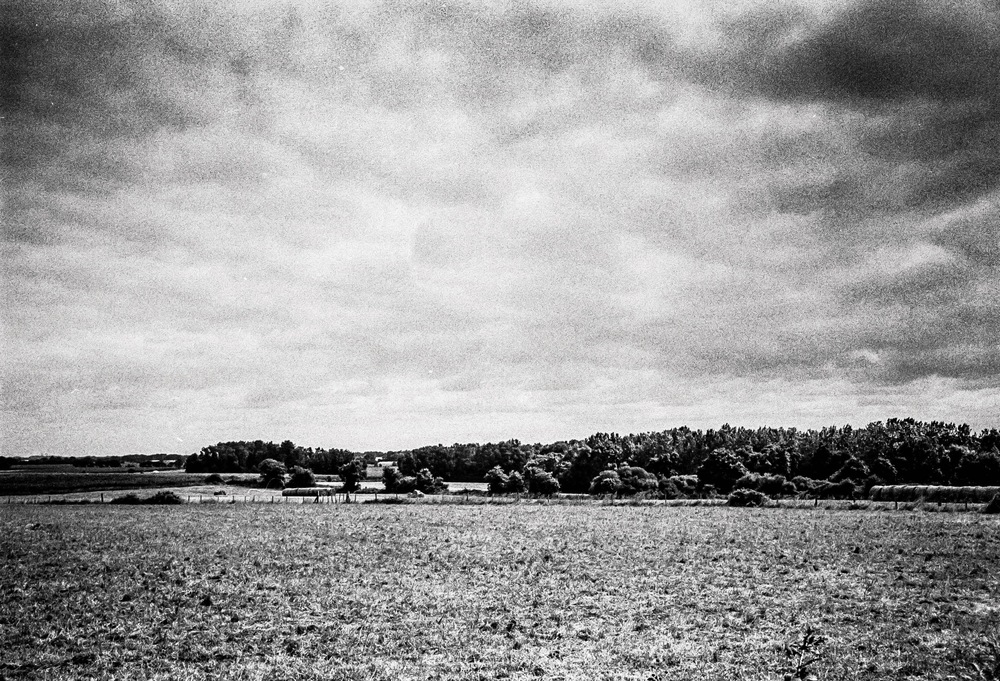
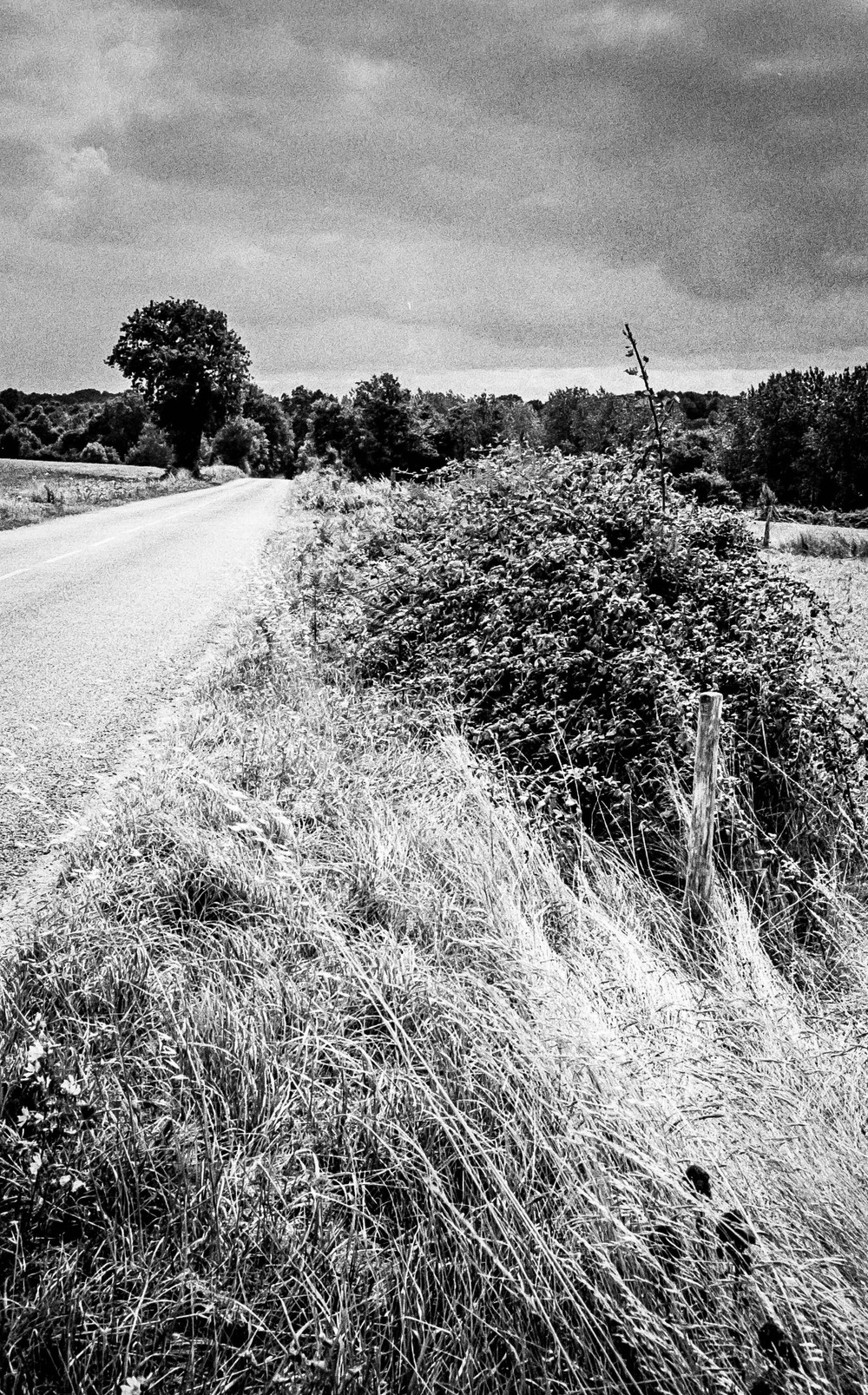
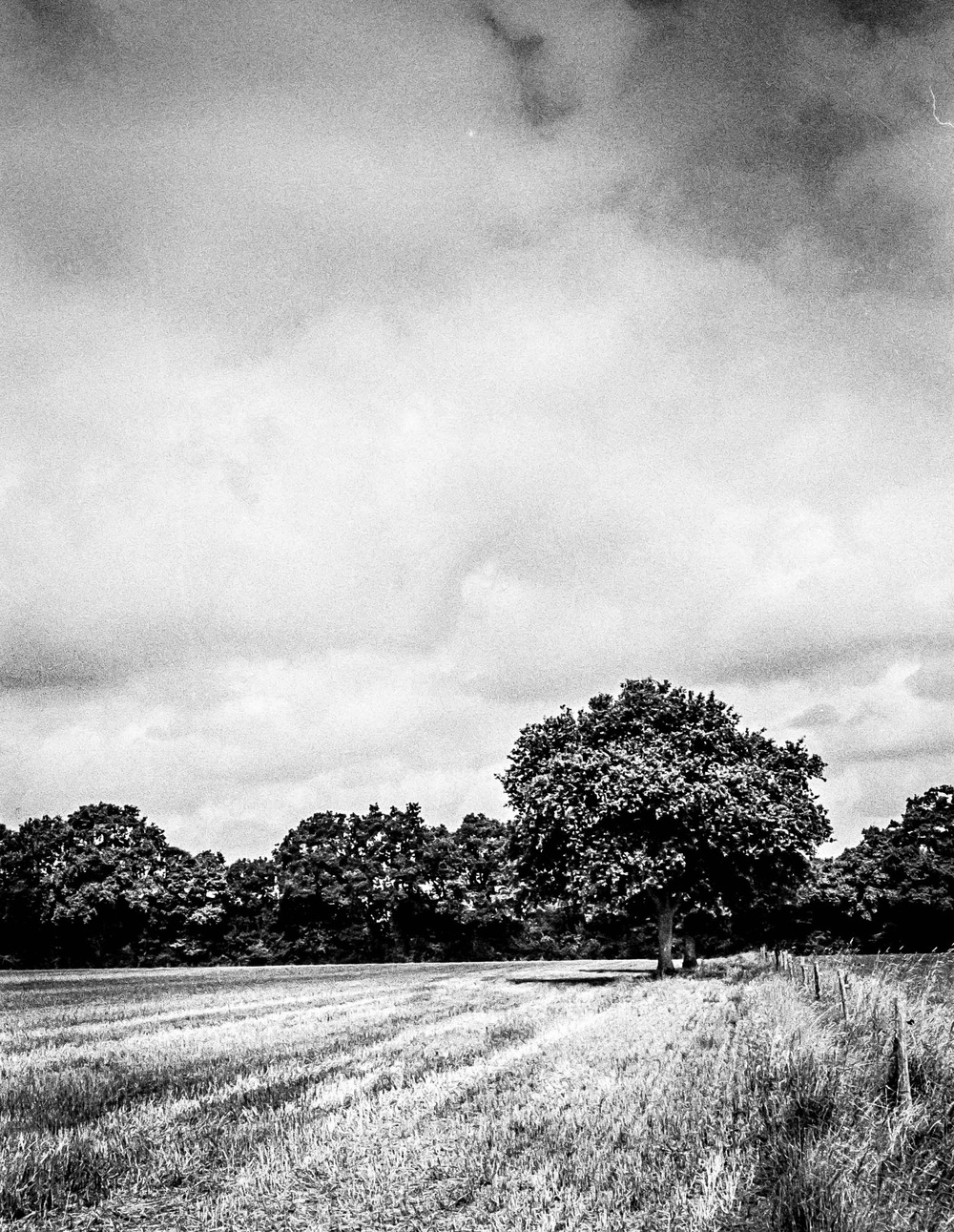
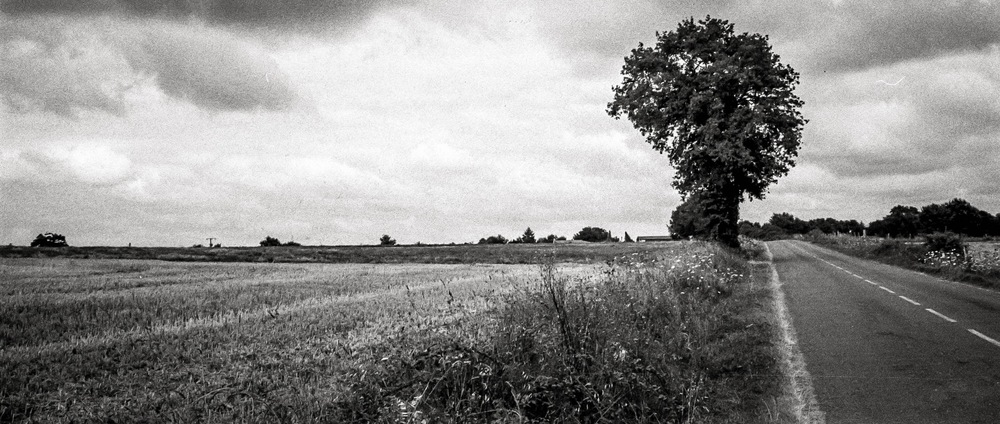
Sometimes we can have a tendency to ignore our habitual surroundings as photographers.  In this series of photos from the film archive, I’m going to show you part of the route I use to go to work.  What is ordinary to one person might be an pastoral idyl to somebody else.  It only goes to show that there is beauty everywhere in this world and one of our roles as photographers is to document it for future generations.

My wife, bless her, has always said that my black and white photos have a timeless feel to them, be they in the city or out here in the country.  I think that using film, especially this grainy HP5 Plus, even shot at box speed, adds to that sentiment.  The fact that I used Rodinal as my developer might have accentuated the grain too.  Also don’t forget that this is the beginning of my return to film development so I might have been a little vigorous in my “agitations” whilst developing the film.  I now use mostly Ilfosil 3 and lower grain film, and have brought a little more “calm” to my “agitations.”

The camera that day was the FED 5 rangefinder camera from Ukraine.  I’ve talked about it before, and although I mainly use SLRs, I still feel guilty about not using it more.  It’s a beautiful camera and I don’t want it to feel neglected.  I might just have to correct that soon.

I lived just outside Paris for 7 years before moving out to the country in 2001.  The change in ambiance was startling.  I went from blocks of flats to village life in the French countryside.  I went from riding the metro, and suburban Parisian trains, to learning to drive though this beautiful landscape.  Driving through this scenery still gets me every time I get into the car.  I wonder what I’ll see.  I see the changes in the fields and countryside through the seasons.

I want you to promise me, Dear Reader, that you will take a closer look at your route to work, and maybe I can convince you to record it too for prosperity.  Don’t worry about film or camera, even just using your phone will do the trick.

The Opening of the Film Archives – Le Hangar à Bananes July 2016


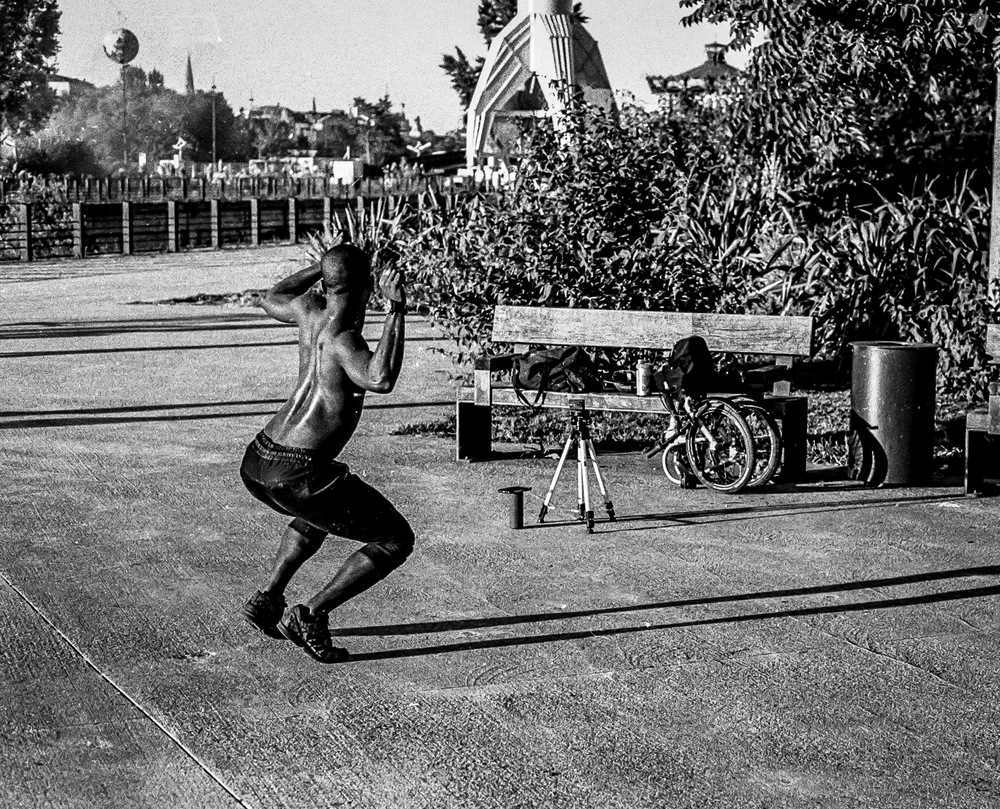
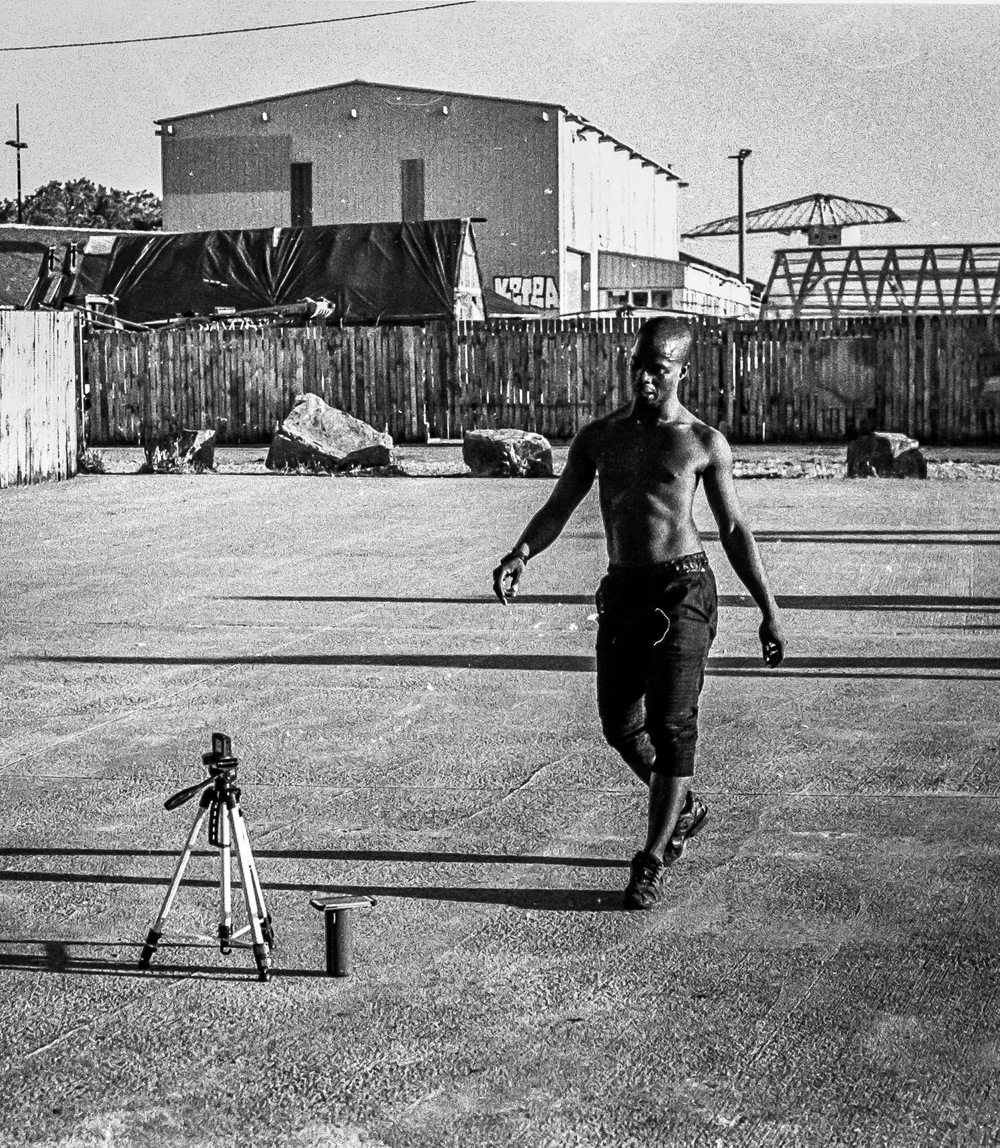
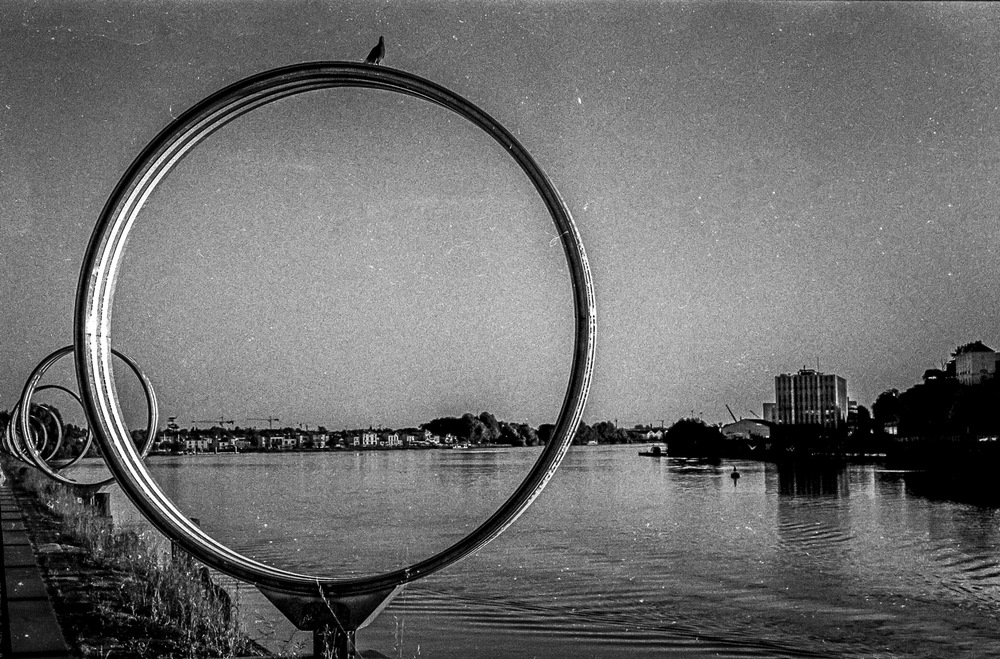
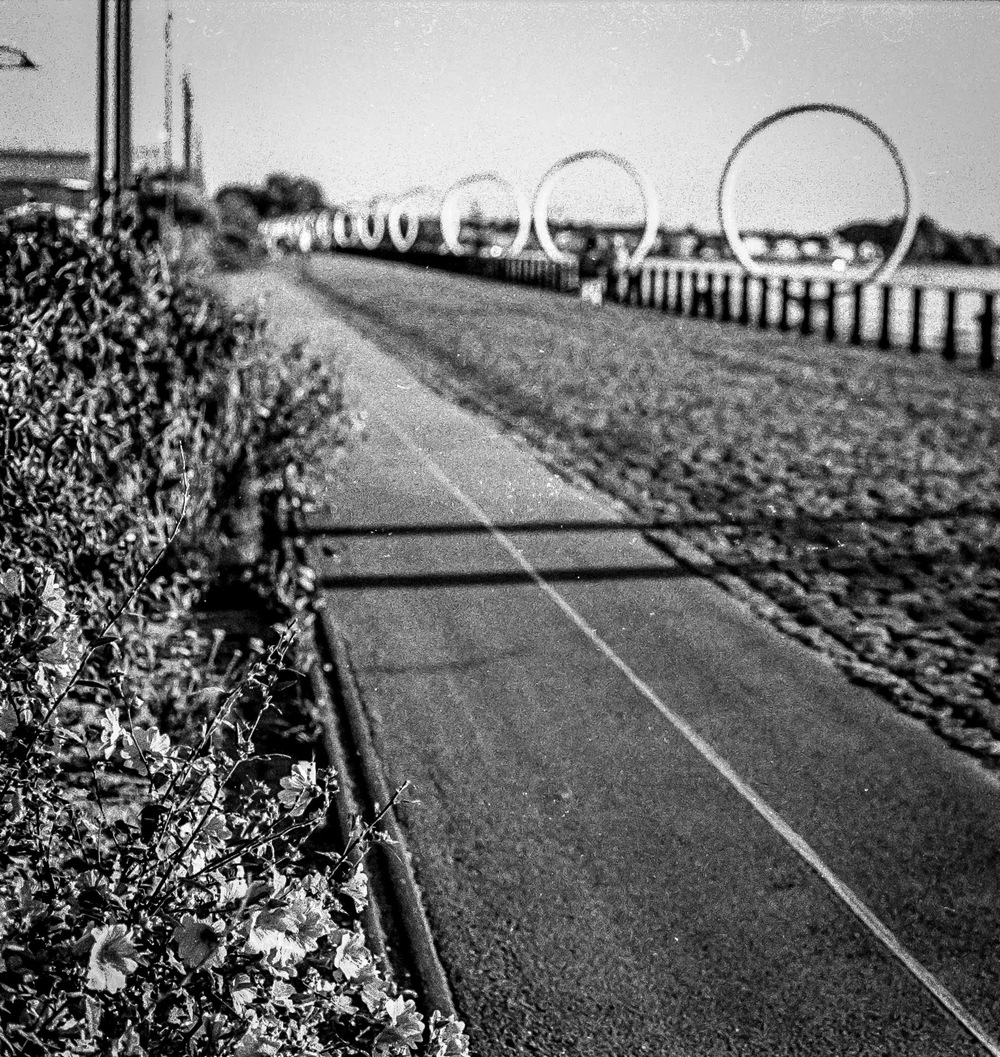
Continuing our journey through the film archives, we find ourselves on the Île de Nantes, home to the iconic Hangar à Bananes. Let’s rewind to July 2016, when I captured this vibrant scene with my then favourite Canon AE1. Once a shipbuilding powerhouse, Nantes had cleverly repurposed its abandoned infrastructure into a bustling hub. The area is now home to the fantastical Machines de l’Île, the historic Chantiers Navals, the towering Grue Jaune, and of course, the Hangar à Bananes itself. Back then, the Hangar was a hive of activity, buzzing with picnics, impromptu barbecues, and lazy afternoons under the summer sun.

My goal was to capture that unmistakable “Summer Vibe.” As always, I started with the architecture, drawn to its striking modern lines, a refreshing departure from the stark brutalism of the 1970s. The clever use of texture and the innovative design of the apartment buildings particularly caught my eye.

That summer, the Voyage à Nantes festival had a brilliant idea: communal barbecues for everyone. Genius, right? You simply brought your food, and they provided the grills, charcoal, tables, and chairs. It might not be Texas, but the French know their way around a barbecue, and being the food lovers they are, they go beyond the usual sausages and burgers. It was a true testament to what a public space should be – a place for everyone to gather, share, and simply enjoy themselves.

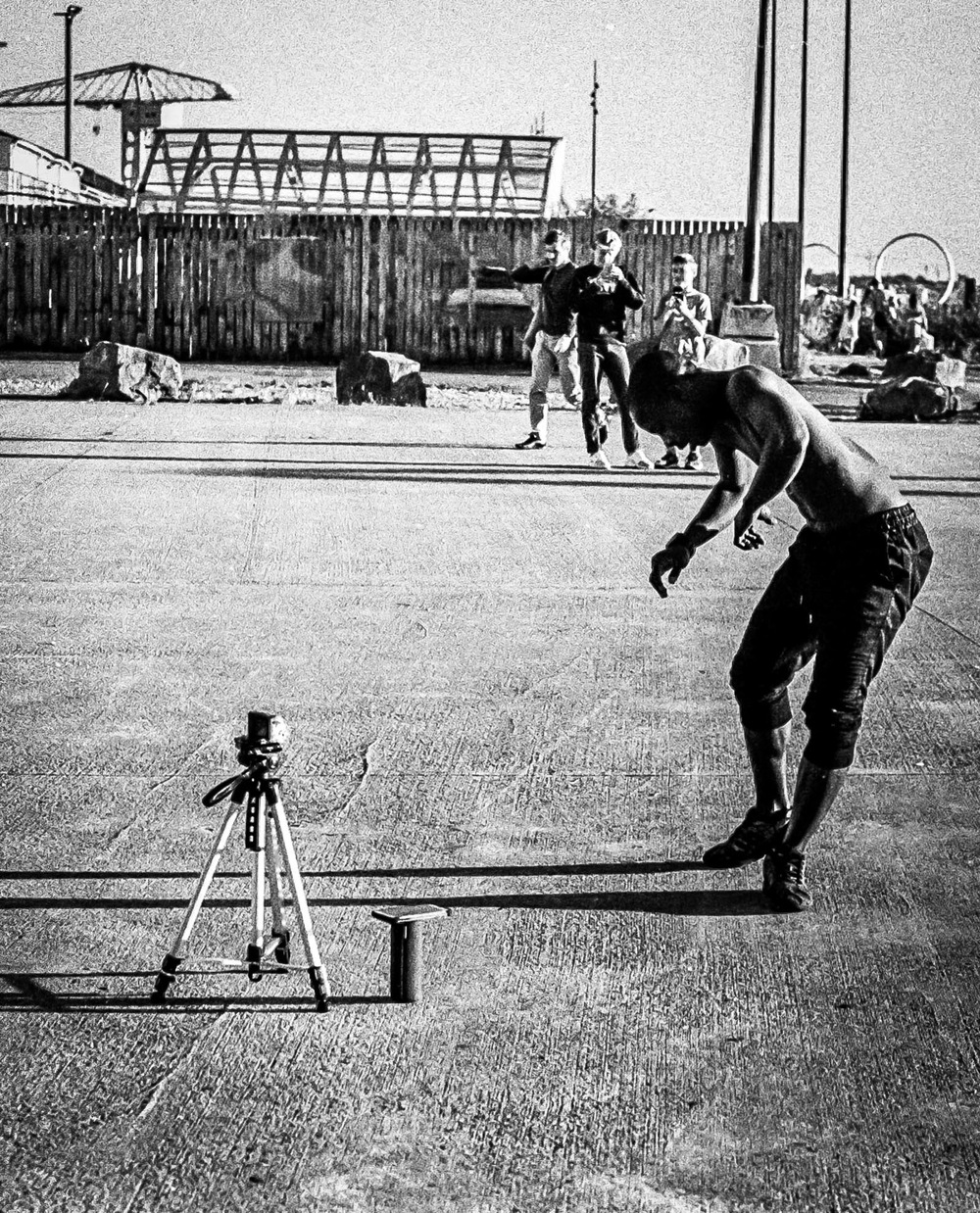
Then there was the dancer. He was just filming himself with a GoPro, but the way the sunlight caught his movements and the glistening sweat on his skin was mesmerising. It was a fleeting moment, the first and only time I’ve ever photographed a dancer, but it left a lasting impression. There’s something undeniably captivating about the human body in motion.

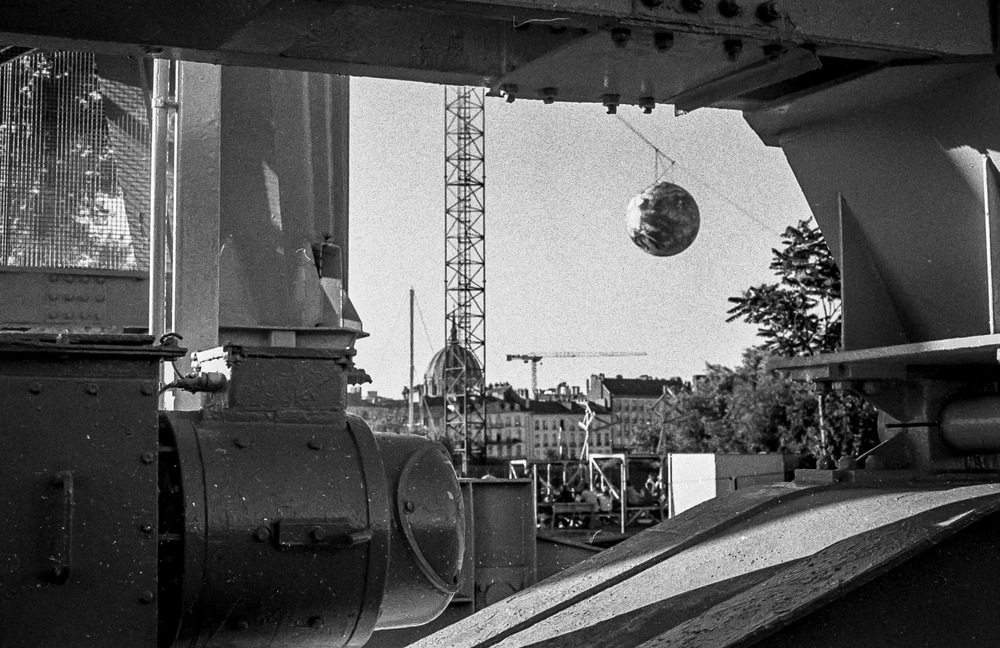
My wanderings continued to the edge of the island, where the mighty Grue Jaune – now a “monument historique” and a symbol of Nantes – stands tall. Walking past and through this enormous yellow crane was an awe-inspiring experience.

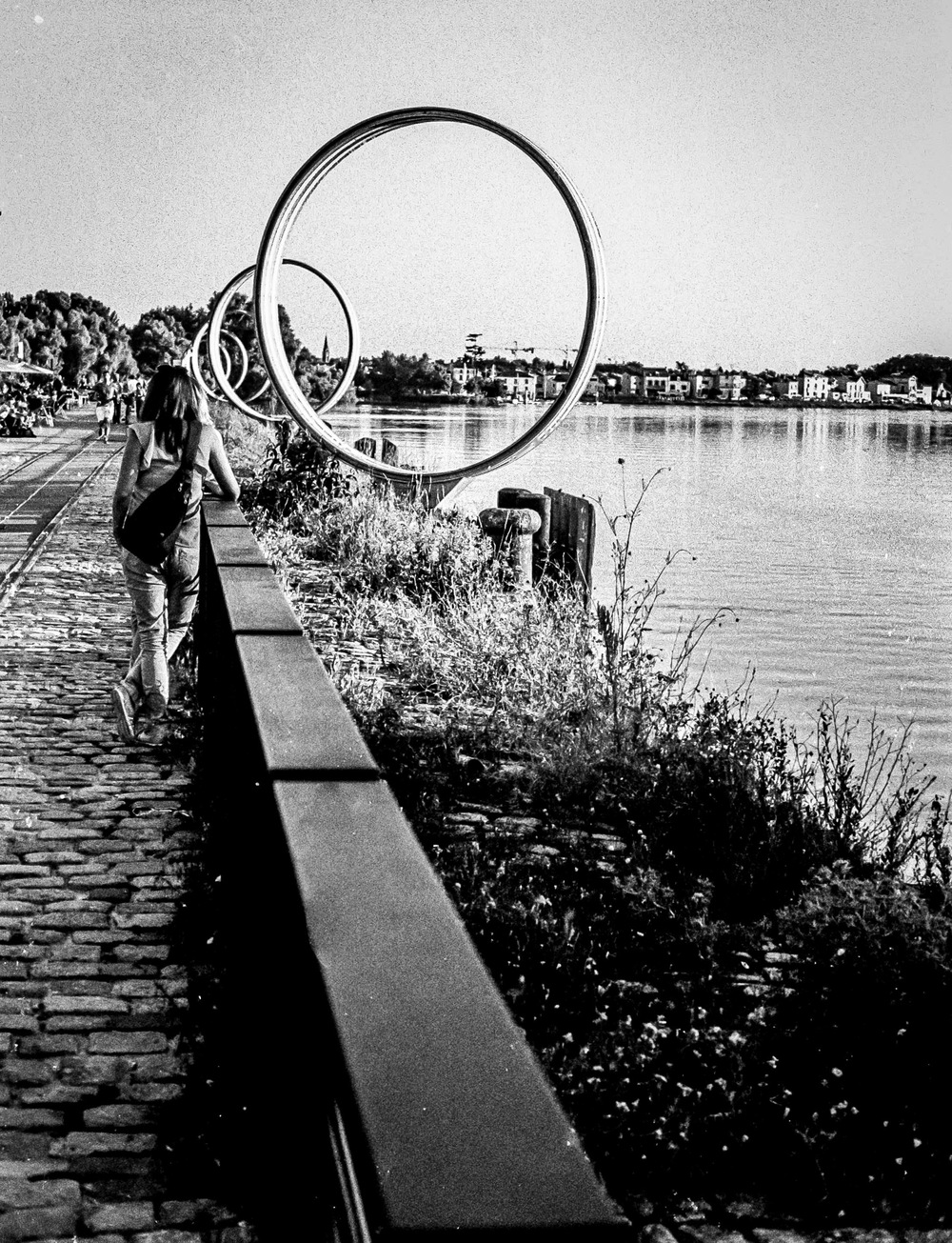
Along the riverfront, the Anneaux de Buren, a series of massive rings, stretched out in a mesmerizing pattern. At night, they transform into a dazzling display of vibrant reds, blues, and greens – a photographer’s dream, offering endless possibilities for capturing leading lines, geometric shapes, and unique framings of the cityscape.

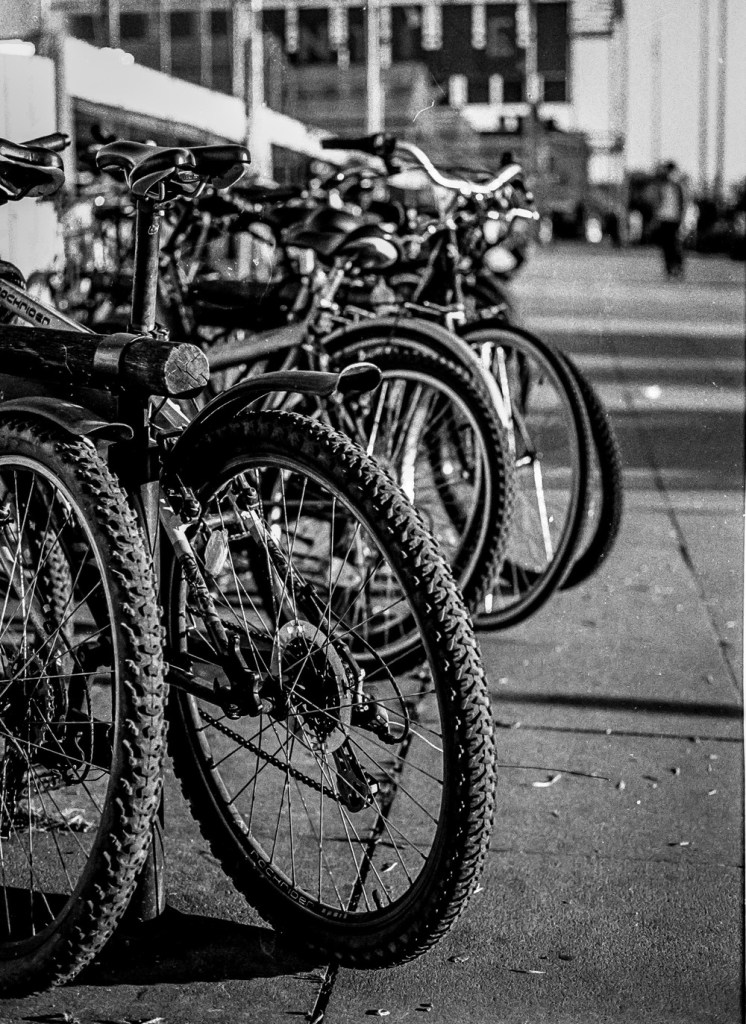
And of course, no photo series of mine would be complete without the obligatory bike shot. It’s a bit of a tradition for me.

Even now, in 2024, the Hangar à Bananes still exudes that same “Summer Vibe.” It remains a popular spot for after-work drinks with friends and colleagues, boasting a variety of restaurants, bars, the HAB Gallery, and the infamous “Warehouse.” While the area can get a bit dicey later at night, it’s perfectly safe and enjoyable for a daytime visit or an early evening soirée.

Optimizing Images On-the-Go: Mobile Photography Editing Guide


Introduction

As the title suggests, I will describe my workflow when out and about. While there are surely other ways to do it, this is my method. It works and has stood the test of time. I usually wander around taking photos, then find a café to sit down and transfer my images to my phone. Everything is better with a nice cup of tea (or coffee) and a piece of cake.

Downloading Photos to Your Phone

Most cameras today can connect to phones via Bluetooth or Wi-Fi. My two Fujis (X100F and XT2) and my Canon (6D Mark II) certainly can. I enable Wi-Fi on my camera and connect it directly to my phone. Next, I open the corresponding app—Canon Camera Connect for my Canon and Fujifilm Camera Remote for my Fujis. Each manufacturer provides its own app for Android or Apple devices. Once the camera is connected to my phone, I can import my photographs, selecting the images I prefer.

Sorting Photos

Now comes the fun bit: sorting through all those wonderful shots you took and deciding which ones are worth working on and editing. When I transfer my images from my camera to my phone, the phone creates a folder for the imported photos. Different apps will put them in different places, so I’ll leave that to you to manage. As a rule of thumb, you will see them in the gallery app, which will show you your latest photos.

In the gallery app, you can sort your photos by date taken, favourite images, or the place where the photo was taken.

I will assume you have read my last few articles on Photography 101, composition, and the types of lenses available and how to use them, or at least how I use them. If you haven’t had that pleasure, then go and have a read…

Is the photo worthy of publication, and are you happy with it representing your talent as a photographer? Is the image in focus? Is the image well exposed? Does it fulfil its storytelling role? Will it add to your narrative? Or simply, do you like it enough to want to share it?

Let’s assume that you answered yes. You then get to share your image to Snapseed.

Editing in Snapseed

Starting with Styles:

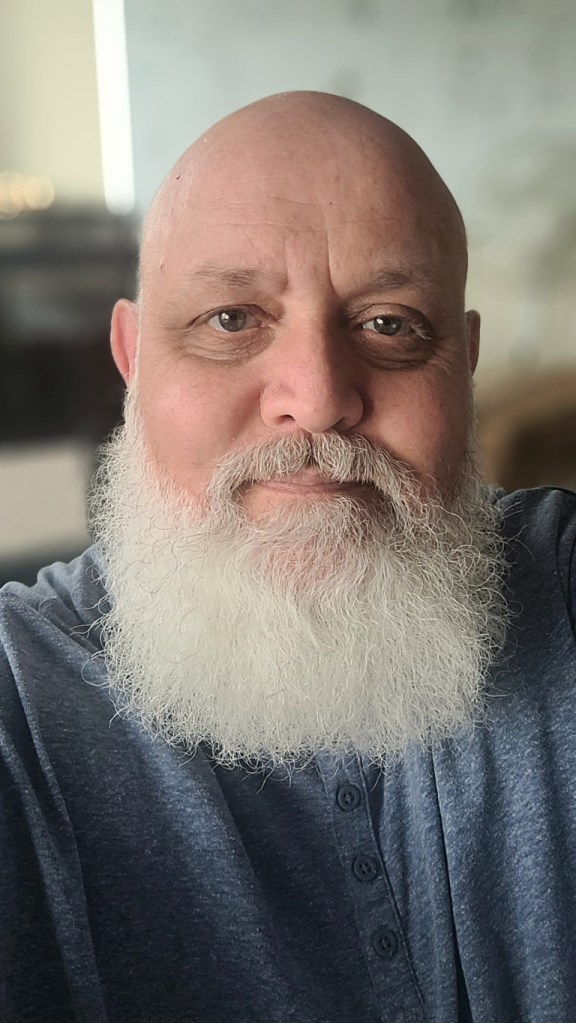
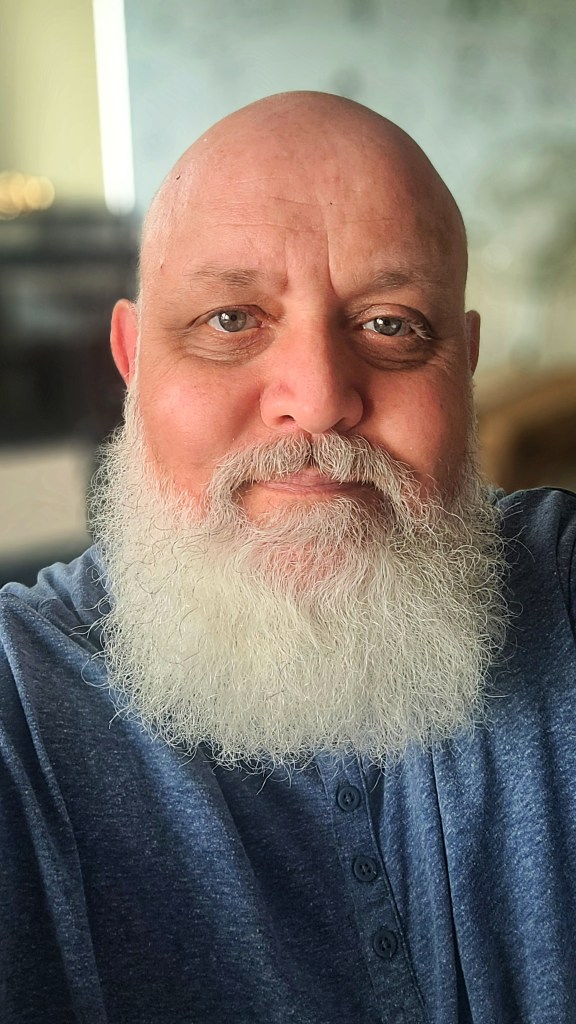
I like to begin by using the “Portrait” style. It is a preset that gives the photo a subtle glow and some vignette. I just seem to like it, and when you have something you like that flatters your image, you are tempted to stick with it. Most times, this will work a treat on well-exposed images. But let’s imagine that you have exposed for the highlights and that your shadows are “too dark” and you want to bring them up a bit. Then I would go to the “Tools” section and use the Tune Image.

En aparté:

When exposing in digital photography, we expose for the highlights, as it is easy to lighten, or “bring up” the shadows, and we don’t want to “blow out” our highlights and just turn it into a mass of white. In film photography, it’s the opposite. We expose for the shadows, as film has more difficulties capturing details in the shadows especially in a photo with lots of light.

Using the Tools

As I inferred in the title, this is my workflow, and shows the way I use Snapseed. There’s a whole load of tools to stylise your image and to completely change the look of it, but I’m more of a “less is more” disciple when editing. Also most apps out there will have similar tools, so you can carry this knowledge with you across the board.

Crop Tool:

One thing I learnt early one is to KISS, i.e. Keep it simple stupid. Sometimes I will have an element in my photo that distracts from my subject. With the crop tool I can just crop the image and make it disappear. I can also use the crop tool to format the image to fit certain social media post settings. I’m thinking about you Instagram and Facebook. Try searching google for social medi formats and you will be inundated with results.

Healing Tool:

Sometimes the crop isn’t enough to take away distracting elements from our photo. You might have a beautiful shy and want to get rid of that Jumbo Jet in the sky. One way of doing that is to wait until the Jumbo Jet has flown away, but let’s say that it’s too late… Using the healing tool will clone part of the image and replace the Jumbo Jet that just wants to noticed and validated man! To get the best results it’s better to zoom into the image and have a smaller area to work on.

Tune Image:

This is where I do the basic edits, bringing up the shadows or bringing down the highlights. I usually keep it to that. At a push, I will bring up the brightness if the photo has been underexposed. Somtimes I will add a little contrast but I tend not to use the other tools. I don’t want to denautre the photograph.

Rotate Tool:

We should always try and keep our horizons straight, except when making the conscious decision not to. The rotation tool tries to straighten what it thinks should be straight. It generally works quite well, but you do have total control as well as a grid to check the lines in your photo.

Brush Tool:

This is where we can do our burning and dodging. You can choose to highlight a certain area and darken others to emphasise your subject. This brings the photo to life. There are tutorials galore on YouTube that go into more detail than I will in this “basics” article.

Black and White Tool:

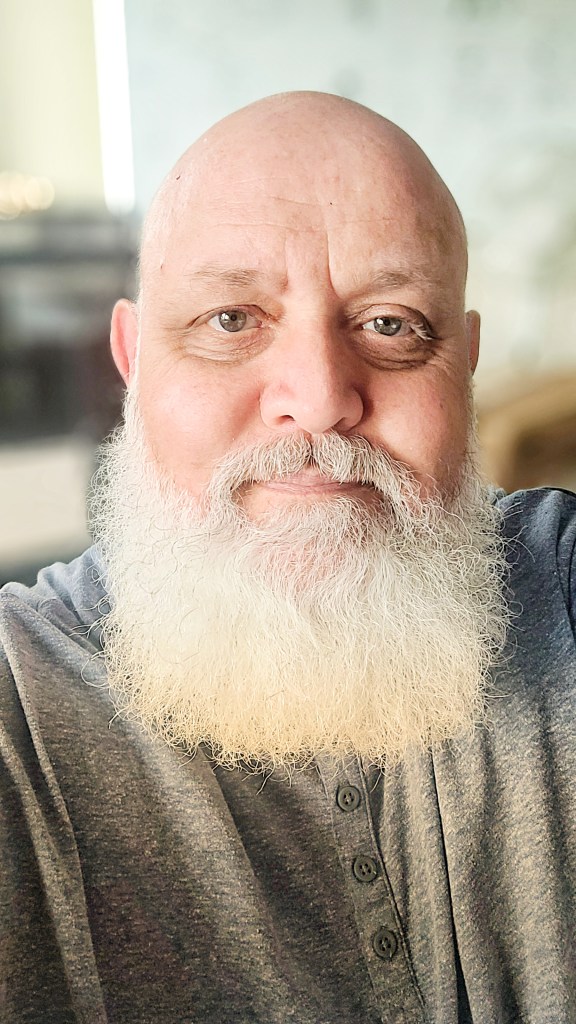
Welcome to the world of black and white conversion. It’s a process that a majority of my photography goes through. You can, of course, just use the saturation tool in the “Tune Image” section, and you will get a monochrome image. But you can do so much more.

So, let’s do so much more. The black and white tool offers you some presets which might correspond to your taste. I tend to leave them alone and instead press on the circle that will give a series of colour filters to choose from. This is a direct link back to black and white film photography, and you know how much I love that. I love using the red filter, which, as in film photography, will make your blues darker. This is beautiful for those landscape photos where you want a dark sky to complement those fluffy white clouds.  It’s also my default film simulation on the X100F that I use for all my street photography.  It’s just a look that I fell in love with years ago.
The other common filters are all covered too.

  • Orange:  Orange filters give stronger effects than  yellow filters but are not as bold and dramatic as a red. It is therefore an ideal choice to span the effects given by both these filters.  Blue skies will be recorded in very dark tones on the print, giving bold contrast between the sky and clouds. An orange filter will also penetrate haze and fog. Most flowers will be recorded with a significant difference in tone from the surrounding foliage giving impact and effect.
  • Yellow, the general purpose black and white filter,
  • Green:  When photographing foliage in black and white, a green filter is used almost exclusively.  It lightens green foliage, which is particularly important with dark green leaves which can record very dark without a filter. It therefore gives a more natural, lighter feel to the photograph.
  • Blue: A blue filter is not often associated with black & white photography however, it can really add “mood” to a photograph by increasing the effect of haze or fog.  It also lightens blues and darkens yellows, oranges and reds which helps separation in scenes containing a mix of colours.

Export

You have two options.  You can either press on “done” and Snapseed will record your image in the Snapseed folder and in your gallery in the Album neamed Snapseed, or you you can press “share “and you will be presented with various options on how to share your image, to Instagram, via gmail etc.

Before you do that you can press on settings where you can change the resolution of the image that will be exported.  This can help if you need to reduce the image to take up less space on your phone, or if you’re loading the photo up to a website and you require a “lighter” image.

Conclusion

You now have an idea about how I edit my images on the go, and the more time goes on, the more I do it this way.  Is it the same as Lightroom on my computer?  No.  I can’t have as much control as in Lightroom. I can’t batch edit, I can’t do this or that, but I can manage without, especially on the go.  There are of course other options for photo editing on the go like Lightroom mobile,VSCO, your native photo editor app on your phone.  As I said at the beginning of the article this is how “I” do things.  It works for me.  Try it out and it might just work for you too!

The Opening of the Film Archives – Clisson May 2016


Introduction

Welcome back to the film archives.  Today I’m going to share some photos of the first reel from my “new” Canon AE1.  Well, not new, but certainly new to me.  The Canon AE1s were produced between 1976 and 1984.  It is one of those iconic cameras and at the time I must have paid about 50€.  When I say iconic, I really mean iconic.  It is a shutter speed priority camera using Canon’s FD lenses. I used it an awful lot that summer.  I liked it so much that I even bought a second one that I ended up giving to a photographer friend. 

Colour

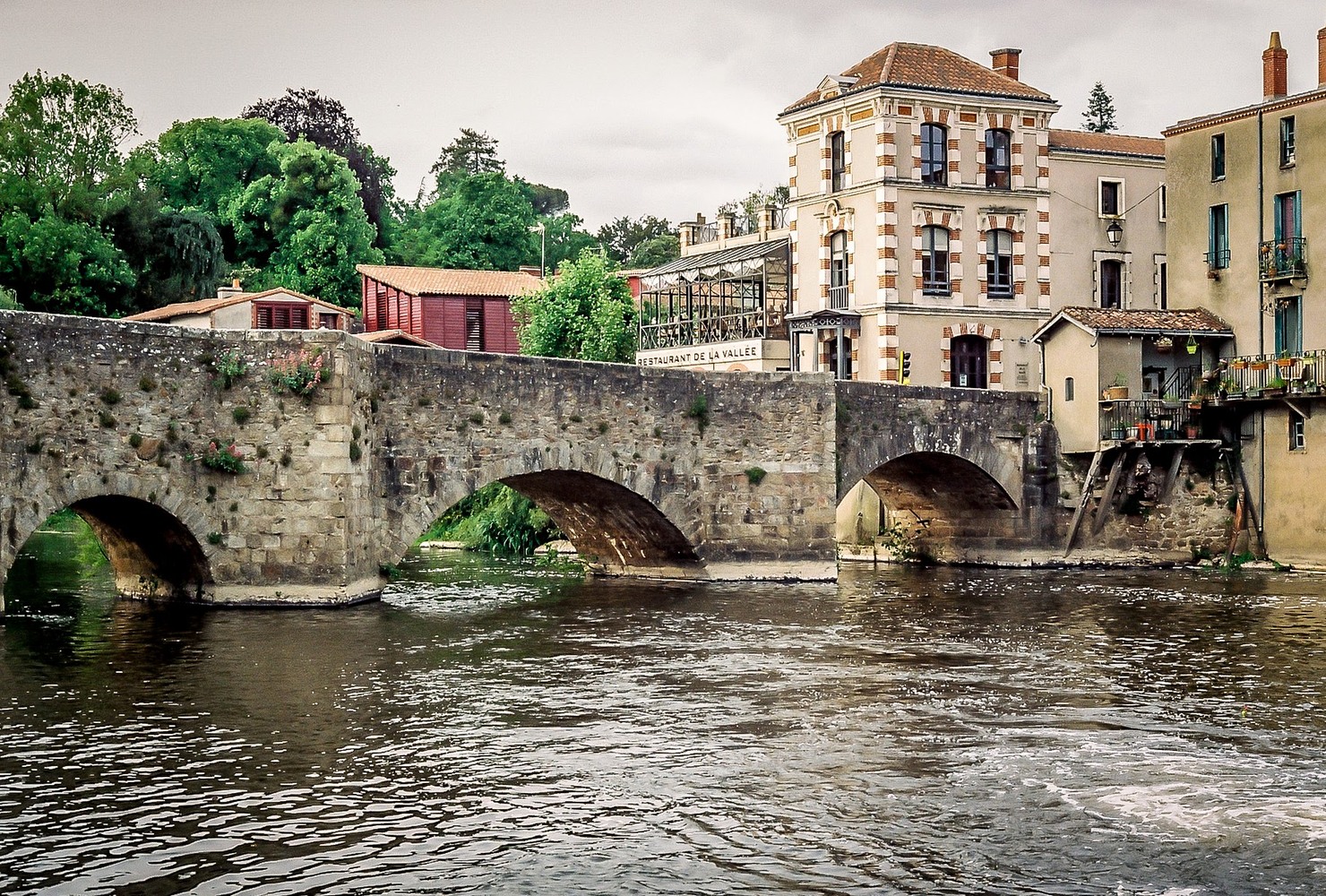
To some people of my generation they represent their first cameras, and were so popular.  Talking of popular, the photographs from this part of the archive are from the very popular and photogenic town, Clisson.  Also you will have noticed that the photos are in colour.  Which only goes to show that not all film photography is black and white photography.

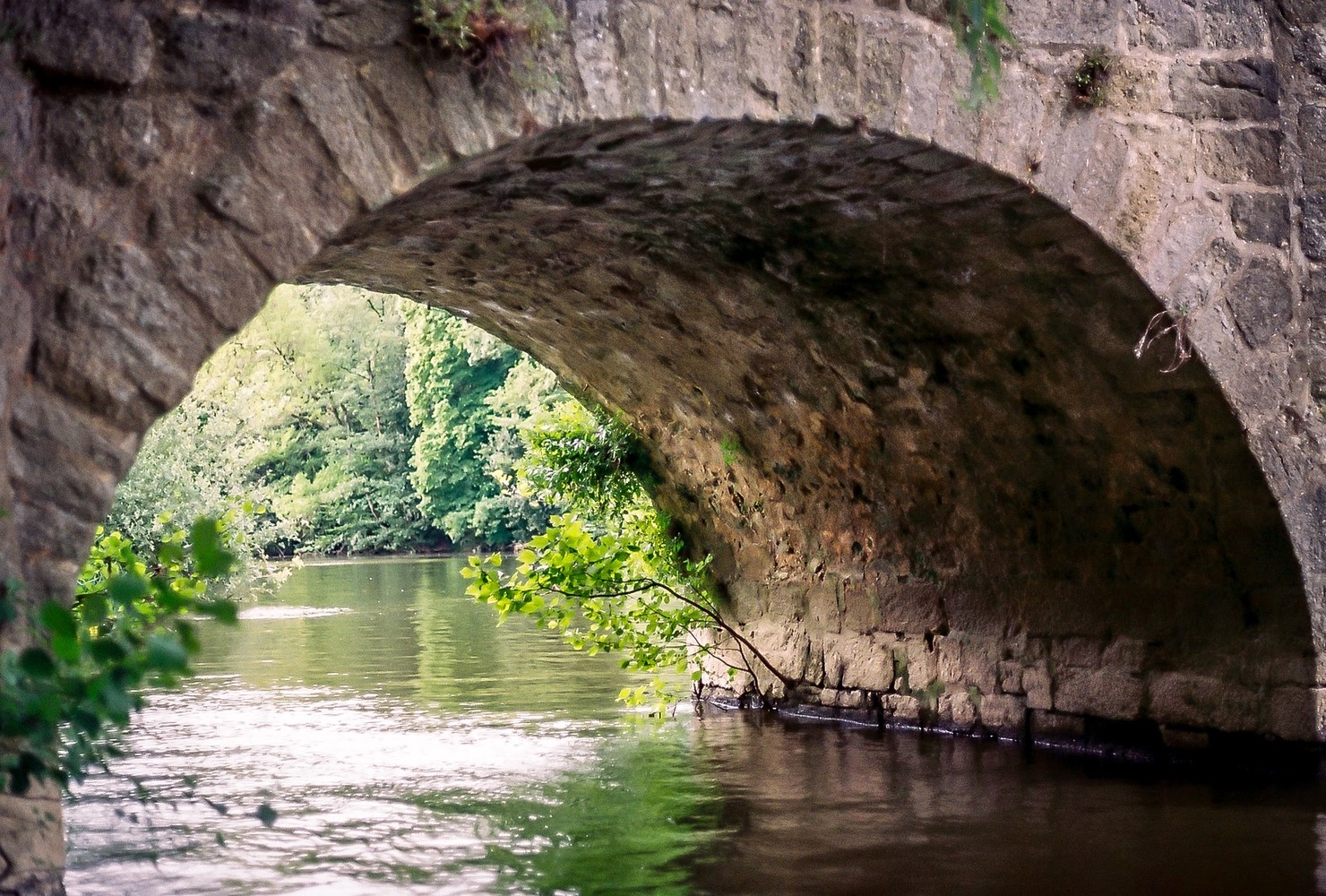
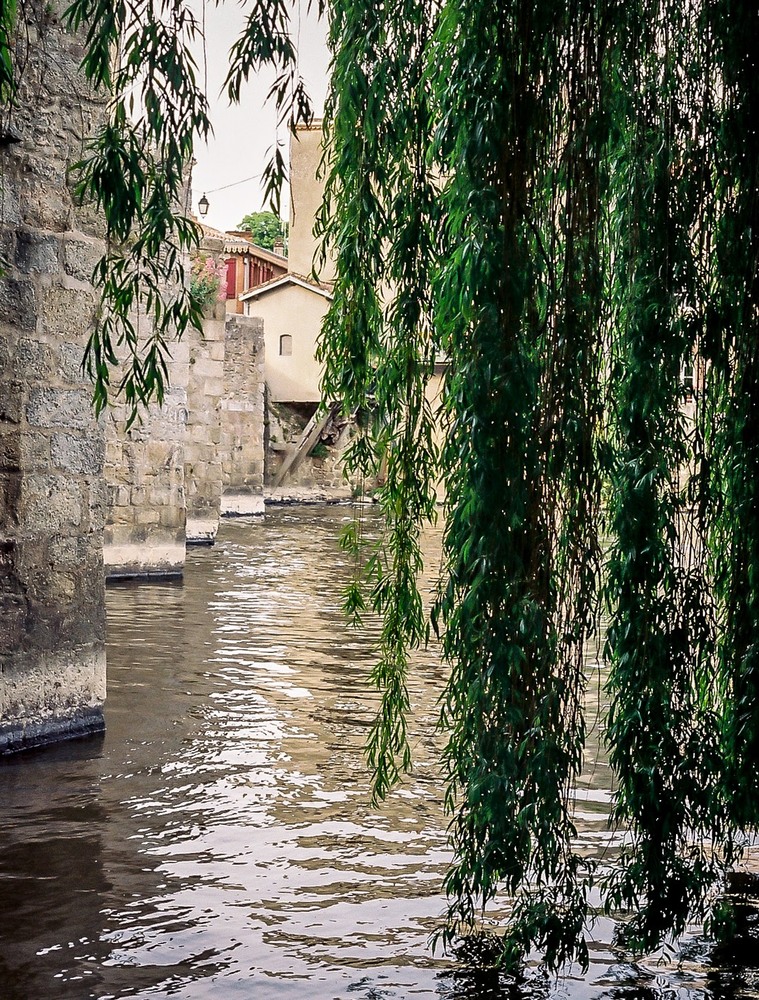
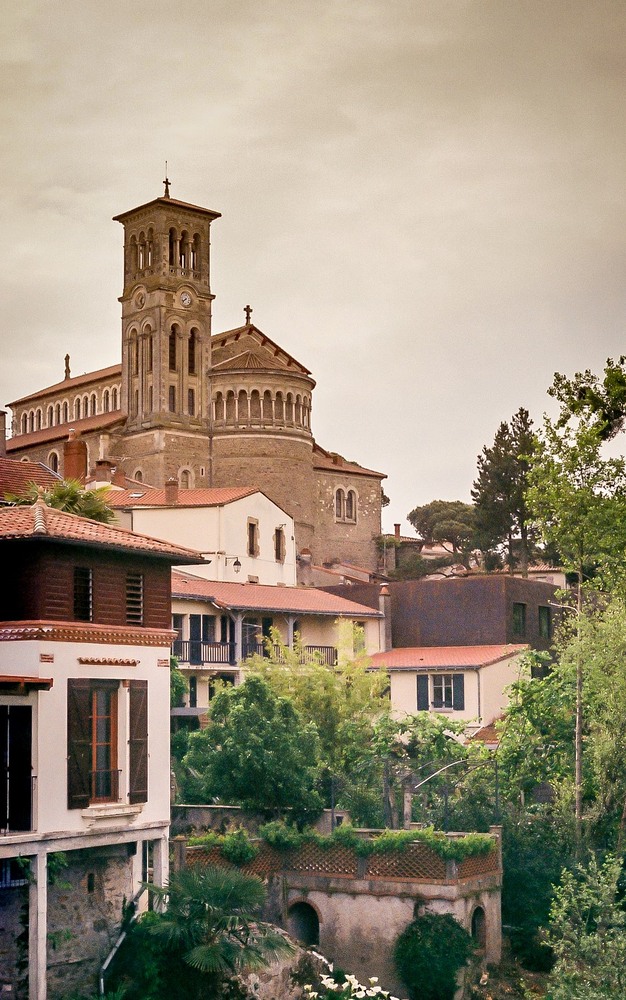
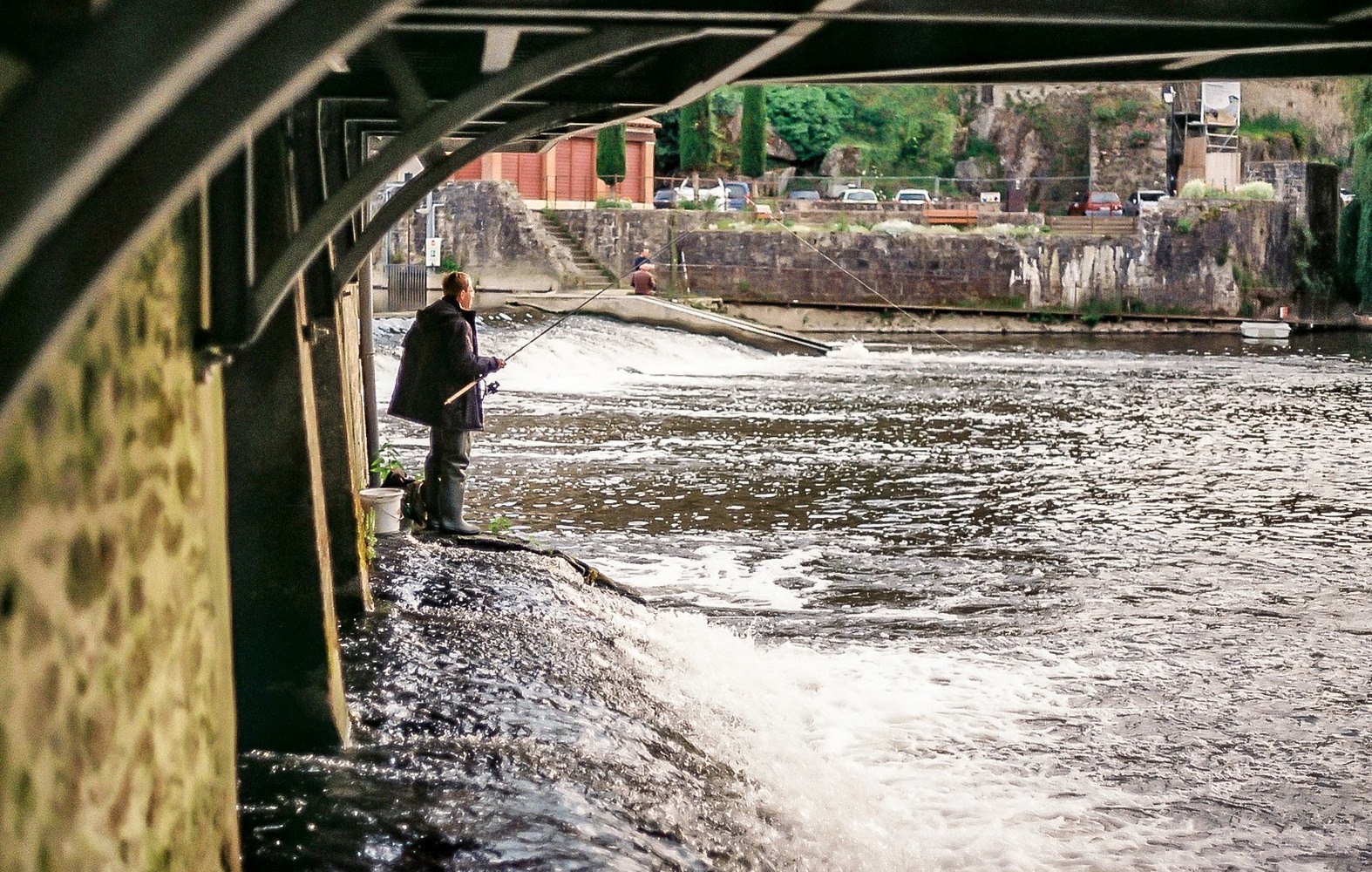
Clisson, as you can see in the photos, is one of those beautiful French villages that oozes Gallic charm.  It also exudes a certain Italian charm, and is known for its Italian style architecture.  

Canon AE1

I have both a Canon AE1 and AEI Program. The AE1 is the big brother of the AE1 Program, and doesn’t have a program mode, but as you can see from the photos it still works a treat.

FeatureCanon AE-1Canon AE-1 ProgramDifferences
Release Year19761981AE-1 Program released 5 years after AE-1
Exposure ModesShutter Priority AEShutter Priority AE, Program AEProgram AE added to AE-1 Program
MeteringCenter-weighted AverageCenter-weighted AverageNo difference
Shutter Speeds2s – 1/1000s2s – 1/1000sNo difference
Viewfinder DisplayLEDsLEDsNo difference
Film Speed SettingManualManualNo difference
Self-timerYesYesNo difference
Depth of Field PreviewYesYesNo difference
Motor Drive CompatibilityYesYesNo difference
Other NotesFirst Canon SLR with microprocessor; revolutionary for its timeSimplified controls for easier use; appealed to wider audienceAE-1 Program aimed at beginners and enthusiasts
As you can see there’s not a huge differece between the two. The major difference being the Program option, and the other allowing for easier changing of the ASA film sensitivity setting.

On the day in question I must have parked just next to the river and concentrated on this picturesque  area.  You can see the castle, the bridge, and the river, all making for a peaceful spring moment.

I think the film was Fuji Superia, and I just wanted to use colour.  Thetones are slightly muted and warm, and the flowers, trees and plants were just screaming out to be photographed.  I remember the excitement of loading the film into this “new” camera, and the novelty of simply using an iconic camera.

Here is what fuji tells us about the film:

FUJICOLOR SUPERIA X-TRA400

An all-round general purpose, high-performance, high speed color negative film delivering truly fine-grain. Superb for snapshots or action, in low light with flash, outdoors or indoors. Ideal for general use with compact zoom lens cameras.

  • Excellent skin tones
    For beautiful, clear people-shots.
  • Fine grain
    Great results even when enlarged.
  • High-speed
    Superb results, whatever the shooting conditions.
  • Sensitivity and Film Sizes
    ISO : 400
    Film Sizes : 135 : 36 exp.

 When using digital, it’s so difficult to get that particular film look, and using film and an older camera just changes your whole outlook.  The fact of not having your image straight away leaves you with that anticipation that we all used to feel when we sent off our films to the lab.

Give film a try.  There are still cheap film cameras out there, and your photography experience will be totally different.  I certainly appreciate it.

Photo Editing On The Go With Snapseed


INTRODUCTION

Twenty-two years ago, I was fired from the job that took me away from Paris to the French countryside where I now live. In hindsight, it was one of the best things that ever happened to me. Sometimes we need that shove beyond our control to nudge us in a different direction.

At the time, I was already into this new thing called the internet that was becoming more and more mainstream. I wanted to learn all I could before my children would teach me. So, I learnt. I even trained to be an “infographiste,” which is similar to a webmaster, now known as a web developer.

AN ENGLISHMAN IN VENDÉE

I learned how to use QuarkXpress, Indesign, Dreamweaver, Photoshop, and Illustrator. I also learned how not to be afraid of opening up a computer and getting in there with a screwdriver. I had this amazing idea of creating a website called “An Englishman in Vendée” to showcase outings with my young son around the area. I took photos with a “webcam” which was about the size of a GoPro but compared to what we have twenty years on, was anything but pro. At the time, I dreamt of having portable internet, portable editing software, and a means of sharing those pictures online.

I would have to wait a while. In 2024, I have a Samsung S20 FE and I now have all I need to do that, on the go! I can even transfer the photos from my high-end digital camera to my phone, edit the images on my phone, and publish them either on my website (no longer Geocities) or on social media.
WELCOME TO SNAPSEED

Now I use “Snapseed” for editing my photos, WordPress for writing my articles, and Chat GPT to give my articles structure and a writing plan. All this in a device that fits into my pocket.

So, what is Snapseed? It’s an app that I recommend to anyone who needs to edit pictures on the go. It is available for Android and Apple devices, so you’re all covered. But why Snapseed? Well, it’s free, simple to use, and has all the tools you need for editing. It’s intuitive and comprehensive. I particularly like the Tune Image section, where I find all the tools I use for basic edits in Lightroom on my PC. The Rotate tool helps me check horizons, and the Black and White tool gives me full control over the conversion process.

Snapseed is a non-destructive editing programme (app) that uses your original file, whether RAW or JPEG, and allows you to edit to your heart’s content. Can it do everything Lightroom can? No. Is it trying to? Still no. It adds some nice “style filters” in the tool section that allow you to have fun. The more serious photo editor will probably stick to the basic tools that still allow them to get the results they need “on the go.” I use it during shoots to give sitters an idea of what their shots will look like. These first “draft” images are perfect for sharing on social media.

KEEP IT SIMPLE WITH SNAPSEED

I’ve talked about KISS in the past, and I’m going to mention it today too. KISS – Keep it Simple Stupid! Snapseed is deceivingly simple when you look at the user interface, but it has a range of tools that help you achieve the look you want.

It starts by offering you three basic options: Styles (similar to presets), Tools (where you can fine-tune everything), and Export (where you go to export your edited photo).

STYLES

Styles are essentially presets in other software, and Snapseed offers a variety of styles:

In the next article, we’ll talk about the various tools Snapseed offers to help you edit on the go. I will walk you through my basic editing process, showing you which tools I use and how I use them. Remember the 80/20 rule: 80% of your editing can be done with 20% of the available tools. So be patient, and you will be rewarded for your patience. See you in the next one!