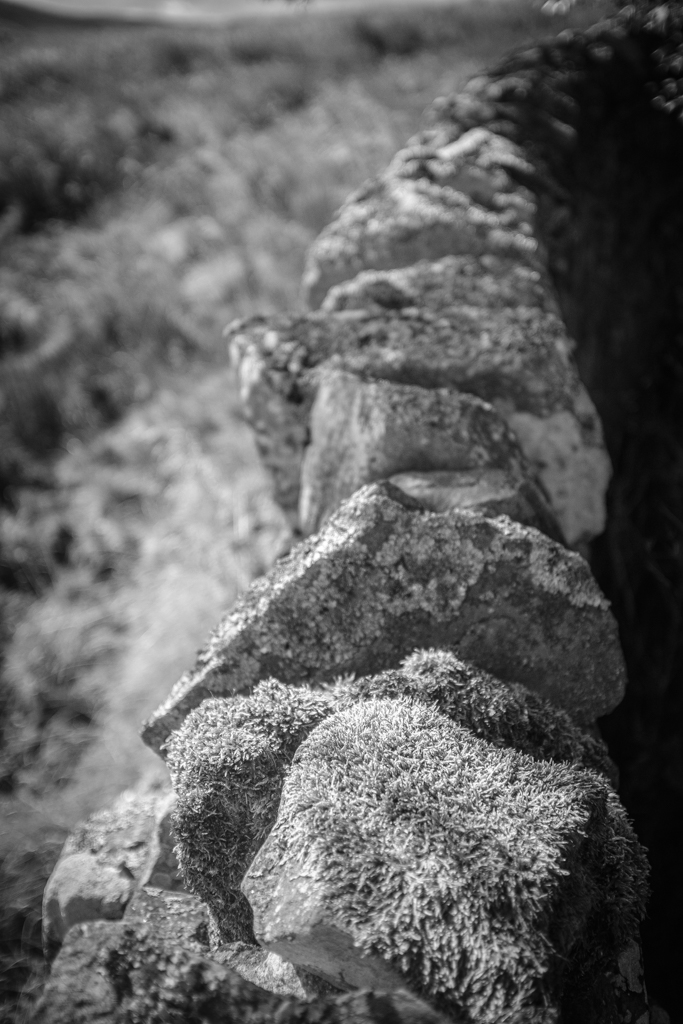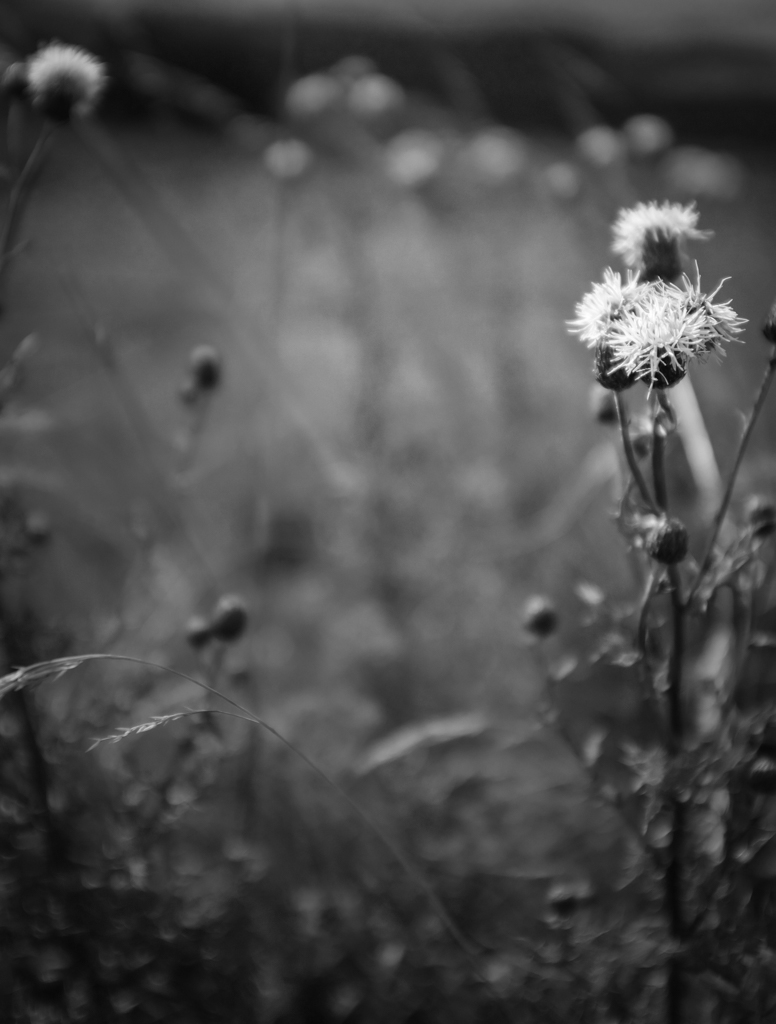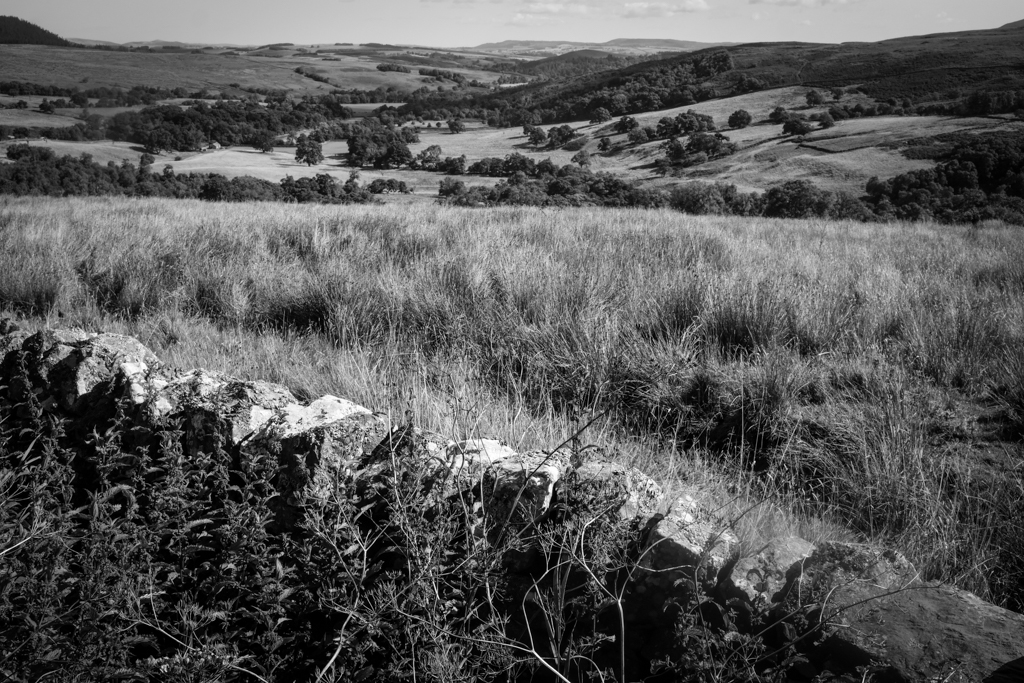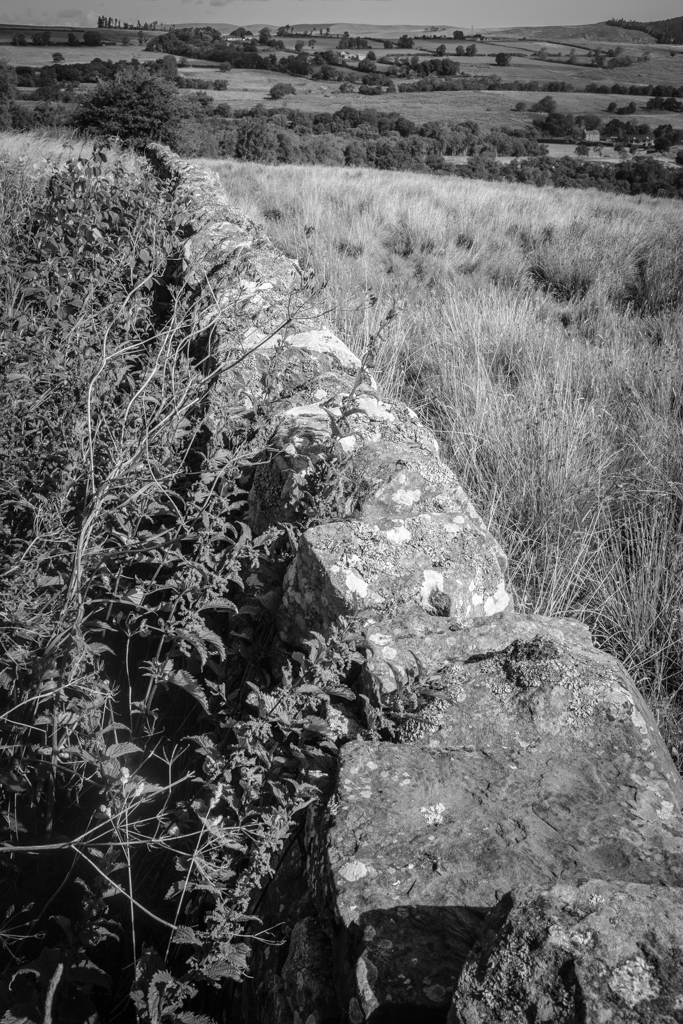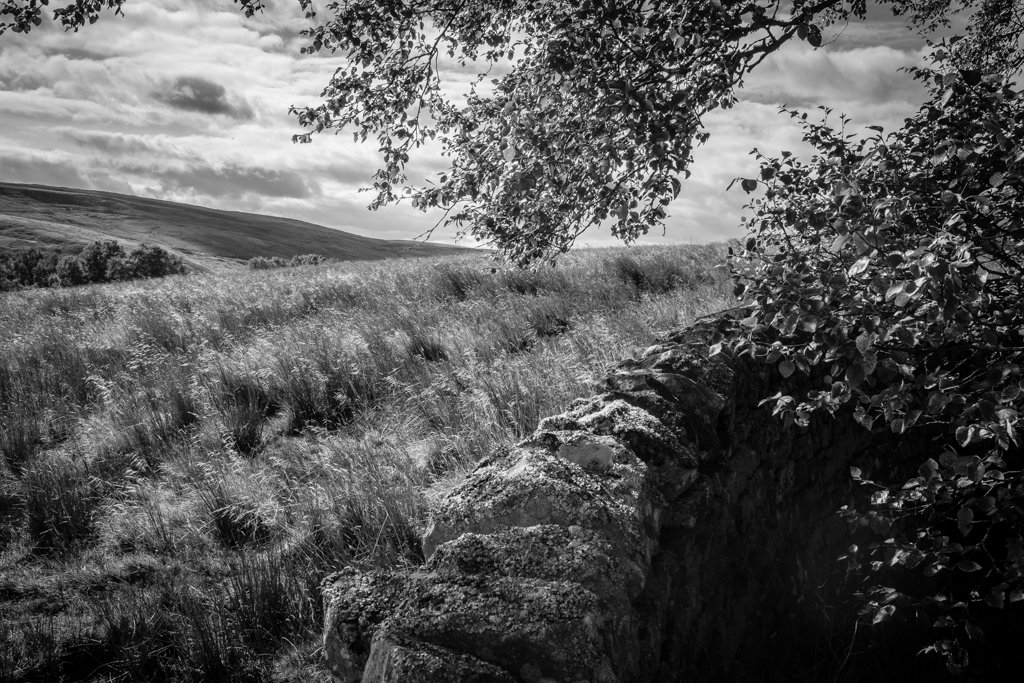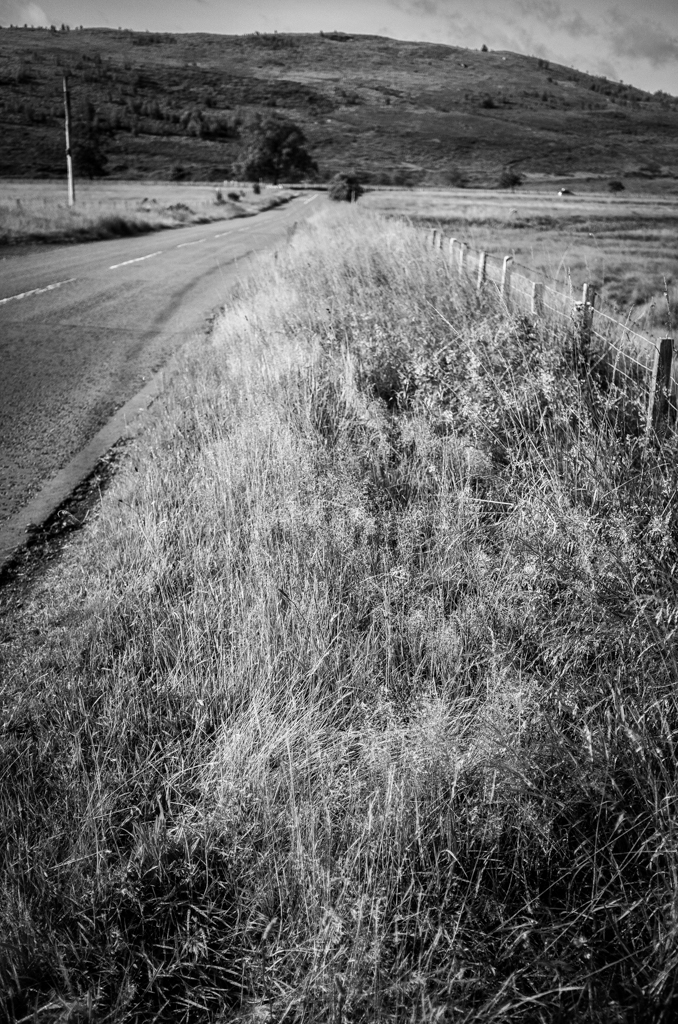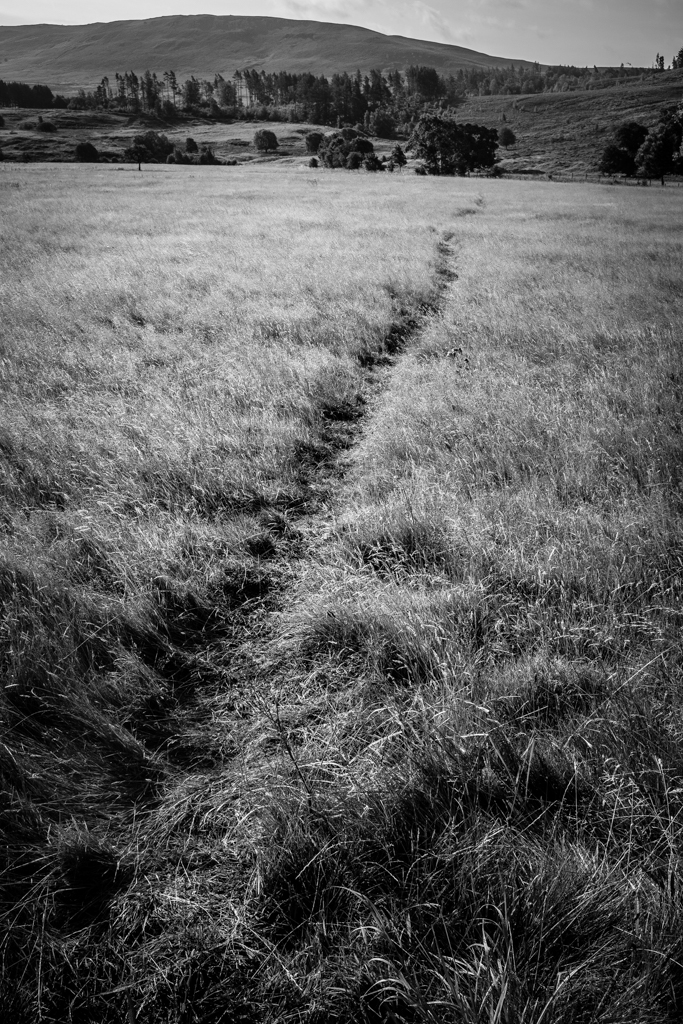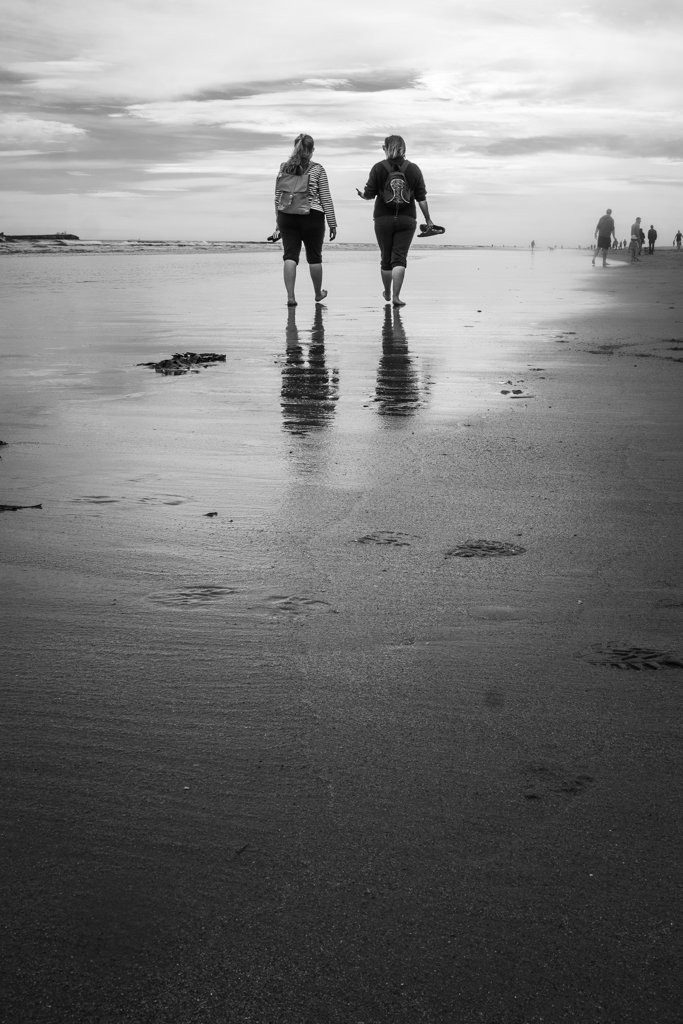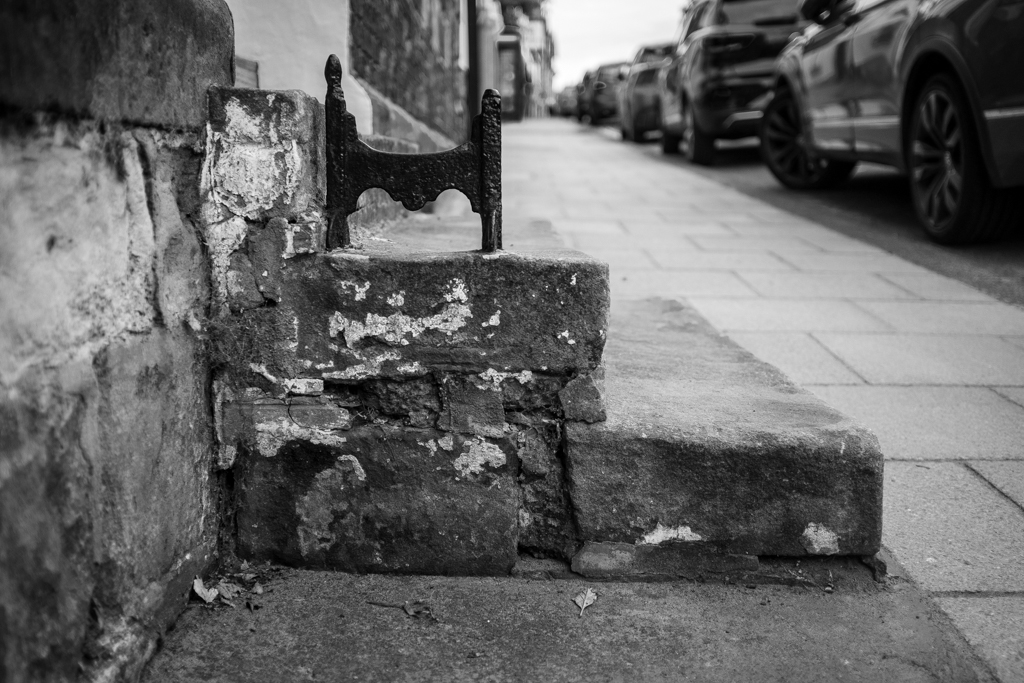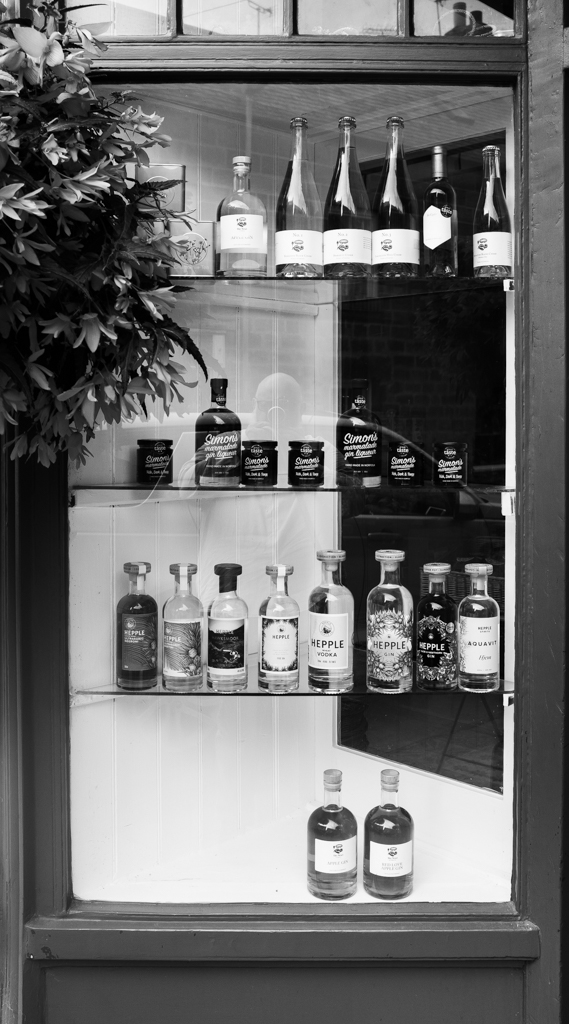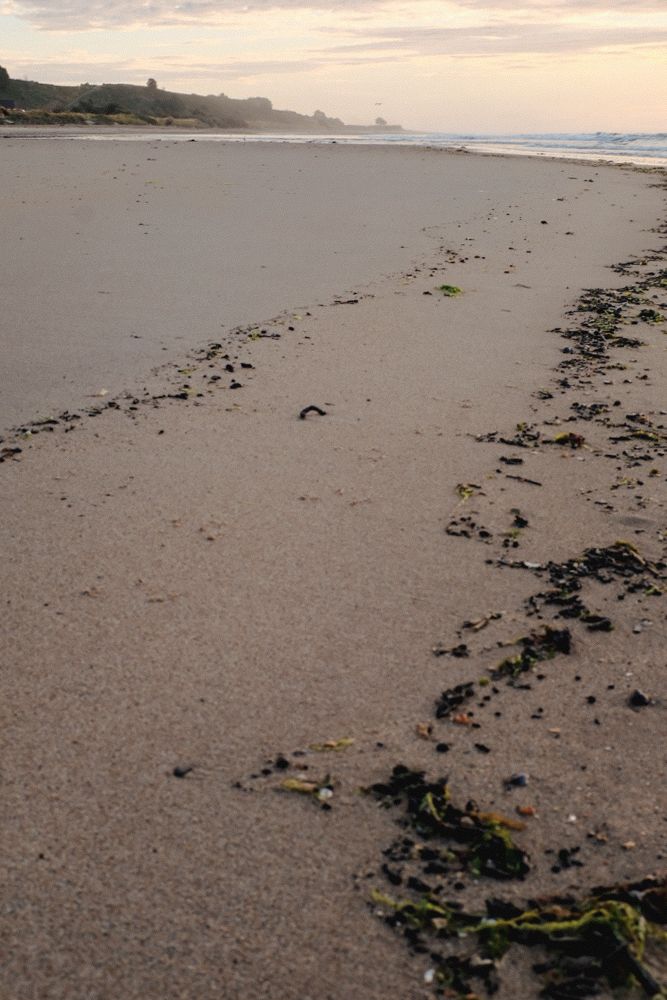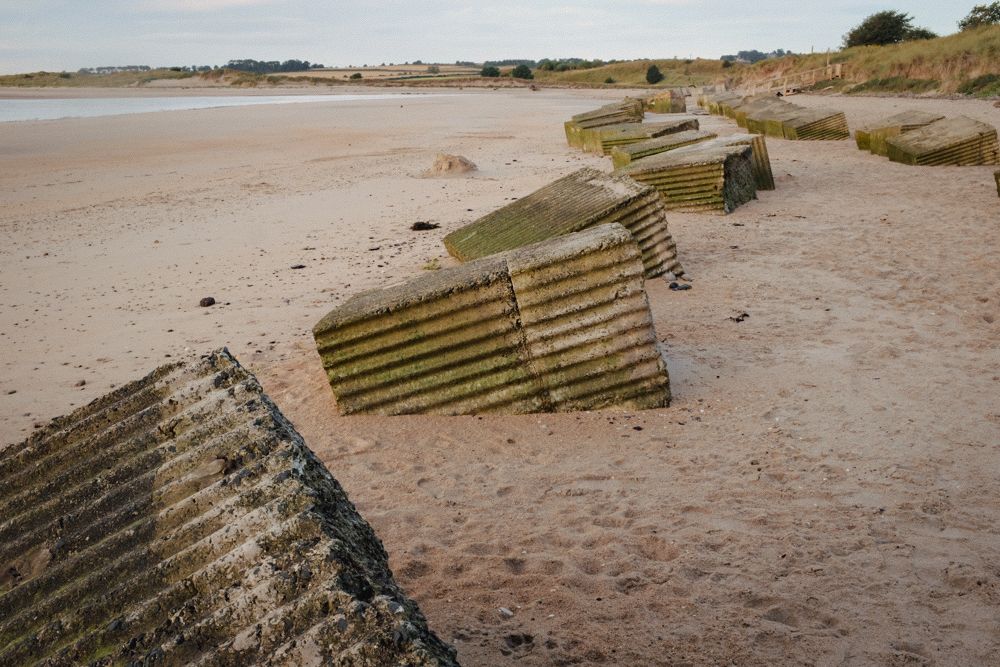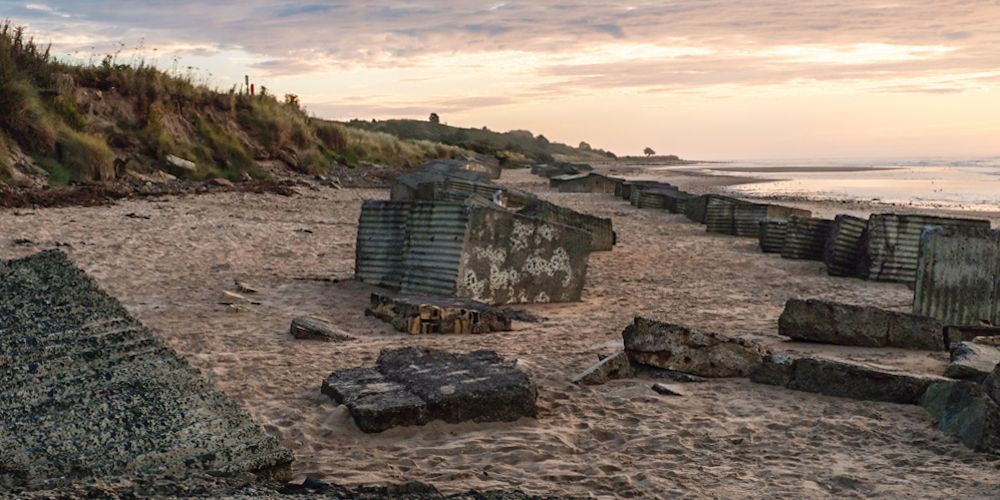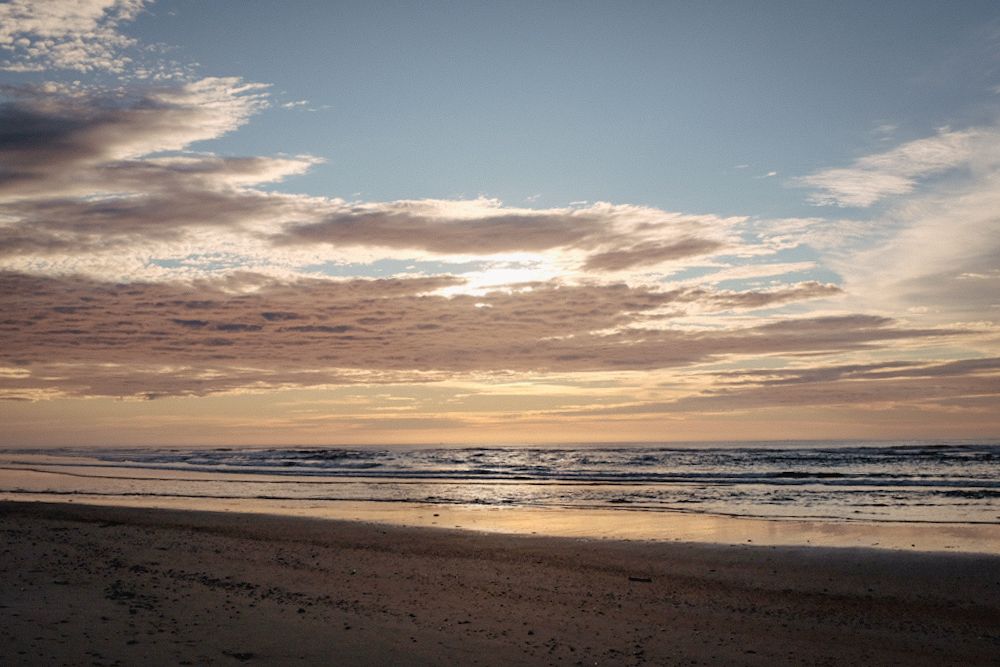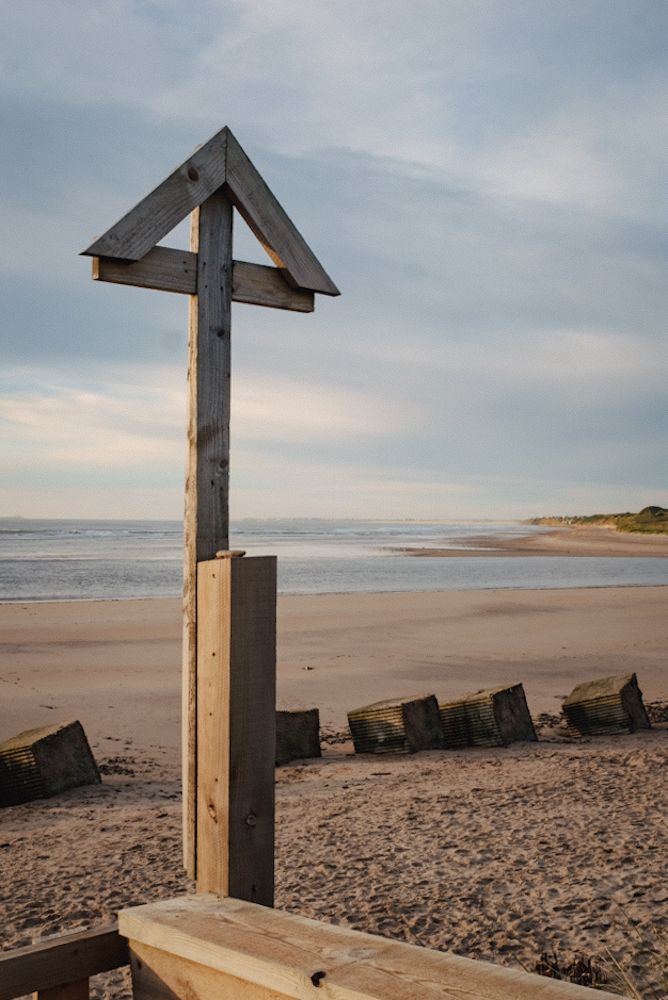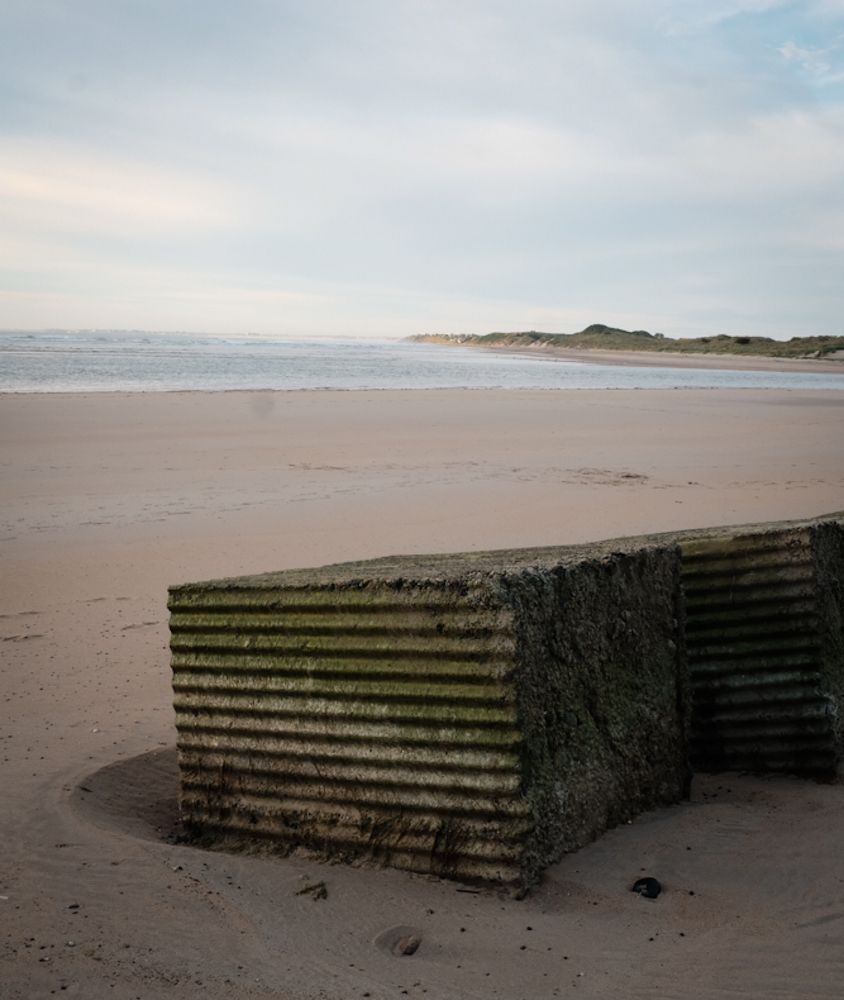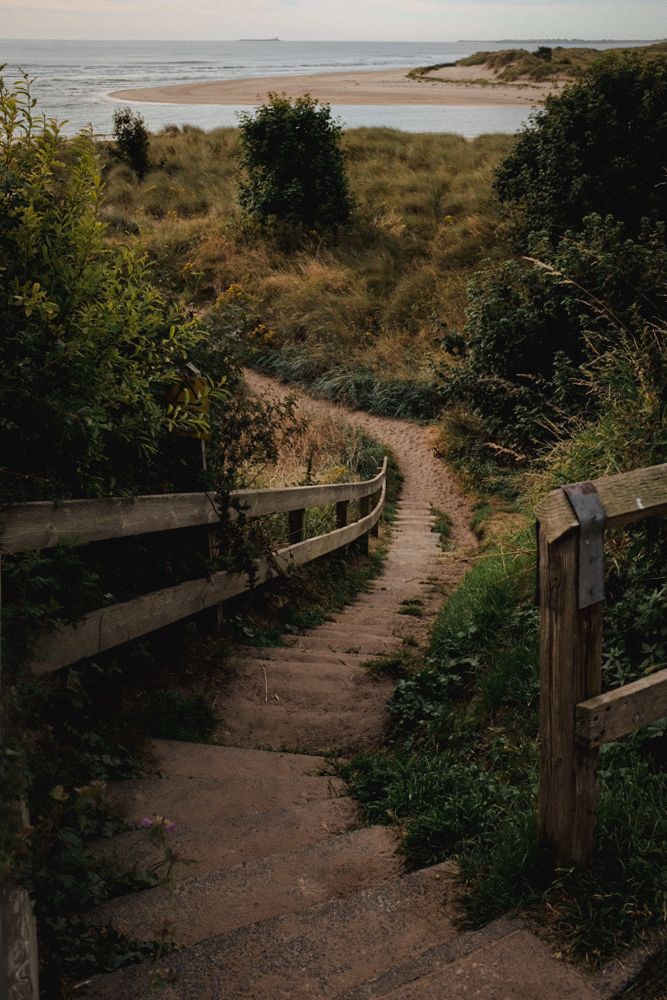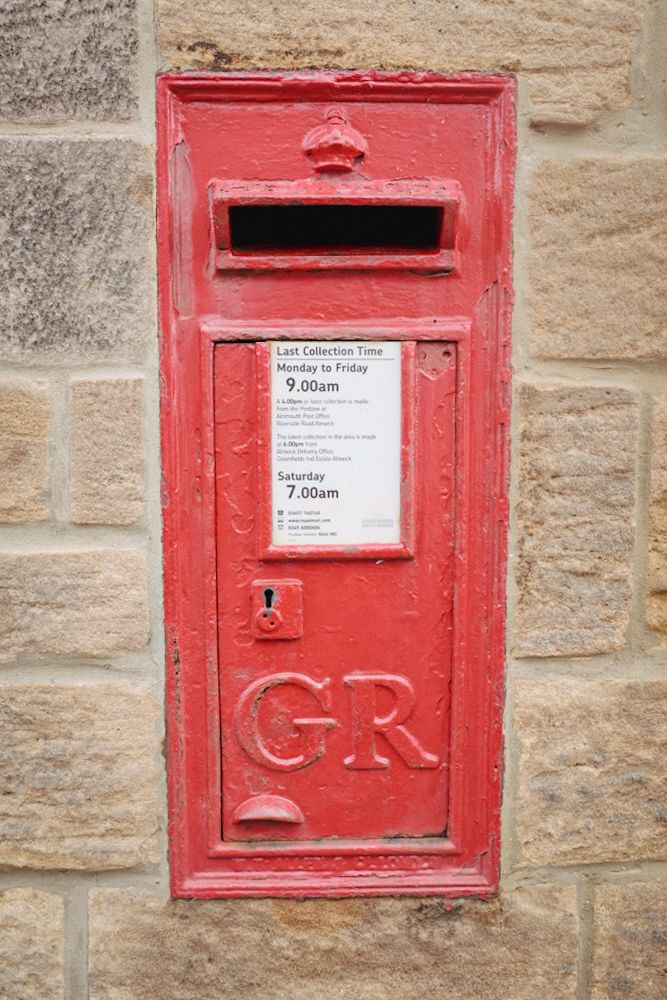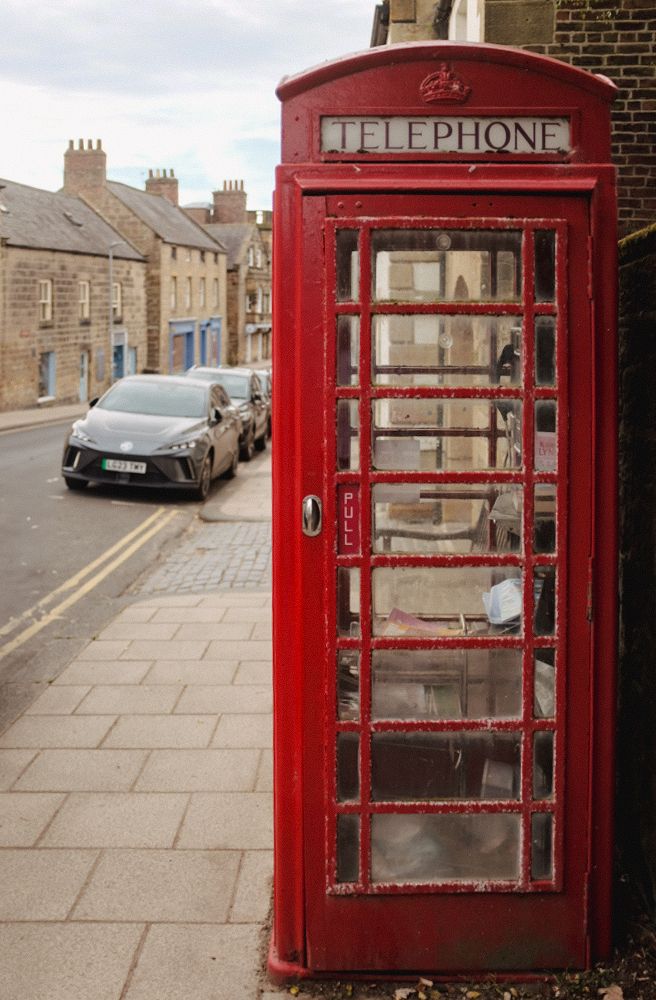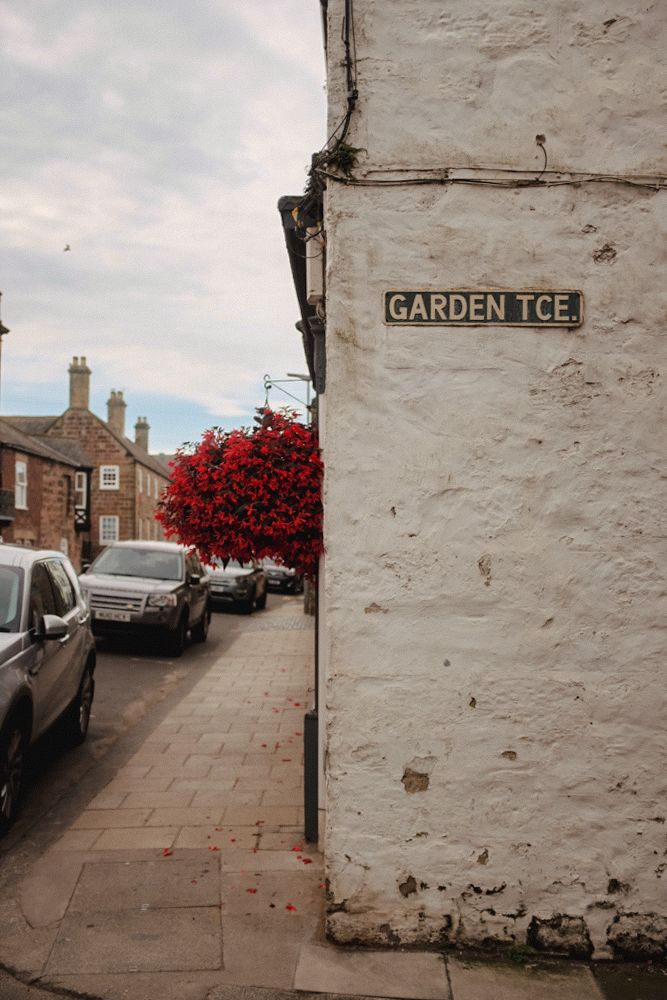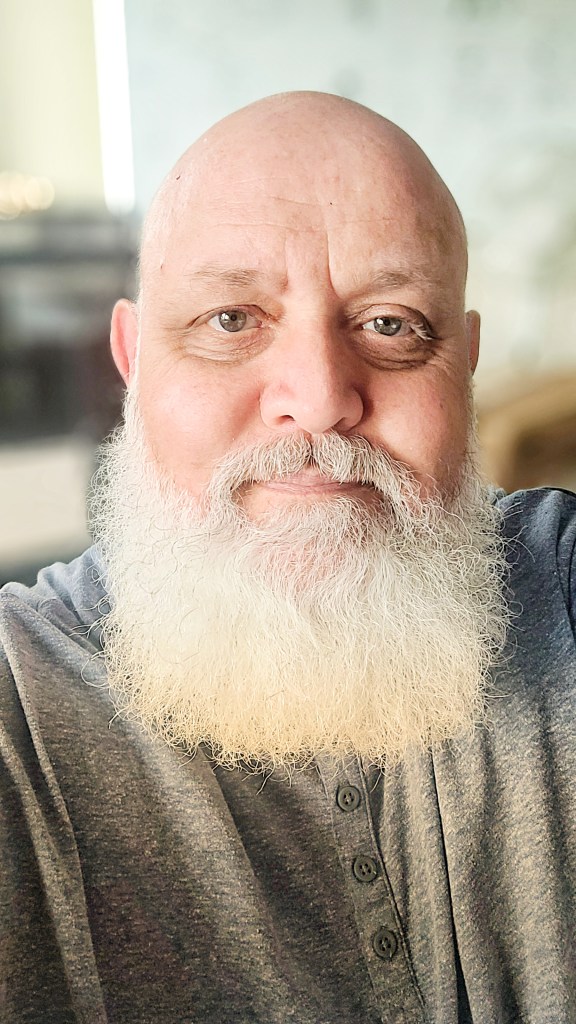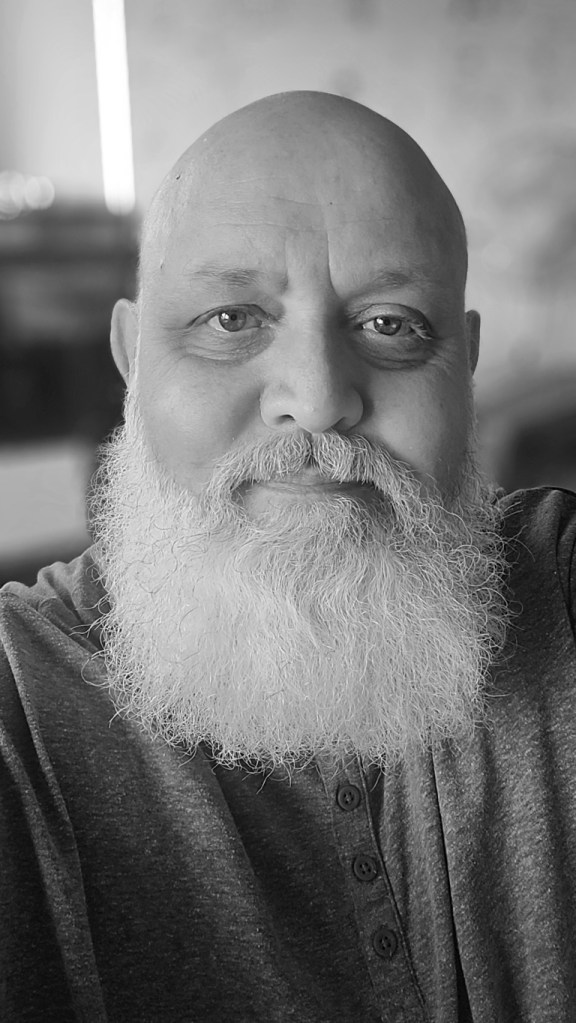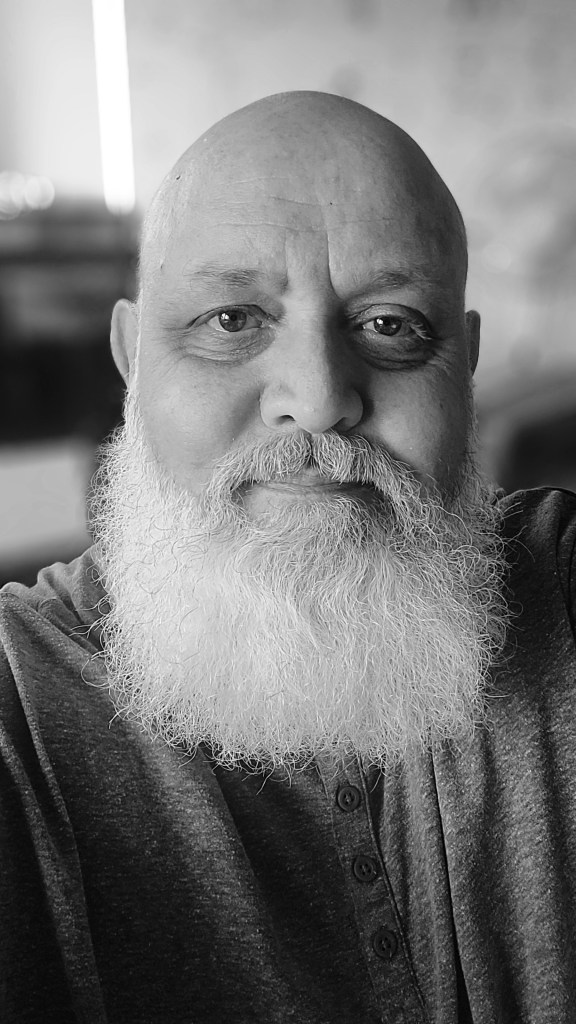
The UK Chronicles: A Black and White Footnote


My usual approach to black and white photography is to shoot directly in black and white, either using black and white film or the Acros film simulation with my X100F. When using the X100F on this UK trip, my EVF displayed the black and white shot using Acros with a red filter—my go-to simulation. This method puts me in a black-and-white “frame of mind” from the outset.

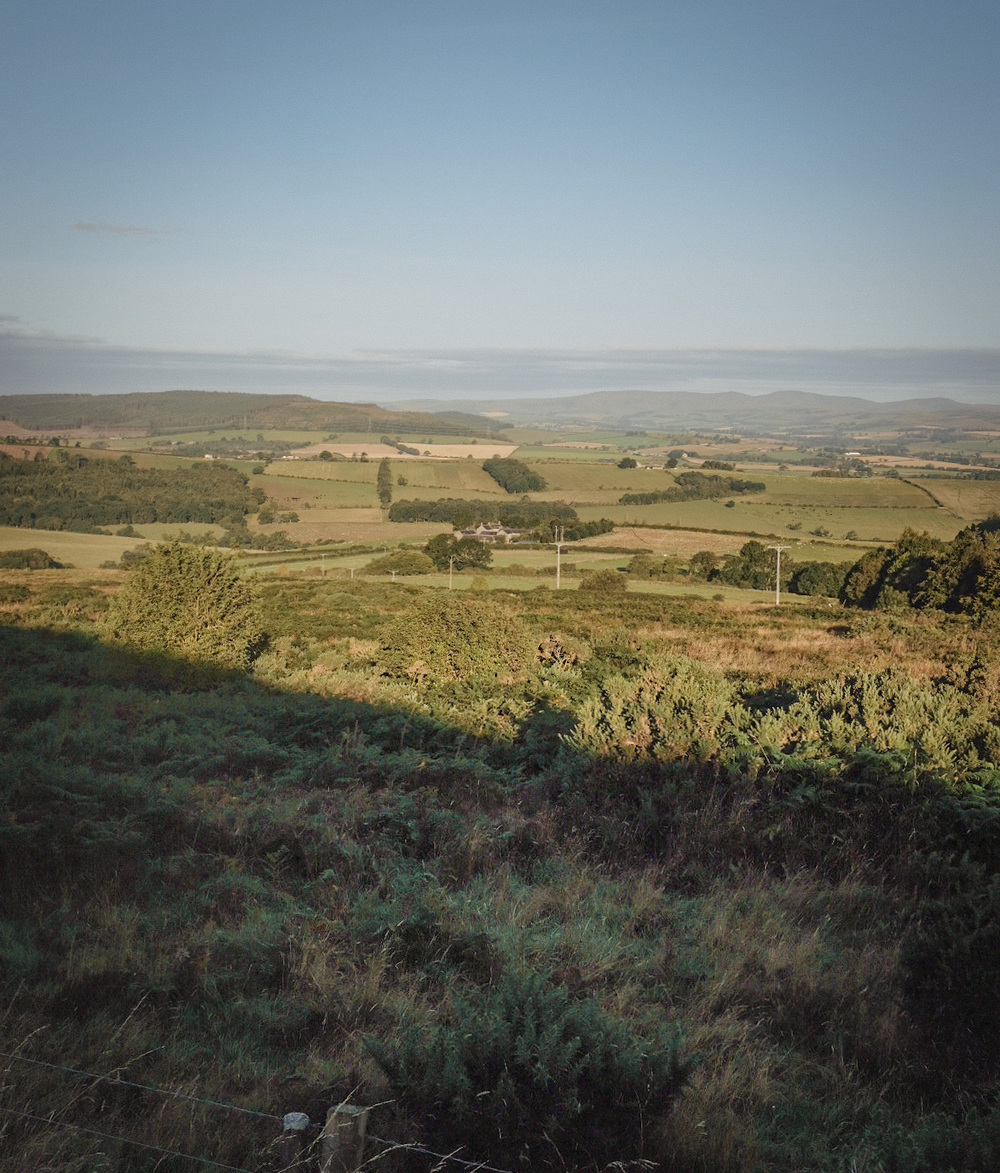
However, this time I decided to break from my usual practice and experiment. I did something I normally advise against—starting with the intention to create color images and only considering black and white later. I chose the Classic Chrome film simulation instead of Acros, focusing on capturing the vibrant colors of the Northumbrian countryside. It was all about breaking free from my black-and-white routine. Both color and black-and-white photography have their place, but for this trip, I wanted to prioritize one over the other. Still, wouldn’t it be intriguing to compare both approaches?

Back in France, as I prepared the images for my black-and-white Instagram feed, I began to wonder if some of the colorful shots might also work in black and white. Initially hesitant—given my emphasis on shooting with intention and purpose—I decided to embrace the experiment. I was breaking one of my own rules, yet the idea intrigued me.

Reviewing the color shots, I considered which might translate well into black and white. I look for images with texture and varying tones rather than just color. My composition is usually solid since I’ve already edited my color images, including reframing and straightening as needed. With digital RAW files, converting to black and white and producing different versions is straightforward. As they say, the goal is to produce images that reflect how they made you feel, not just how you saw them. This is why I convert my images to black and white—they capture more of the emotional essence.

Opening Adobe Lightroom on my PC, I saw the familiar images on my screen. My editing approach may seem finicky, but it’s effective. While the simplest way to convert an image to black and white is to slide the “saturation” slider to the left, this often results in a flat, lifeless image. Instead, I use a more nuanced approach to control various color tones in the black-and-white image. This technique helps preserve depth and character, ensuring that each image maintains its visual impact even without color.

Here’s how I approach black-and-white conversion in Lightroom:

  • Black and White Profile: Sets the overall tone and mood of the image.
  • Clarity: Enhances texture and detail for a more dynamic appearance.
  • Contrast: Adjusts the range between light and dark areas, adding visual interest.
  • Color Sliders: Modifies the luminance of specific colors to bring out different tones in the black-and-white image.
  • Highlight Tool: Adds subtle vignetting and balances highlights for a polished finish.

So, why convert to black and white after shooting in color? For me, it offers a classic, timeless aesthetic, and challenges me to create a “better” image by focusing on composition and texture without the distraction of color. This approach pushes me to craft photographs that rely on fundamental elements, enhancing their overall impact.

Impact is at the heart of photography. While I cherish the colors of the Northumbrian countryside and am eager to learn how to use color more effectively, I also deeply value the strengths of black-and-white photography. It’s about transcending color to create images that resonate through composition and texture.

But there’s something more personal about these black-and-white conversions. Perhaps it’s because I broke my own rules this time around, allowing color to take center stage and letting the black-and-white images emerge later. These images weren’t planned with black and white in mind—yet, despite that, or perhaps because of it, they feel even more special to me. Sometimes, going against what you think you know leads to unexpected results. And, in this case, those results resonate even more deeply.

Isn’t impact what we strive for in our photography? Don’t get me wrong—I love the colors of the Northumbrian countryside and am on a quest to learn how to use color more effectively. But I do believe in the strength of the fundamentals offered by black-and-white photography. Sometimes, breaking your own routine brings surprising rewards.

The UK Chronicles, Part IV: Alnwick to Rothbury


The Scenic Drive: A Journey Through the Northumberland Moors

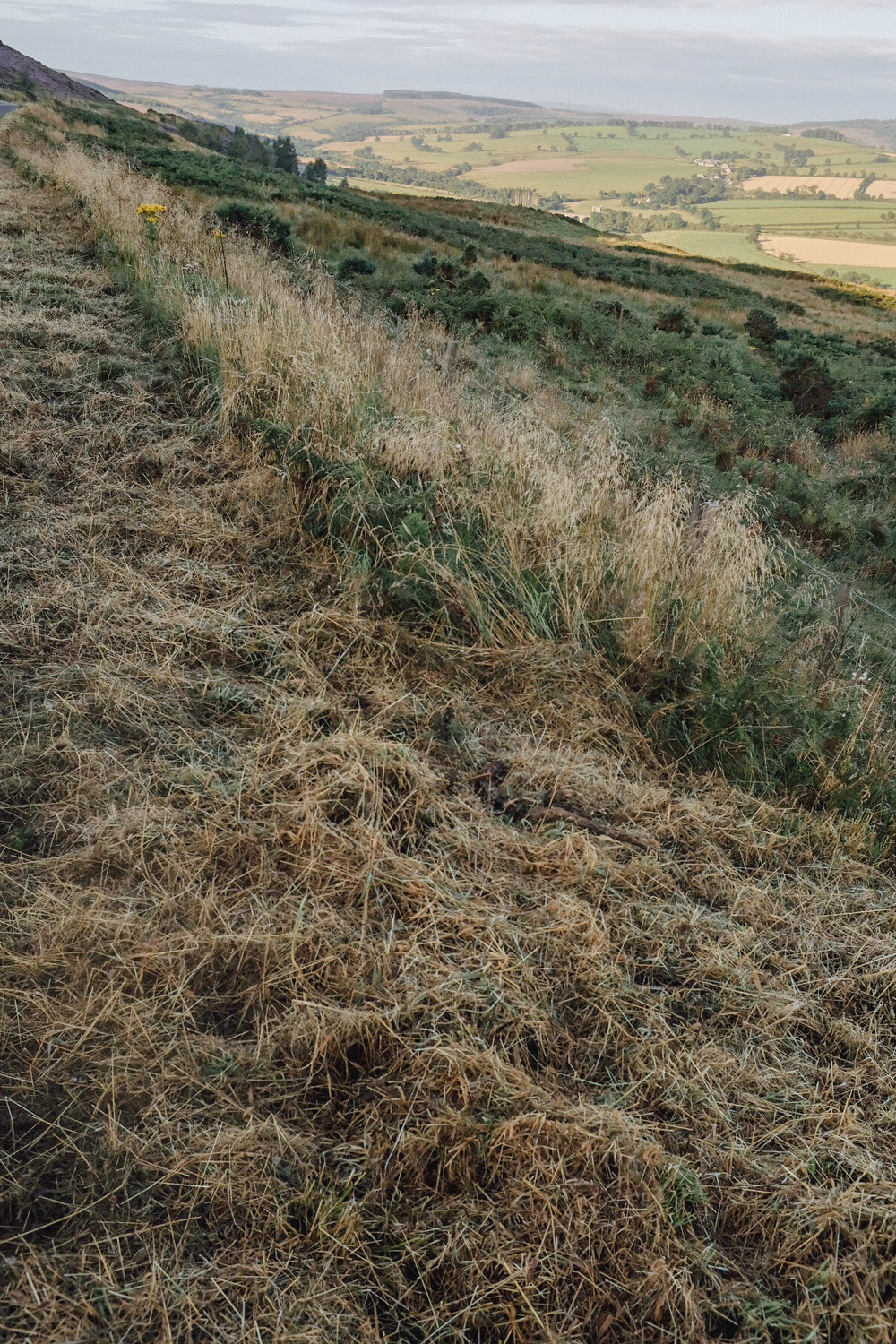
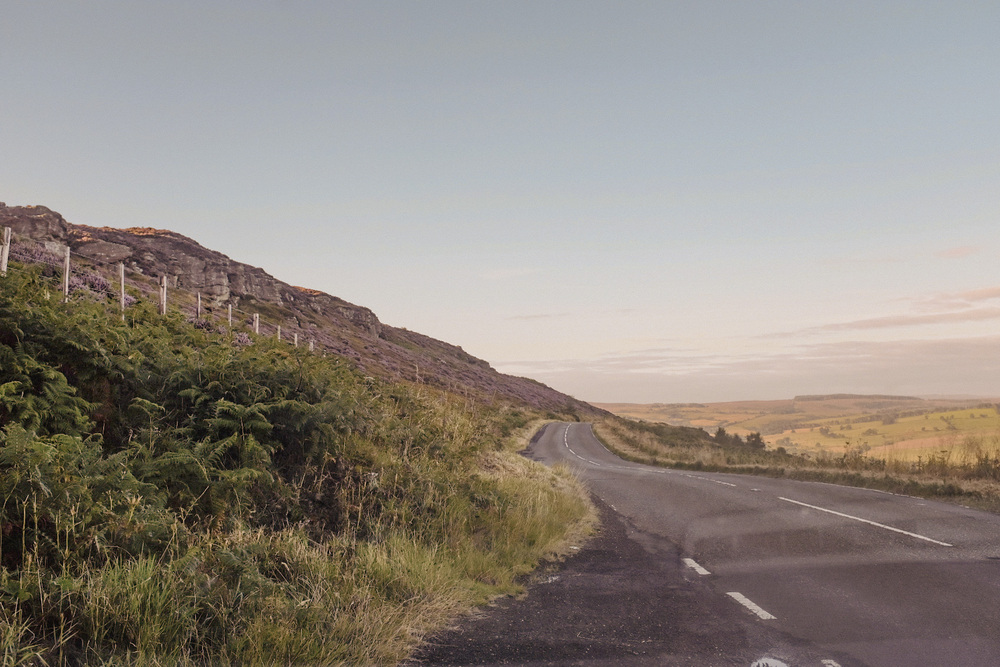
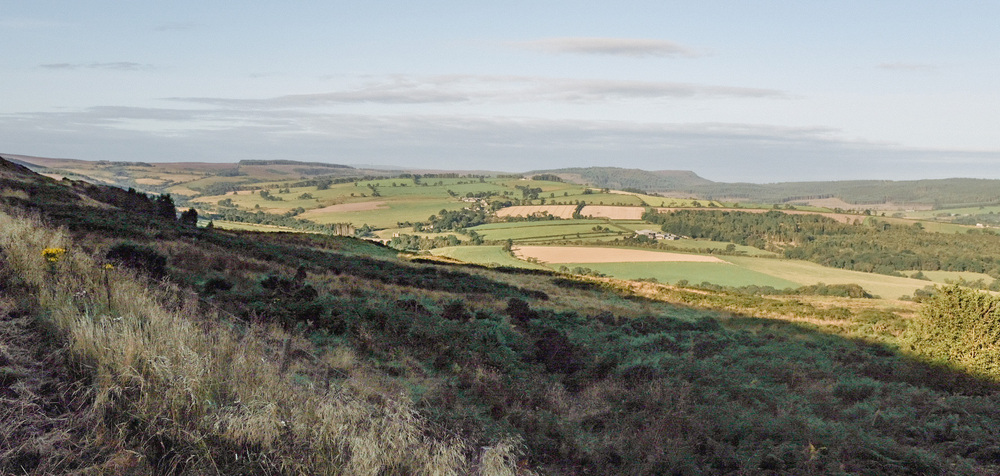
The road from Alnwick to Rothbury takes you over the Northumberland moors and through steep valleys, giving you real taste of the British countryside.  It is not only magnificent in the early morning light, but it has this way of taking your breath away at each bend in the road.

You might just have gathered by now that I was in the UK this summer, visiting my Parents in Northumberland.  You may also have gathered that I wasn’t having the best of sleeps and was thus up a little earlier than most.  You may also have gathered that I decided to go light on photography equipment this trip compared to last year, only taking my X100F with me to take photos.  You may also have gathered that this trip was not just about photography but spending some quality time with the children, especially my son, who hadn’t been to the UK for a while.  You may also have gathered that my son joined me on a couple of these photography jaunts. Right!  I think we may have set the scene.

Photography on the Go: Minimalist Gear and Techniques

We were both in the car by 6am, having breakfasted and taken our collagen in yorkshire tea to make it at least a little palatable.  This is an epic drive that I try to do at least once when I’m over.  When you see the photographs, you’ll understand why.  Like Bamburgh, I had to meter for the highlights knowing that I would be able to get back details in the shadows back home in Lightroom.  The 35mm F2.0 equivalent lens of the X100F was fine to capture enough of the scene, and if I wanted to zoom, then it would mean zooming with my feet. 

Capturing the Landscape: Heather in Bloom and Morning Light

Fortunately, there are plenty of places to stop by the side of the road on this route, which is a good job because at each turn everything changes.  The sun was coming up on our left and filling the valley with light, and the top of the hill cast a shadow that I would have to compensate for later.

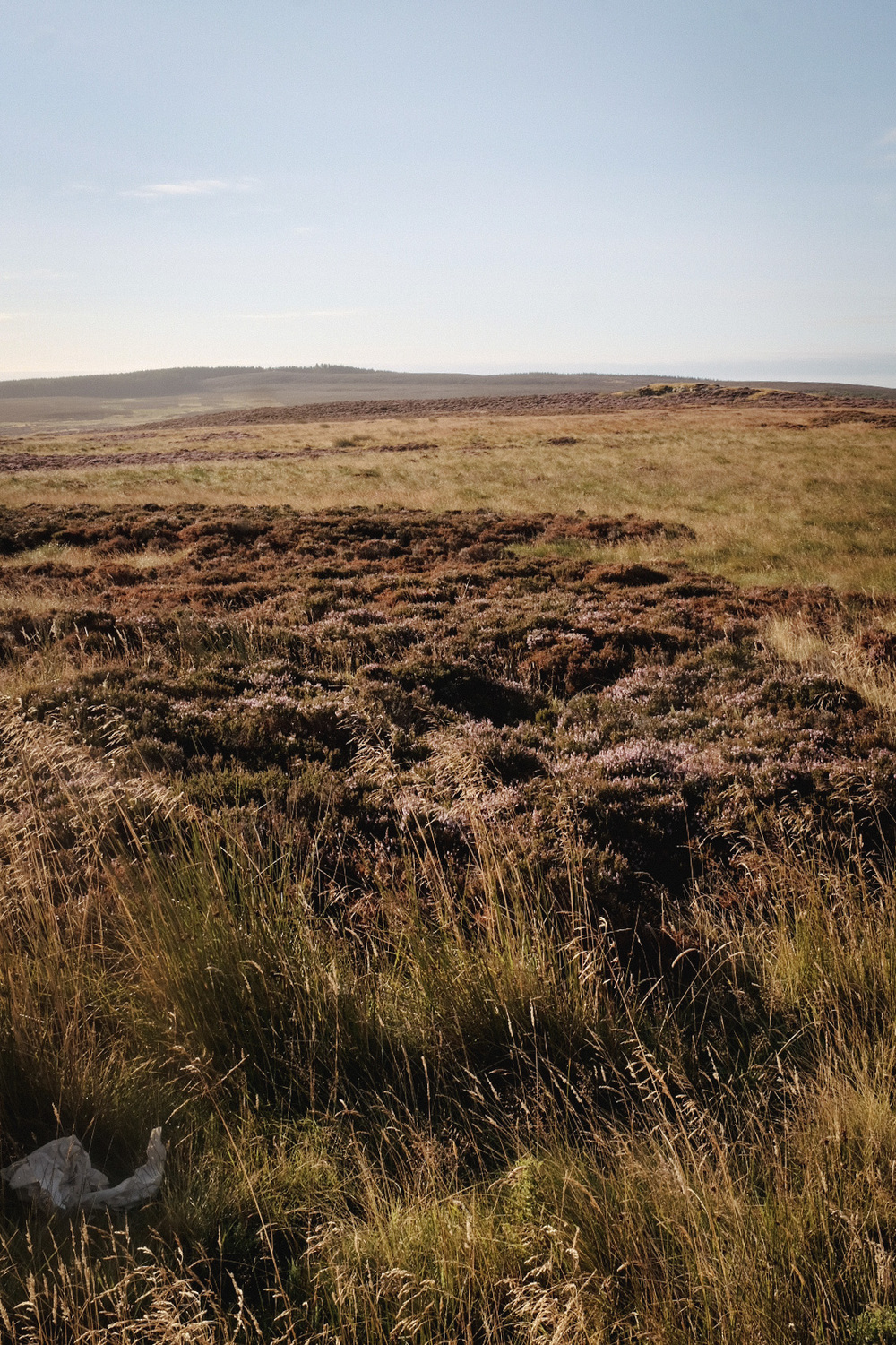
The road continues with views of the heather, which was in bloom and the pink added a wonderful contrast to the warm colours of the morning reflected on the landscape.  It certainly felt a real privilege to be there and take it all in.  We passed Cragside but decided to continue on to Rothbury.

A Taste of Rothbury: Discovering the Local Flavours

We managed to find a space to park in Rothbury, and out of the corner of our eye, we saw a bakery.  An English bakery, but a proper bakery.  No pain au chocolat or croissants, but sausage rolls, meat pies, even a haggis pie.  We settled on sandwiches in proper bread cakes and millionaire’s shortbread as a sweet treat.  Next, we just had to find a bench to sit on and eat our picnic.  There’s just something about eating a sandwich in an English village in the sun.   I daren’t imagine what the winters are like!  Possibly a bit nippy…

Looking Ahead: Plans for Otterburn and Beyond

But there we sat, the two of us, munching away, deciding to go to Otterburn for more photos and possibly a rug, but that, Dear Reader, is a story for another day…

The UK Chronicles, Part II: Alnmouth


A Rare Visit to Alnmouth: Making the Most of It

Little did I know this would be my only visit to the beach and village of Alnmouth this year, so I decided to make the most of it. I had my X100F around my neck, as usual. I was up at the crack of dawn, chasing that perfect light once again.

The morning routine was pretty much the same as my first day in Lesbury: early rising, early breakfast, and an early cup of tea. The weather was gorgeous, and the light was amazing. What could go wrong?

Arriving in Alnmouth: The Beauty of Early Morning Light

I hopped in the car and headed to Alnmouth, just a short drive down the road. As I came around the roundabout in Hipsburn, Alnmouth and the River Aln came into view, bathed in golden light. The reflections on the water were breathtaking. It was early enough to find a parking space without any trouble. If you’d like to see more photos of Alnmouth, I can add a link for you.

Exploring Alnmouth: A Village with a Rich History

As the name suggests, Alnmouth is a village at the mouth of the River Aln. It was once a bustling port, playing a significant role in 17th-century Northumbrian trade. I’ll let you read up on that on Wikipedia, and I’ll be here when you’re done.

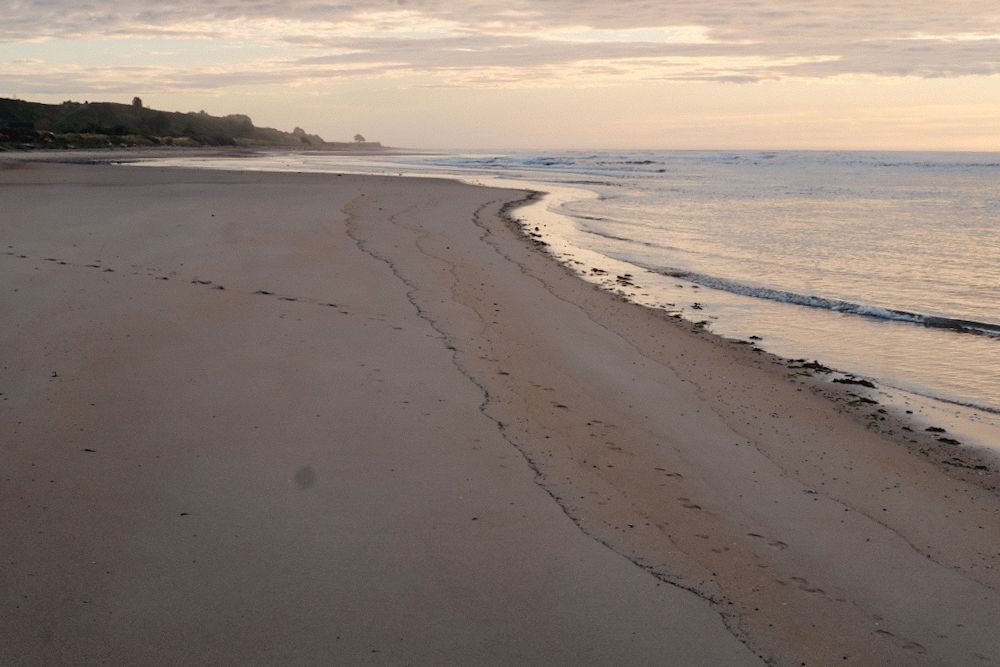
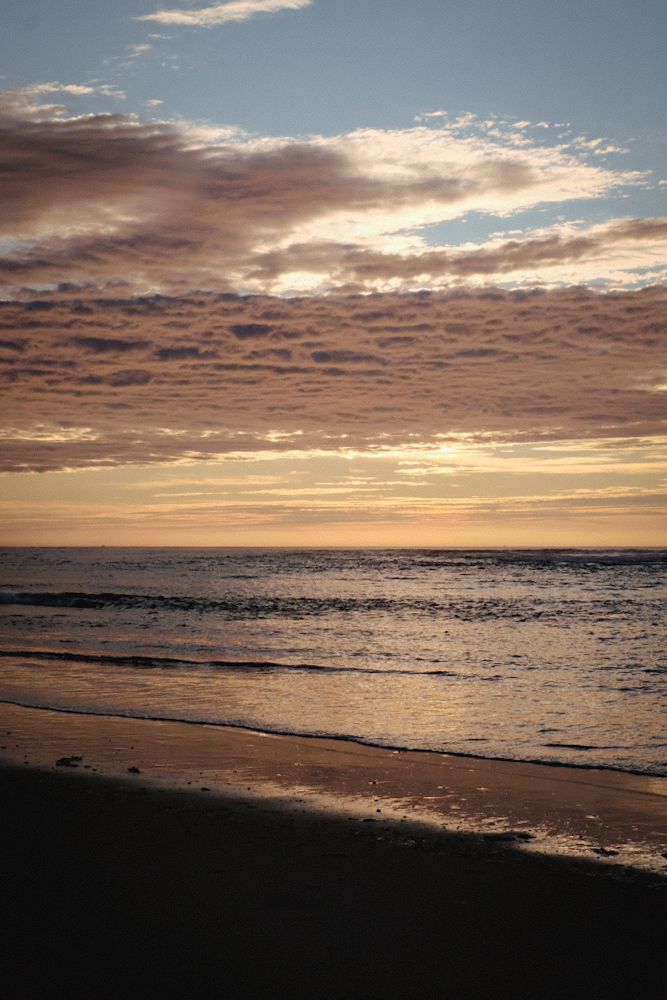
The village was still asleep as I made my way past the golf club and down to the beach. The only people around were a few dog walkers and me, enjoying the morning’s fresh air. The orange hues in the sky were perfectly reflected on the sand.

Discovering Color in Photography: A Shift in Perspective

For those interested in color theory, the use of complementary colors was striking—blue skies contrasted beautifully with the oranges in both the sky and the sand. I’m on a quest to explore my colorful side. While I still love black-and-white photography, this trip made me eager to embrace color.

My knee wasn’t even hurting; I felt fantastic. Maybe there’s something to be said about the sun’s healing powers. I made my way back to the car, carrying a lump of coal I’d found on the beach. It was too good a find to keep to myself. Surely, Killian would be up by now. Lesbury was only five minutes away. Oh, what the heck? I’ll go wake him up!

Father-Son Bonding: Revisiting Alnmouth Together

Killian was fine getting up and out with me. I only had to bribe him with a sandwich and some chocolate. We went back to Alnmouth together, and I took more pictures of the village. It was a very pleasant father-son bonding moment. He wanted to go to the post office or general store. They didn’t take cash, and for once, I was able to pay with my card for him.

Switching Editing Tools: From Snapseed to Mobile Lightroom

I recently talked about Snapseed and had been using it to edit my photos, but this time, I wasn’t happy with the results. The photos had so much potential, and I didn’t want to waste them. Some friends had recommended Lightroom Mobile, so I decided to give it a try. I already knew my way around Lightroom on the PC, and I felt right at home with the mobile version. It was very intuitive—almost as much as Snapseed. What a pleasant surprise!

So, I went back with Killian and took more pictures of the village. It turned into a wonderful father-son bonding moment. He wanted to visit the post office or the general store, but they didn’t accept cash. Luckily, I could pay with my card for him.

A Missed Opportunity: Scotts of Alnmouth

I was hoping to visit Scotts of Alnmouth, but they were closed. As we walked back to the car, I saw the owners heading to work and was invited to come back when they were open. Unfortunately, I never managed to return to taste their wonderful coffee and cakes. That was the only low point of the holiday. But as that Austrian strongman and actor famously said, “I’ll be back!” It’s good to be home.

I want it, but do I really need it?


The camera gear industry is a powerful beast and it tries to convince us that this piece of kit, that is conveniently in stock, will help you become that photographer that you are destined to be.  Be that in magazines, be that in youtube influencer videos that “try out the camera” that the manufacturer has just lent us to show you what it’s like.  I’ve watched loads of these videos especially when thinking about the kit I wanted to buy.  Come on in and I’ll make sure you have the best camera possible, and the best possible lens.  What’s your budget?  OK, I’m sure we can work something out.  What kind of photography do you want to do?  Well, you’ll need this, and this, and this, etc.

That nice man in the shop will be more than happy to take your money and sell a high end camera that will be a thing of beauty.  But look at the title again.  “I want it, but do I really need it?”  You have fallen into their trap.  I’m not trying to put down these sales people, and their wealth of knowledge, but know that there are other options out there.

I’m going to dare say it.  You don’t need the latest and greatest equipment to take great photos.  Instead prioritise value, and mindful shooting, over gear acquisition.  Think about boys and toys.  I get exactly the same feeling as you when I enter a camera store.  I want it all.  Of course I do.  Who doesn’t?  But,what would my wife say?  What would my bank manager say?  What would reason tell me instead of letting my emotions get the better of me?  Can I really justify this acquisition?  Do I really need it, or is there a less onerous solution?  I know.  I’ve just pissed on your bonfire, but it’s time for a reality check here…

So what can I do about that?  You can realise that there is a huge market of second hand gear out there.  I have taken this route in the past and have no regrets.  Yes, I did it my way…

Where do you go to discover all these hidden gems?  There is of course E-Bay, that huge online auction site which I used to acquire the majority of my film cameras.  When I was a customer of the site the film cameras were fairly cheap, since those pesky hipsters hadn’t cottoned on to the fact that film photography is cool.  So yes, each purchase was a gamble, but I had less money to lose, and the return would be greater.  The old cameras were simpler, the lenses were great, and there are still lots of examples of reasonable cameras out there.  Would I use it for digital?  Probably not.  I’m not really a gambling man, and don’t have a huge wad of cash that I am willing to possibly waste.

But E-Bay is not the only option.  There are various online sites such as mpb.com that have a very good reputation, and have tested each piece of equipment that they sell.  They give you an honest appraisal of the piece of kit and are honest about the state of said piece of kit.  They guarantee each purchase, and have a generous returns policy.  I might consider using it if I were interested in buying some new kit.  But at the moment I’m not.  There are also second hand areas of our beloved camera shops that will have used gear.  

When buying second hand, you will generally be spending less money, or at worst, getting more kit for your hard earned cash.  Older models of camera might not be as super duper as the latest models that look so sexy in that shop window, but for what most us mere mortals need, they are more than adequate.   You really have to look at which features are most important to you.  Thanks to you, there will be one less camera going to landfill.

Talking of features, let’s talk about the 80/20 rule.  For 80% of your photographs, you will use about 20% of your gear, and features on your camera. I urge you to identify the essential features for your type of photography (e.g., autofocus, image stabilisation, dynamic range), and maybe avoid spending money on features or lenses that you won’t use frequently.  Shutter speed when doing sports photography, or high dynamic range for landscape photography.  Is an F1.2 lens really what you need, or will F2.0 pr F2.8 still get the effect you want?

I’m going to talk about the X100F (again!) and compare it to the latest version from Fujifilm, the X100V and the X100VI

FeatureFujifilm X100FFujifilm X100VFujifilm X100VI
Sensor24.3MP APS-C X-Trans CMOS III26.1MP APS-C X-Trans CMOS 440.2MP APS-C X-Trans CMOS 5 HR Sensor
Lens23mm f/2 (35mm equivalent)23mm f/2 (35mm equivalent) with improved optics23mm f/2 (35mm equivalent) with further improved optics
Autofocus91-point hybrid autofocus425-point hybrid autofocus with improved face/eye detection425-point hybrid autofocus with further improved face/eye detection and subject tracking
ViewfinderHybrid viewfinder (optical/electronic)Hybrid viewfinder (optical/electronic) with improved EVFHybrid viewfinder (optical/electronic) with a larger and higher resolution EVF
Screen3-inch fixed LCD3-inch tilting touchscreen3-inch tilting touchscreen
Image StabilisationN/AN/A6-Stop In-Body Image Stabilization
Video1080p up to 60fps4K up to 30fps6.2K (cropped) and 4K up to 30fps
Weather SealingNoYesYes
Price (approx.)€800-€1000 (used)€1300-€1500 (used)€1700-€1800 (new)

Key Takeaways:

  • Sensor: The X100VI offers a significant resolution upgrade with its 40.2MP sensor, providing greater detail and flexibility for cropping compared to the X100V and X100F.
  • Lens: All three models share the same focal length, but the X100V and X100VI feature improved lens designs for better sharpness and close-focus performance.
  • Autofocus: The X100V and X100VI offer a substantial upgrade in autofocus points and performance compared to the X100F, making them better suited for fast-moving subjects and low-light situations.
  • Viewfinder: The X100VI has the most advanced viewfinder with a larger, higher resolution electronic viewfinder (EVF) and improved refresh rate.
  • Screen: The X100V and X100VI have tilting touchscreens, which can be helpful for composing shots from awkward angles, while the X100F has a fixed screen.
  • Video: The X100VI boasts the most advanced video capabilities, offering 6.2K recording with a crop, while the X100V is limited to 4K, and the X100F to 1080p.
  • Weather Sealing: Both the X100V and X100VI offer weather sealing, making them more durable in adverse conditions compared to the X100F.
  • Price: The X100F remains the most affordable option, especially on the secondhand market. The X100V offers a good balance of features and price, while the X100VI is the most expensive but comes with the latest technology.

Ultimately, the choice depends on your budget, needs, and priorities. If you need the highest resolution and advanced video features, the X100VI is the way to go. If you prioritize value and portability, the X100F is still a great option. The X100V sits in the middle, offering a good balance of features and price.

If you are a professional, then I think the same logic will apply.  Even though a nice kit is an investment you need to consider the returns on your investment?  Is the purchase justified and will it bring more work for you?  Will it expand my offer enough?  If you are an amateur, then you can spend any amount of money you want, but if you could do more, with less, wouldn’t that be an appealing option? Have I not managed to convince you yet? Look at the film archives… And look at the pictures from the X100F

Optimizing Images On-the-Go: Mobile Photography Editing Guide


Introduction

As the title suggests, I will describe my workflow when out and about. While there are surely other ways to do it, this is my method. It works and has stood the test of time. I usually wander around taking photos, then find a café to sit down and transfer my images to my phone. Everything is better with a nice cup of tea (or coffee) and a piece of cake.

Downloading Photos to Your Phone

Most cameras today can connect to phones via Bluetooth or Wi-Fi. My two Fujis (X100F and XT2) and my Canon (6D Mark II) certainly can. I enable Wi-Fi on my camera and connect it directly to my phone. Next, I open the corresponding app—Canon Camera Connect for my Canon and Fujifilm Camera Remote for my Fujis. Each manufacturer provides its own app for Android or Apple devices. Once the camera is connected to my phone, I can import my photographs, selecting the images I prefer.

Sorting Photos

Now comes the fun bit: sorting through all those wonderful shots you took and deciding which ones are worth working on and editing. When I transfer my images from my camera to my phone, the phone creates a folder for the imported photos. Different apps will put them in different places, so I’ll leave that to you to manage. As a rule of thumb, you will see them in the gallery app, which will show you your latest photos.

In the gallery app, you can sort your photos by date taken, favourite images, or the place where the photo was taken.

I will assume you have read my last few articles on Photography 101, composition, and the types of lenses available and how to use them, or at least how I use them. If you haven’t had that pleasure, then go and have a read…

Is the photo worthy of publication, and are you happy with it representing your talent as a photographer? Is the image in focus? Is the image well exposed? Does it fulfil its storytelling role? Will it add to your narrative? Or simply, do you like it enough to want to share it?

Let’s assume that you answered yes. You then get to share your image to Snapseed.

Editing in Snapseed

Starting with Styles:

I like to begin by using the “Portrait” style. It is a preset that gives the photo a subtle glow and some vignette. I just seem to like it, and when you have something you like that flatters your image, you are tempted to stick with it. Most times, this will work a treat on well-exposed images. But let’s imagine that you have exposed for the highlights and that your shadows are “too dark” and you want to bring them up a bit. Then I would go to the “Tools” section and use the Tune Image.

En aparté:

When exposing in digital photography, we expose for the highlights, as it is easy to lighten, or “bring up” the shadows, and we don’t want to “blow out” our highlights and just turn it into a mass of white. In film photography, it’s the opposite. We expose for the shadows, as film has more difficulties capturing details in the shadows especially in a photo with lots of light.

Using the Tools

As I inferred in the title, this is my workflow, and shows the way I use Snapseed. There’s a whole load of tools to stylise your image and to completely change the look of it, but I’m more of a “less is more” disciple when editing. Also most apps out there will have similar tools, so you can carry this knowledge with you across the board.

Crop Tool:

One thing I learnt early one is to KISS, i.e. Keep it simple stupid. Sometimes I will have an element in my photo that distracts from my subject. With the crop tool I can just crop the image and make it disappear. I can also use the crop tool to format the image to fit certain social media post settings. I’m thinking about you Instagram and Facebook. Try searching google for social medi formats and you will be inundated with results.

Healing Tool:

Sometimes the crop isn’t enough to take away distracting elements from our photo. You might have a beautiful shy and want to get rid of that Jumbo Jet in the sky. One way of doing that is to wait until the Jumbo Jet has flown away, but let’s say that it’s too late… Using the healing tool will clone part of the image and replace the Jumbo Jet that just wants to noticed and validated man! To get the best results it’s better to zoom into the image and have a smaller area to work on.

Tune Image:

This is where I do the basic edits, bringing up the shadows or bringing down the highlights. I usually keep it to that. At a push, I will bring up the brightness if the photo has been underexposed. Somtimes I will add a little contrast but I tend not to use the other tools. I don’t want to denautre the photograph.

Rotate Tool:

We should always try and keep our horizons straight, except when making the conscious decision not to. The rotation tool tries to straighten what it thinks should be straight. It generally works quite well, but you do have total control as well as a grid to check the lines in your photo.

Brush Tool:

This is where we can do our burning and dodging. You can choose to highlight a certain area and darken others to emphasise your subject. This brings the photo to life. There are tutorials galore on YouTube that go into more detail than I will in this “basics” article.

Black and White Tool:

Welcome to the world of black and white conversion. It’s a process that a majority of my photography goes through. You can, of course, just use the saturation tool in the “Tune Image” section, and you will get a monochrome image. But you can do so much more.

So, let’s do so much more. The black and white tool offers you some presets which might correspond to your taste. I tend to leave them alone and instead press on the circle that will give a series of colour filters to choose from. This is a direct link back to black and white film photography, and you know how much I love that. I love using the red filter, which, as in film photography, will make your blues darker. This is beautiful for those landscape photos where you want a dark sky to complement those fluffy white clouds.  It’s also my default film simulation on the X100F that I use for all my street photography.  It’s just a look that I fell in love with years ago.
The other common filters are all covered too.

  • Orange:  Orange filters give stronger effects than  yellow filters but are not as bold and dramatic as a red. It is therefore an ideal choice to span the effects given by both these filters.  Blue skies will be recorded in very dark tones on the print, giving bold contrast between the sky and clouds. An orange filter will also penetrate haze and fog. Most flowers will be recorded with a significant difference in tone from the surrounding foliage giving impact and effect.
  • Yellow, the general purpose black and white filter,
  • Green:  When photographing foliage in black and white, a green filter is used almost exclusively.  It lightens green foliage, which is particularly important with dark green leaves which can record very dark without a filter. It therefore gives a more natural, lighter feel to the photograph.
  • Blue: A blue filter is not often associated with black & white photography however, it can really add “mood” to a photograph by increasing the effect of haze or fog.  It also lightens blues and darkens yellows, oranges and reds which helps separation in scenes containing a mix of colours.

Export

You have two options.  You can either press on “done” and Snapseed will record your image in the Snapseed folder and in your gallery in the Album neamed Snapseed, or you you can press “share “and you will be presented with various options on how to share your image, to Instagram, via gmail etc.

Before you do that you can press on settings where you can change the resolution of the image that will be exported.  This can help if you need to reduce the image to take up less space on your phone, or if you’re loading the photo up to a website and you require a “lighter” image.

Conclusion

You now have an idea about how I edit my images on the go, and the more time goes on, the more I do it this way.  Is it the same as Lightroom on my computer?  No.  I can’t have as much control as in Lightroom. I can’t batch edit, I can’t do this or that, but I can manage without, especially on the go.  There are of course other options for photo editing on the go like Lightroom mobile,VSCO, your native photo editor app on your phone.  As I said at the beginning of the article this is how “I” do things.  It works for me.  Try it out and it might just work for you too!

Photo Editing On The Go With Snapseed


INTRODUCTION

Twenty-two years ago, I was fired from the job that took me away from Paris to the French countryside where I now live. In hindsight, it was one of the best things that ever happened to me. Sometimes we need that shove beyond our control to nudge us in a different direction.

At the time, I was already into this new thing called the internet that was becoming more and more mainstream. I wanted to learn all I could before my children would teach me. So, I learnt. I even trained to be an “infographiste,” which is similar to a webmaster, now known as a web developer.

AN ENGLISHMAN IN VENDÉE

I learned how to use QuarkXpress, Indesign, Dreamweaver, Photoshop, and Illustrator. I also learned how not to be afraid of opening up a computer and getting in there with a screwdriver. I had this amazing idea of creating a website called “An Englishman in Vendée” to showcase outings with my young son around the area. I took photos with a “webcam” which was about the size of a GoPro but compared to what we have twenty years on, was anything but pro. At the time, I dreamt of having portable internet, portable editing software, and a means of sharing those pictures online.

I would have to wait a while. In 2024, I have a Samsung S20 FE and I now have all I need to do that, on the go! I can even transfer the photos from my high-end digital camera to my phone, edit the images on my phone, and publish them either on my website (no longer Geocities) or on social media.

WELCOME TO SNAPSEED

Now I use “Snapseed” for editing my photos, WordPress for writing my articles, and Chat GPT to give my articles structure and a writing plan. All this in a device that fits into my pocket.

So, what is Snapseed? It’s an app that I recommend to anyone who needs to edit pictures on the go. It is available for Android and Apple devices, so you’re all covered. But why Snapseed? Well, it’s free, simple to use, and has all the tools you need for editing. It’s intuitive and comprehensive. I particularly like the Tune Image section, where I find all the tools I use for basic edits in Lightroom on my PC. The Rotate tool helps me check horizons, and the Black and White tool gives me full control over the conversion process.

Snapseed is a non-destructive editing programme (app) that uses your original file, whether RAW or JPEG, and allows you to edit to your heart’s content. Can it do everything Lightroom can? No. Is it trying to? Still no. It adds some nice “style filters” in the tool section that allow you to have fun. The more serious photo editor will probably stick to the basic tools that still allow them to get the results they need “on the go.” I use it during shoots to give sitters an idea of what their shots will look like. These first “draft” images are perfect for sharing on social media.

KEEP IT SIMPLE WITH SNAPSEED

I’ve talked about KISS in the past, and I’m going to mention it today too. KISS – Keep it Simple Stupid! Snapseed is deceivingly simple when you look at the user interface, but it has a range of tools that help you achieve the look you want.

It starts by offering you three basic options: Styles (similar to presets), Tools (where you can fine-tune everything), and Export (where you go to export your edited photo).

STYLES

Styles are essentially presets in other software, and Snapseed offers a variety of styles:

In the next article, we’ll talk about the various tools Snapseed offers to help you edit on the go. I will walk you through my basic editing process, showing you which tools I use and how I use them. Remember the 80/20 rule: 80% of your editing can be done with 20% of the available tools. So be patient, and you will be rewarded for your patience. See you in the next one!